How to Create a User in Windows Server
Creating a separate user account in Windows Server is useful when more than one person needs access to a server. Instead of sharing the built-in Administrator account, you can create individual accounts with their own usernames, passwords, and permissions. On a Windows VPS, separate user accounts can make access easier to manage when multiple administrators, […]
Creating a separate user account in Windows Server is useful when more than one person needs access to a server. Instead of sharing the built-in Administrator account, you can create individual accounts with their own usernames, passwords, and permissions.
On a Windows VPS, separate user accounts can make access easier to manage when multiple administrators, developers, or support staff need to connect to the server.
This guide explains how to create a local user in Windows Server using the graphical interface and PowerShell, how to give the account Remote Desktop access when required, and how to verify the account afterward.
Important: This guide covers local Windows Server user accounts. If your server is a domain controller running Active Directory Domain Services (AD DS), domain users are managed through Active Directory rather than the local-user workflow described here.
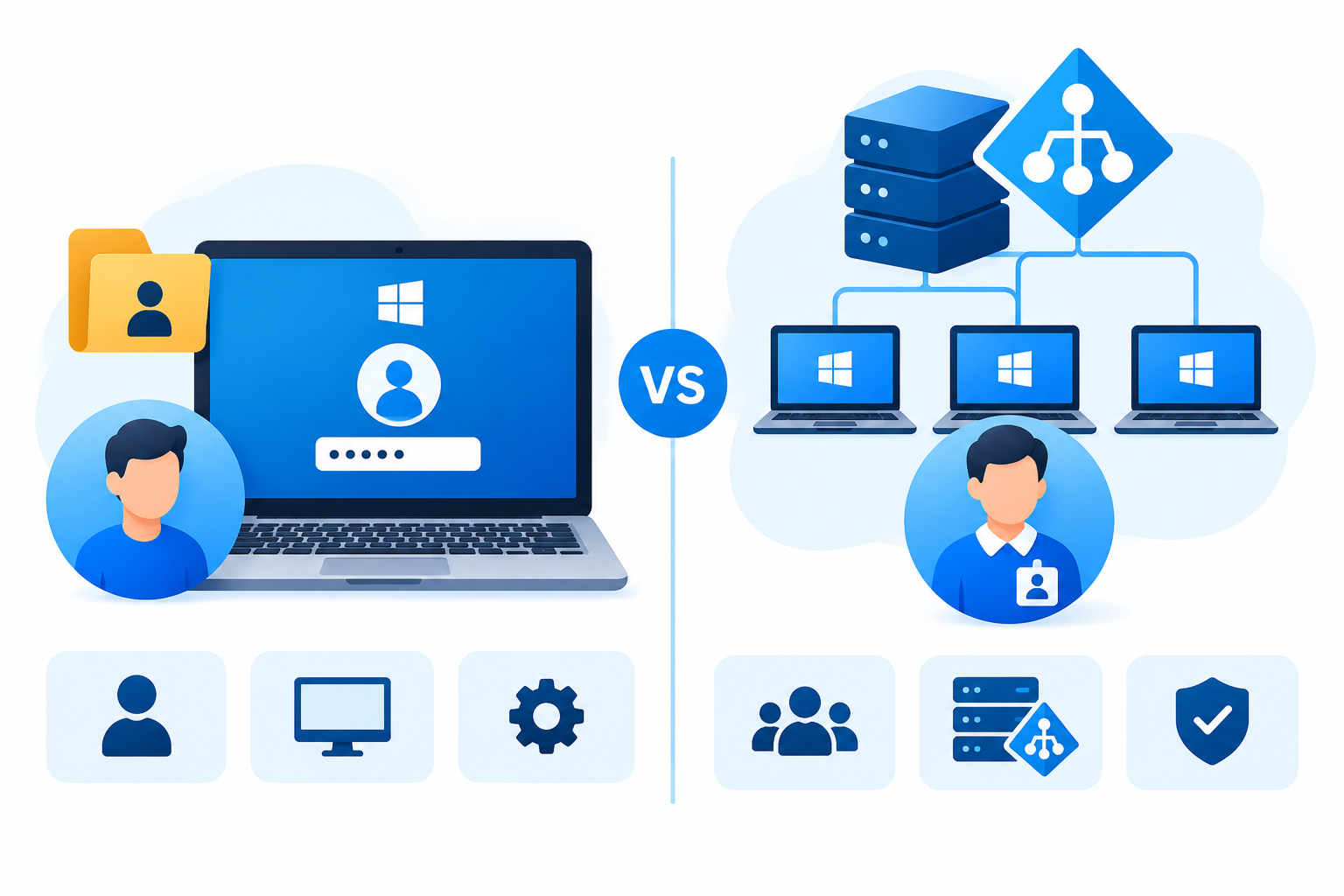
Local User vs Domain User
Before creating an account, it is important to know which type of account you need.
| Account type | Where it is managed | Typical use |
| Local user | Local Users and Groups | Standalone Windows Server or Windows VPS |
| Domain user | Active Directory | Organizations using an Active Directory domain |
A local account is managed by the individual Windows Server and is generally used for access to that server. Domain accounts are managed through Active Directory and can be used across a domain according to the organization’s policies.
If you are managing a typical Windows VPS that is not a domain controller, a local user account is usually the appropriate option.
What You Need Before Creating the User
Before creating the account, make sure you have an account with sufficient administrative privileges.
You should also decide:
- The username for the new account.
- Whether the account needs Remote Desktop access.
- Whether the user needs administrator privileges.
- Which files, folders, or applications the user needs to access.
- Whether the account is permanent or temporary.
Security tip: Do not make every user a local administrator simply because they need to log in to the server. Give administrative privileges only when they are actually required.
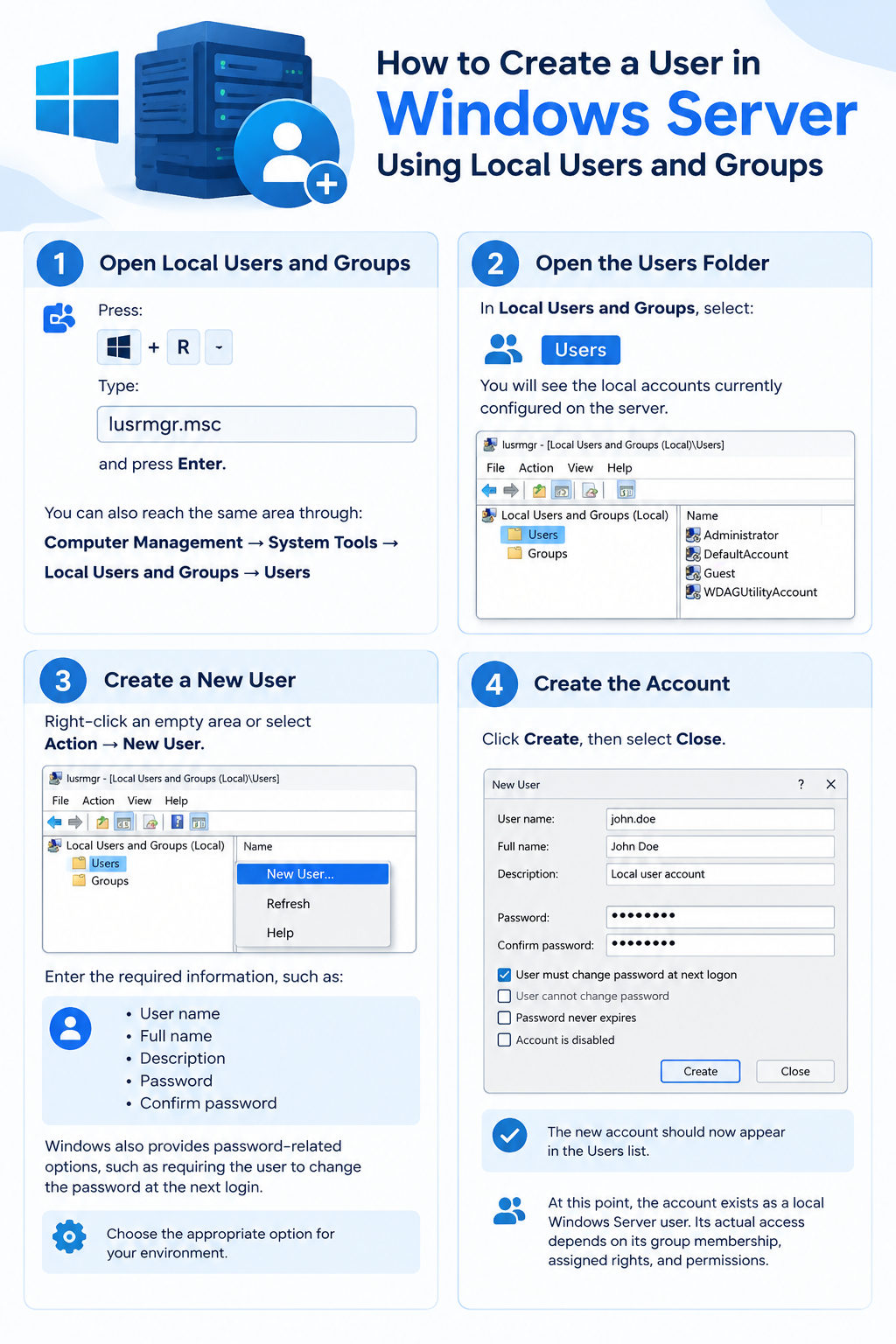
How to Create a User in Windows Server Using Local Users and Groups
The Local Users and Groups console provides a straightforward way to create a local Windows Server account.
Step 1: Open Local Users and Groups
Press:
Windows + R
Type:
lusrmgr.msc
and press Enter.
You can also reach the same area through:
Computer Management → System Tools → Local Users and Groups → Users
Step 2: Open the Users Folder
In Local Users and Groups, select:
Users
You will see the local accounts currently configured on the server.
Step 3: Create a New User
Right-click an empty area or select Action → New User.
Enter the required information, such as:
- User name
- Full name
- Description
- Password
- Confirm password
Windows also provides password-related options, such as requiring the user to change the password at the next login.
Choose the appropriate option for your environment.
Step 4: Create the Account
Click Create, then select Close.
The new account should now appear in the Users list.
At this point, the account exists as a local Windows Server user. Its actual access depends on its group membership, assigned rights, and permissions.
How to Create a User in Windows Server Using PowerShell
PowerShell is useful when you prefer command-line administration or need to create accounts as part of a repeatable administration process.
Open PowerShell as Administrator and run:
$Password = Read-Host “Enter password” -AsSecureString
New-LocalUser -Name “john” -Password $Password -FullName “John Smith” -Description “Server user”
Replace john and the other details with the information for your user.
The Read-Host command prompts for the password securely instead of placing the password directly in the command.
Verify the User
After creating the account, run:
Get-LocalUser -Name “john”
You should see information about the account, including its enabled status.
The New-LocalUser cmdlet is specifically designed to create local user accounts, while Get-LocalUser can be used to retrieve local account information.
PowerShell note: The Microsoft.PowerShell.LocalAccounts module is used for these commands. Its availability can vary depending on the PowerShell environment.
How to Give a Windows Server User Remote Desktop Access
Creating a local user does not automatically mean that the account should be allowed to connect through Remote Desktop.
If the user needs to connect to your Windows VPS using RDP, you can add the account to the Remote Desktop Users group.
Using Computer Management
- Open Computer Management.
- Go to Local Users and Groups → Groups.
- Open Remote Desktop Users.
- Select Add.
- Enter the username.
- Confirm the account and save the changes.
Using PowerShell
You can also run:
Add-LocalGroupMember -Group “Remote Desktop Users” -Member “john”
Verify the membership with:
Get-LocalGroupMember -Group “Remote Desktop Users”
Important RDP Consideration
Being a member of Remote Desktop Users is part of the access configuration, but it does not override other security policies.
If the user still cannot connect, check:
- Whether Remote Desktop is enabled.
- Whether the account is permitted to connect remotely.
- Whether the Windows Firewall permits the connection.
- Whether a local or domain security policy allows Remote Desktop logon.
- Whether the account is subject to a Deny log on through Remote Desktop Services policy.
This is an important distinction because a correctly created user can still be prevented from logging in through RDP by another Windows security setting.
How to Make a Windows Server User an Administrator
Only give administrator privileges when the user actually needs them.
To add the account to the local Administrators group using PowerShell:
Add-LocalGroupMember -Group “Administrators” -Member “john”
You can verify the membership with:
Get-LocalGroupMember -Group “Administrators”
A member of the local Administrators group has extensive control over the server, including the ability to make system-level changes.
Use Administrator Access Carefully
If a user only needs to:
- Connect through RDP
- Run a particular application
- Access specific files
- Perform routine work
they may not need administrator privileges.
Start with the minimum access required and add additional permissions only when necessary.
How to Verify the New Windows Server User
After creating the account, verify both the account itself and any groups you assigned.
To check the account:
Get-LocalUser -Name “john”
To check Remote Desktop membership:
Get-LocalGroupMember -Group “Remote Desktop Users”
To check administrator membership:
Get-LocalGroupMember -Group “Administrators”
If the account will be used for RDP, perform a test login using the new account while keeping your existing working administrative session available.
This is safer than immediately replacing your primary administrative account.
Common Problems When Creating a Windows Server User
The User Cannot Connect Through RDP
First verify that:
- The username and password are correct.
- The account is enabled.
- The user has been granted Remote Desktop access.
- Remote Desktop is enabled.
- Windows Firewall permits the connection.
- A local or domain security policy is not blocking Remote Desktop logon.
If the user is in Remote Desktop Users but still receives a logon error, check the applicable user-right assignments and any Deny log on through Remote Desktop Services policy.
The User Can Log In but Cannot Perform an Administrative Task
The account may be a standard user rather than a member of the local Administrators group.
Check the group membership before granting additional privileges.
Avoid adding the user to Administrators simply to solve an unrelated permissions problem.
Windows Says the Username Already Exists
The requested username may already be configured as a local account.
Check existing local users with:
Get-LocalUser
If the account already exists, determine whether it is the intended account before creating another one.
The User Was Created but Cannot Access a Folder
Creating a user does not automatically give that account access to every file or folder on the server.
File and folder permissions are controlled separately.
If the user only needs access to a particular directory, configure the appropriate permissions for that resource rather than automatically making the user an administrator.
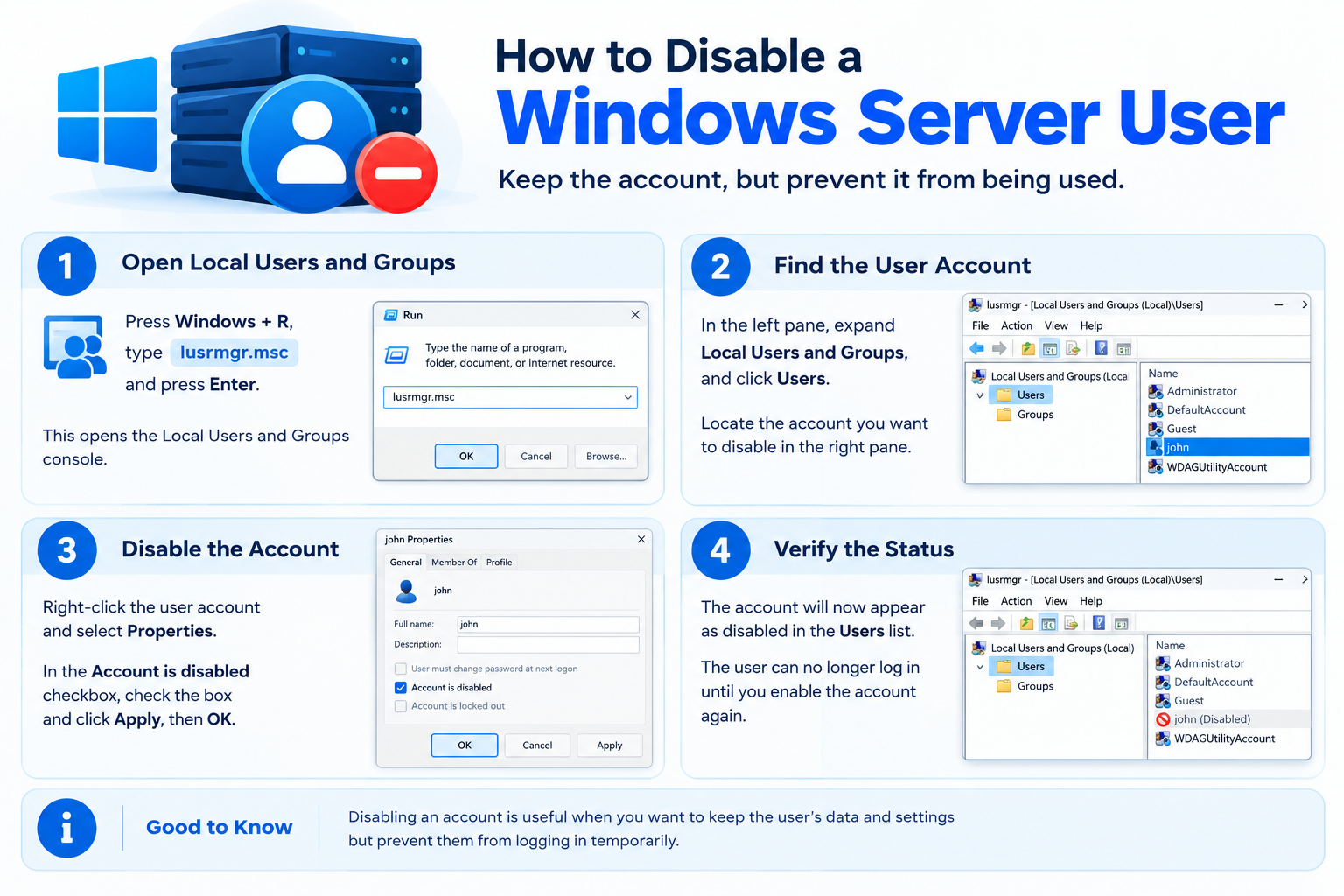
How to Disable a Windows Server User Later
If an account was created for a temporary employee, developer, contractor, or support requirement and is no longer needed, consider disabling it instead of leaving an unnecessary active account on the server.
Using PowerShell:
Disable-LocalUser -Name “john”
You can verify its status with:
Get-LocalUser -Name “john”
A disabled local account cannot be used to log on until it is enabled again.
This is useful when you need to retain the account and its configuration but temporarily prevent access.
Best Practices for Windows Server User Accounts
When creating users on a Windows VPS, keep account management simple and security-focused.
Use individual accounts
Avoid sharing one Administrator username and password between multiple people.
Limit administrator privileges
Only add a user to the Administrators group when administrative access is actually required.
Use strong passwords
Accounts that can connect remotely should use strong, unique passwords.
Give users only the access they need
If someone needs access to one application or folder, do not automatically give them full server administration rights.
Review unused accounts
Disable accounts that are no longer required, particularly accounts created for temporary access.
Keep a working administrative account available
When testing a new account, do not lock yourself out by disabling or modifying your only known working administrative account.
When Should You Create a New Windows Server User?
Creating a separate local account makes sense when:
- Another administrator needs individual server access.
- A developer needs access to a Windows VPS.
- A support employee needs Remote Desktop access.
- Multiple people manage the same Windows Server.
- You want to avoid sharing administrator credentials.
- A temporary user needs controlled server access.
If someone only needs access to a particular application or folder, consider whether they actually need full Remote Desktop or administrator access.