How to Log In to WordPress
To log in to WordPress, you normally need your website’s WordPress login URL, username or email address, and password. In most cases, you can open the login screen by adding /wp-admin/ or /wp-login.php to your website address. For example: https://example.com/wp-admin/ This guide shows you how to access the WordPress Dashboard, recover a forgotten password, and […]
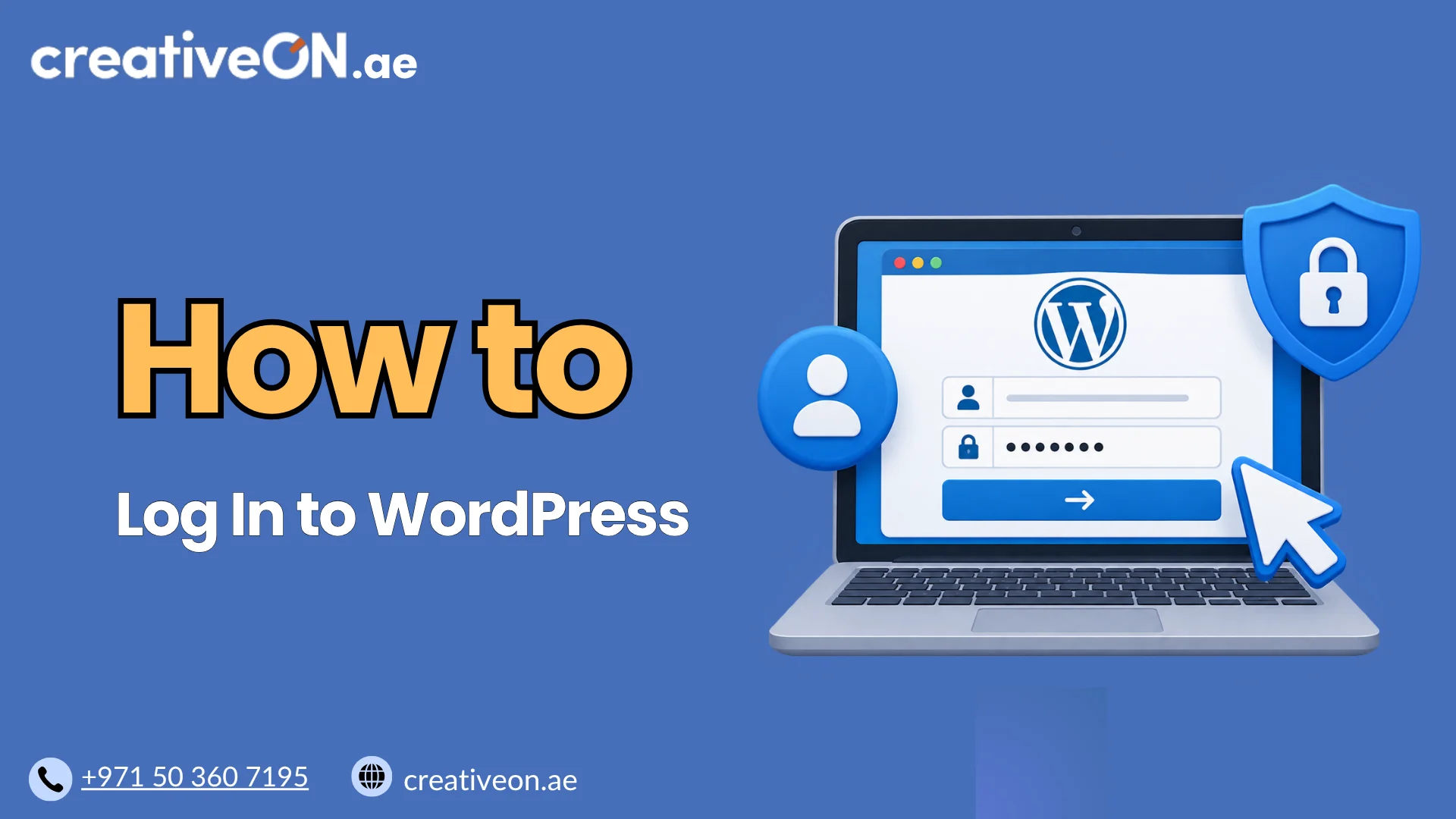
To log in to WordPress, you normally need your website’s WordPress login URL, username or email address, and password. In most cases, you can open the login screen by adding /wp-admin/ or /wp-login.php to your website address.
For example:
https://example.com/wp-admin/
This guide shows you how to access the WordPress Dashboard, recover a forgotten password, and fix a few common login problems without getting into advanced WordPress administration or troubleshooting.
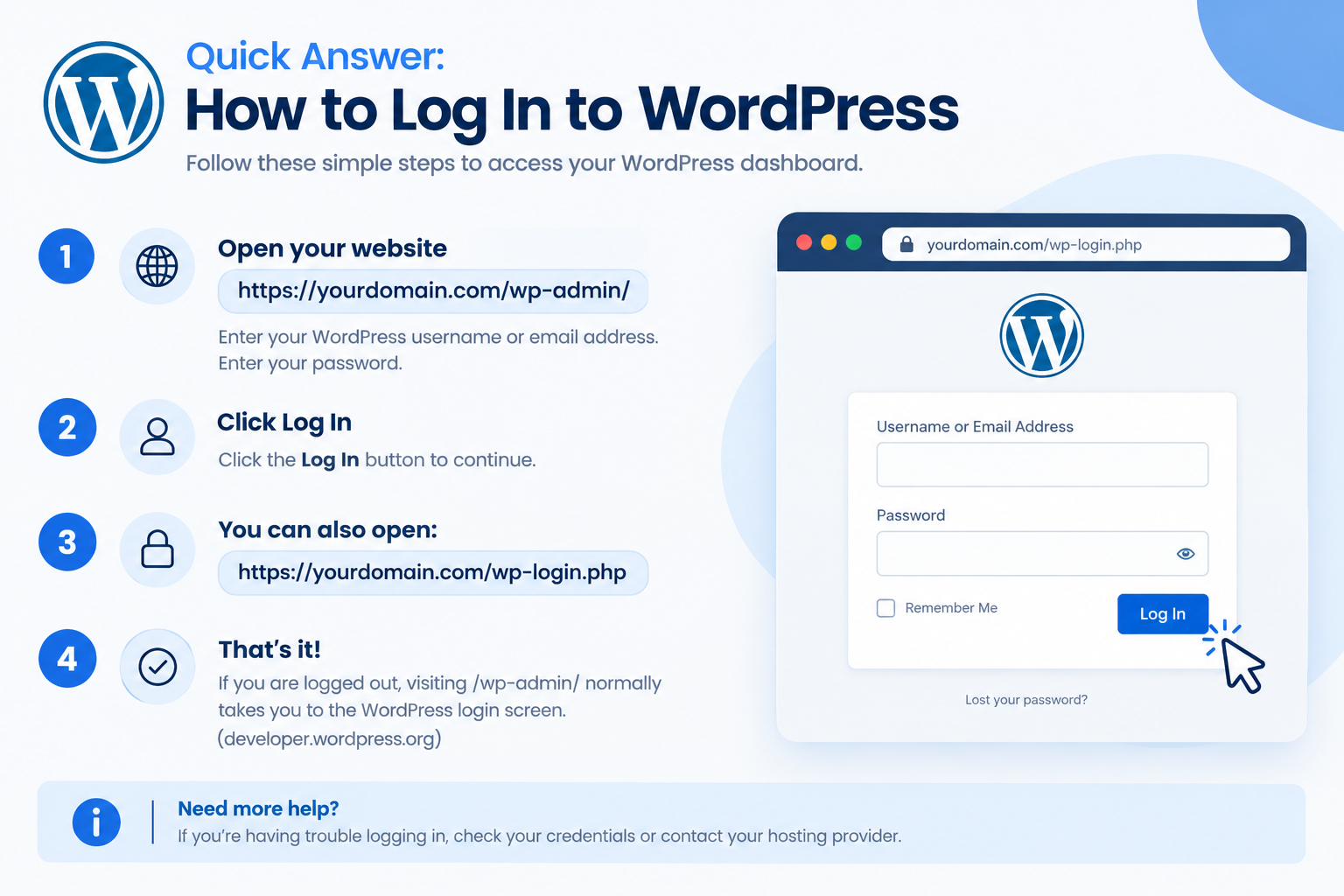
Quick Answer: How to Log In to WordPress
To access your WordPress Dashboard:
- Open https://yourdomain.com/wp-admin/
- Enter your WordPress username or email address.
- Enter your password.
- Click Log In.
You can also open:
https://yourdomain.com/wp-login.php
If you are logged out, visiting /wp-admin/ normally takes you to the WordPress login screen. (developer.wordpress.org)
What You Need to Log In to WordPress
Before logging in, make sure you have:
- Your WordPress website address
- Your WordPress username or email address
- Your WordPress password
- Access to the email account associated with your WordPress user if you need to reset your password
Your WordPress login details are normally separate from your hosting account credentials. For example, the password you use to access your hosting control panel may not be the same password you use for WordPress.
How to Log In to WordPress
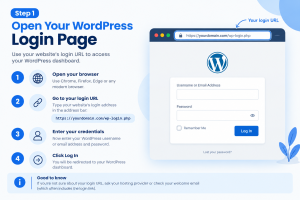
Step 1: Open Your WordPress Login Page
Open your website in a browser and add /wp-admin/ to the end of the domain.
For example:
https://example.com/wp-admin/
You can also use:
https://example.com/wp-login.php
The wp-login.php file is WordPress’s standard login endpoint. (developer.wordpress.org)
Always use the HTTPS version of your website when logging in if HTTPS is enabled.
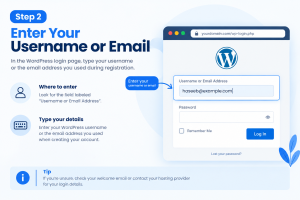
Step 2: Enter Your Username or Email
On the login screen, enter your WordPress username or the email address associated with your WordPress account.
WordPress supports logging in with either a username or an associated email address. (developer.wordpress.org)
Step 3: Enter Your Password
Enter your WordPress password.
Check that:
- Caps Lock is not accidentally enabled.
- You have not copied an extra space into the password field.
- Your browser is not automatically filling an outdated password.
Step 4: Click “Log In”
Select Log In.
If your credentials are correct, WordPress will take you to the Dashboard.
The Dashboard is the administration area where authorized users can manage the website.
What Is the WordPress Login URL?
Most WordPress installations use one of these two URLs:
| Login address | Purpose |
| https://example.com/wp-admin/ | Opens the WordPress administration area and normally redirects logged-out users to the login screen |
| https://example.com/wp-login.php | Opens the WordPress login screen directly |
If WordPress is installed in a subdirectory, the URL will include that directory.
For example:
https://example.com/blog/wp-admin/
or:
https://example.com/blog/wp-login.php
So if /wp-admin/ does not work, first check whether WordPress is installed at the main domain or inside a subdirectory.
Can You Log In to WordPress From Your Hosting Account?
Some WordPress hosting providers offer a shortcut to the WordPress Dashboard from the hosting control panel.
Depending on the hosting platform, it may be labelled:
- Manage WordPress
- WordPress Manager
- WordPress Toolkit
- Login to WordPress
- WordPress Admin
If your hosting account provides this option, you may be able to access WordPress without manually entering the login URL.
If your hosting panel does not provide a WordPress login shortcut, simply use /wp-admin/ or /wp-login.php.
Forgot Your WordPress Password?
If you cannot remember your WordPress password, you normally do not need to contact your hosting provider immediately.
On the WordPress login screen:
- Select Lost your password?
- Enter your username or WordPress account email.
- Submit the password-reset request.
- Check your email for the reset instructions.
- Create a new password.
- Return to the WordPress login page and sign in.
WordPress provides this built-in password recovery method for users who have access to the email associated with their account. (wordpress.org)
If the email does not arrive, check your Spam, Junk, or other filtered folders.
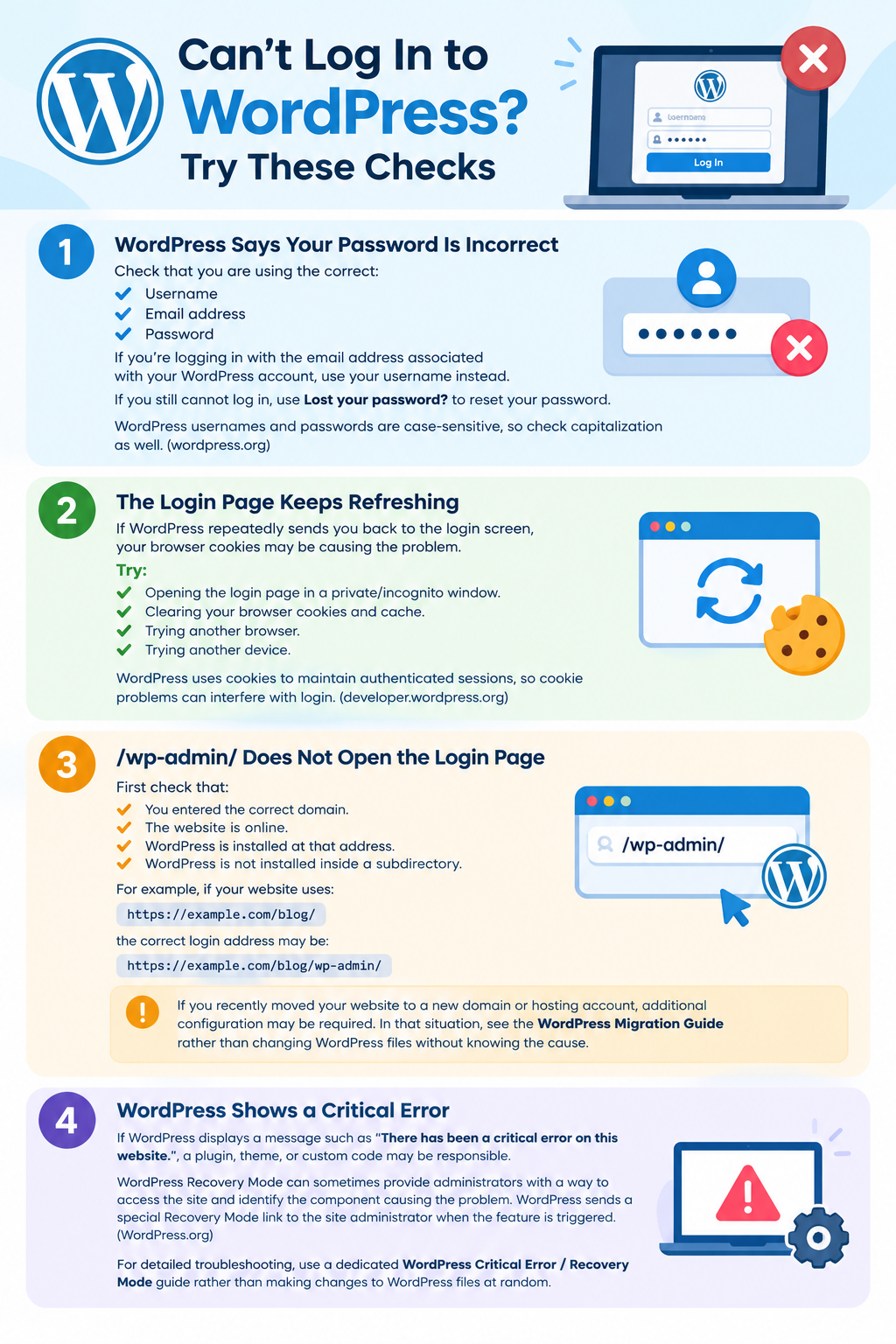
Can’t Log In to WordPress? Try These Checks
If your WordPress login is not working, start with the simple checks below before making technical changes.
1. WordPress Says Your Password Is Incorrect
Check that you are using the correct:
- Username
- Email address
- Password
Try logging in with the email address associated with your WordPress account if you normally use your username.
If you still cannot log in, use Lost your password? to reset your password.
WordPress usernames and passwords are case-sensitive, so check capitalization as well. (wordpress.org)
2. The Login Page Keeps Refreshing
If WordPress repeatedly sends you back to the login screen, your browser cookies may be causing the problem.
Try:
- Opening the login page in a private/incognito window.
- Clearing your browser cookies and cache.
- Trying another browser.
- Trying another device.
WordPress uses cookies to maintain authenticated sessions, so cookie problems can interfere with login. (developer.wordpress.org)
3. /wp-admin/ Does Not Open the Login Page
First check that:
- You entered the correct domain.
- The website is online.
- WordPress is installed at that address.
- WordPress is not installed inside a subdirectory.
For example, if your website uses:
https://example.com/blog/
the correct login address may be:
https://example.com/blog/wp-admin/
If you recently moved your website to a new domain or hosting account, additional configuration may be required. In that situation, see the WordPress Migration Guide rather than changing WordPress files without knowing the cause.
4. WordPress Shows a Critical Error
If WordPress displays a message such as “There has been a critical error on this website,” a plugin, theme, or custom code may be responsible.
WordPress Recovery Mode can sometimes provide administrators with a way to access the site and identify the component causing the problem. WordPress sends a special Recovery Mode link to the site administrator when the feature is triggered. (wordpress.org)
For detailed troubleshooting, use a dedicated WordPress Critical Error / Recovery Mode Guide rather than making changes to WordPress files at random.
WordPress Login vs Hosting Login
It is important not to confuse your WordPress login with your hosting login.
| Login | What it normally gives you access to |
| WordPress login | WordPress Dashboard and website management |
| Hosting login | Hosting control panel and hosting-related services |
| Domain account login | Domain registration and domain management |
For example, being able to log in to your CreativeON hosting account does not necessarily mean you can use those same credentials to log in to WordPress.
Your WordPress administrator account has its own username/email and password.
Keep Your WordPress Login Secure
Your WordPress login protects access to your website, so use a few basic security practices.
Use a Strong Password
Use a long, unique password that you do not reuse on other websites.
Avoid passwords based on:
- Your company name
- Your domain name
- Common words
- Simple number combinations
- Personal information
A password manager can help you create and store unique passwords.
Don’t Share Administrator Credentials
If another person needs access to your website, create a separate WordPress user instead of sharing your administrator password.
This makes it easier to control access and remove the account when it is no longer needed.
Consider Two-Factor Authentication
Two-factor authentication adds another verification step after the password.
It can provide additional protection if someone obtains your WordPress password. WordPress documentation recommends multi-factor authentication as an additional security measure. (developer.wordpress.org)
For broader protection recommendations, see our WordPress Security Guide.
Common WordPress Login Mistakes
Before assuming that your WordPress installation is broken, check these common mistakes:
- Using the wrong website address.
- Forgetting /wp-admin/ or /wp-login.php.
- Using an old saved password.
- Confusing hosting credentials with WordPress credentials.
- Entering the wrong email address.
- Forgetting that WordPress may be installed in a subdirectory.
- Repeatedly trying an incorrect password instead of using password recovery.
- Ignoring browser cookie problems.
In many cases, one of these simple issues explains why a user cannot access the WordPress Dashboard.