How to Delete a WordPress Page or Post (and Restore It)
Deleting a page or post is a routine part of managing a WordPress website. You may need to remove outdated information, clean up test content, replace an old article, or delete a page that is no longer relevant. WordPress makes this process simple through its built-in Trash feature. However, moving content to Trash is different […]
Deleting a page or post is a routine part of managing a WordPress website. You may need to remove outdated information, clean up test content, replace an old article, or delete a page that is no longer relevant.
WordPress makes this process simple through its built-in Trash feature. However, moving content to Trash is different from permanently deleting it. Understanding the difference can help you avoid losing important content and prevent unnecessary website or SEO problems.
In this guide, you’ll learn how to delete a WordPress page or post, permanently remove unwanted content, restore deleted items, and manage content safely.
How to Delete a WordPress Page
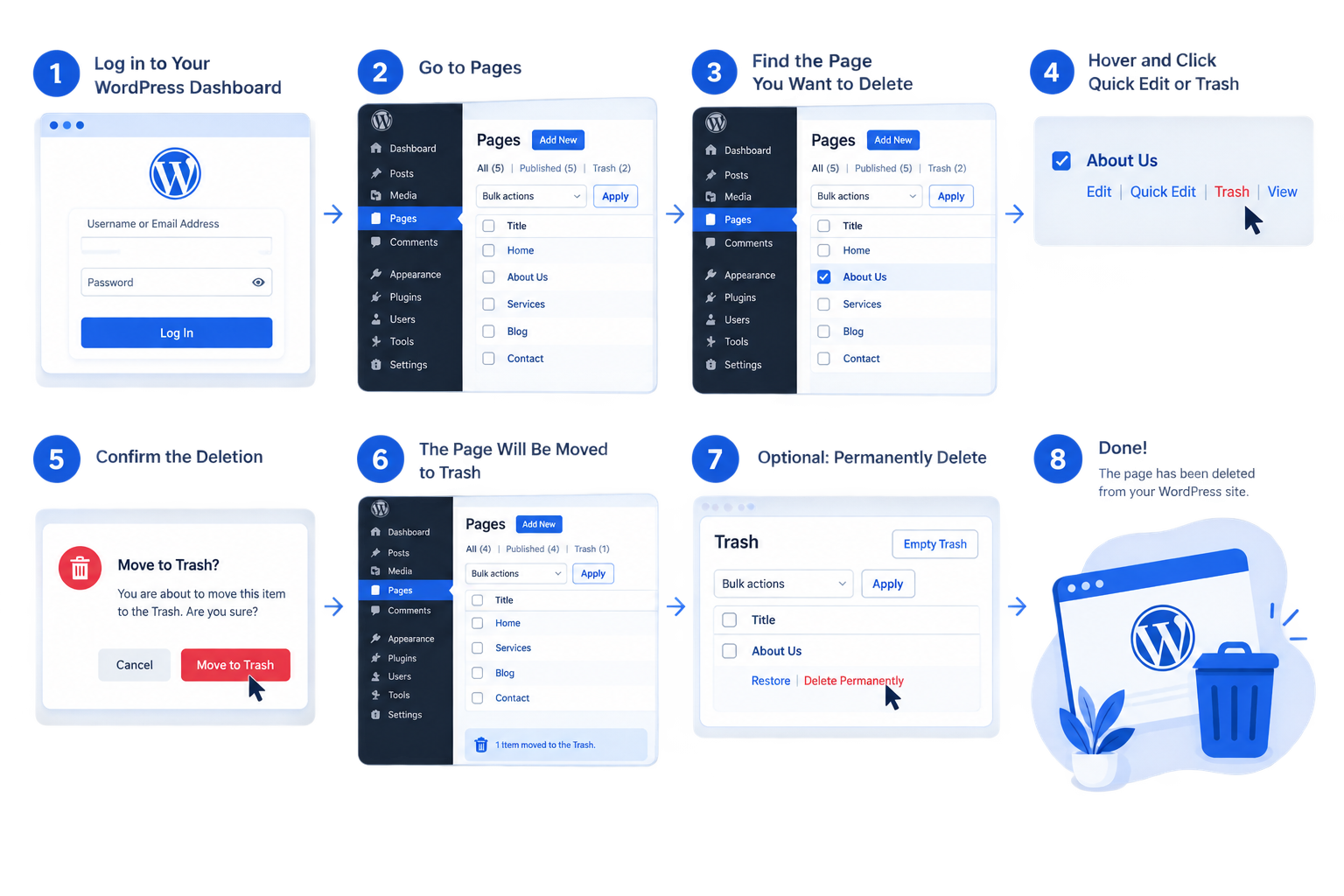
Follow these steps to remove a page from your WordPress website.
- Log in to your WordPress dashboard. Open your website’s administration area, usually at yourdomain.com/wp-admin.
- Open the Pages section. Navigate to Pages → All Pages in the left-hand menu.
- Find the page you want to delete. Browse the list or use the search field to locate the correct page.
- Move the page to Trash. Hover over its title and click Trash. Depending on your WordPress version and interface, you may also find a Trash option in the page editor.
- Verify the result. Return to the page list and confirm that the page is no longer among your active pages.
The page is now in the WordPress Trash. It is no longer available as a normal published page, but you can restore it before permanent deletion.
Before proceeding: Double-check the page title and URL, particularly if your website contains similar pages or multiple versions of the same content.
How to Delete a WordPress Post
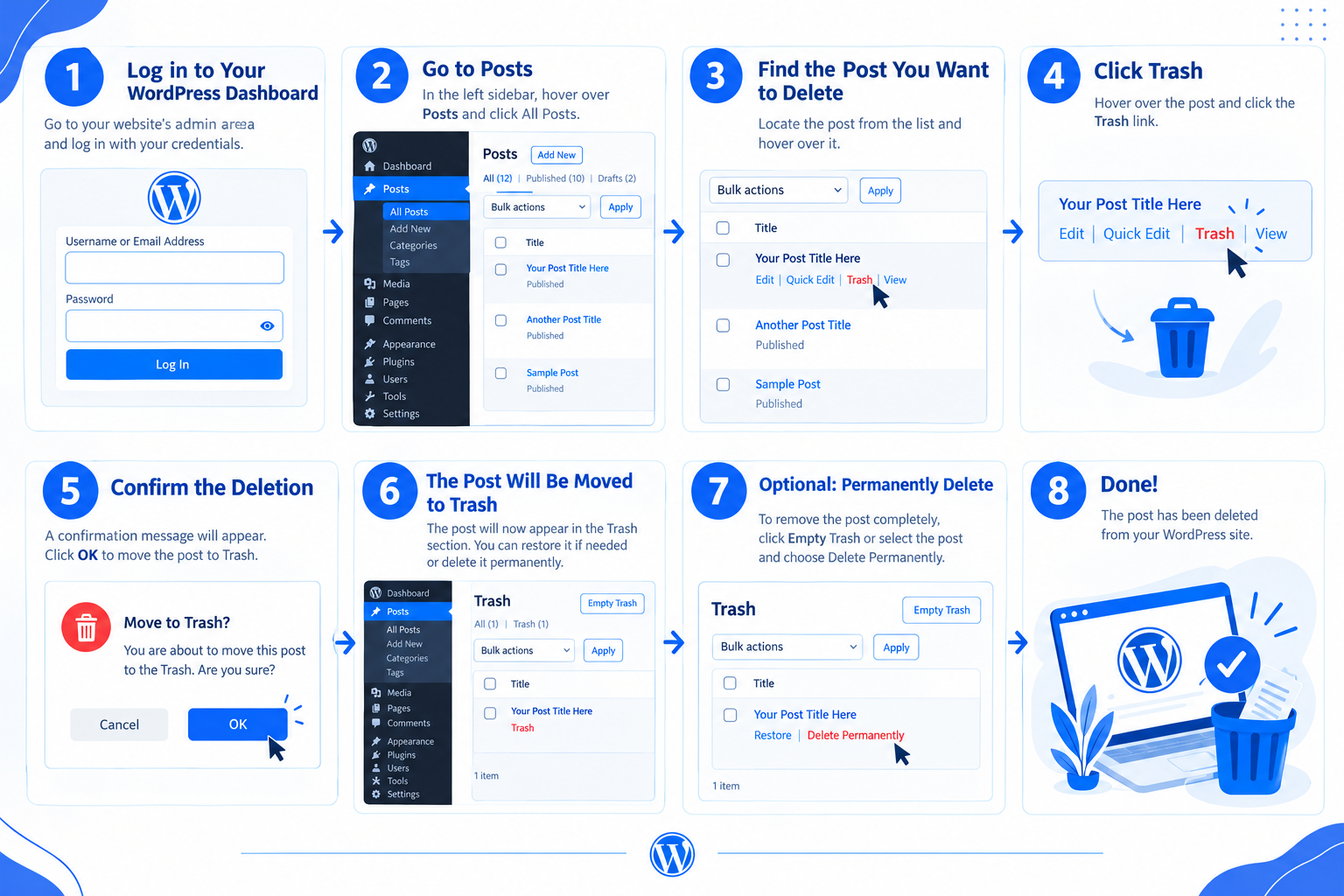
Deleting a blog post follows a similar process.
- Log in to your WordPress dashboard.
- Navigate to Posts → All Posts.
- Locate the post you want to remove.
- Hover over its title and select Trash.
- Check the post list to confirm that it has been moved to Trash.
This method is useful for removing outdated announcements, test posts, duplicate articles, or content that no longer serves your audience.
Can You Delete Multiple WordPress Pages or Posts at Once?
Yes. WordPress supports bulk deletion for both pages and posts.
- Open Pages → All Pages or Posts → All Posts.
- Select the checkboxes beside the items you want to remove.
- Choose Move to Trash from the Bulk actions menu.
- Click Apply.
- Review the result to ensure that only the intended items were removed.
Always verify your selection before applying bulk actions. Moving several items to Trash at once can save time, but selecting the wrong content may create unnecessary recovery work.
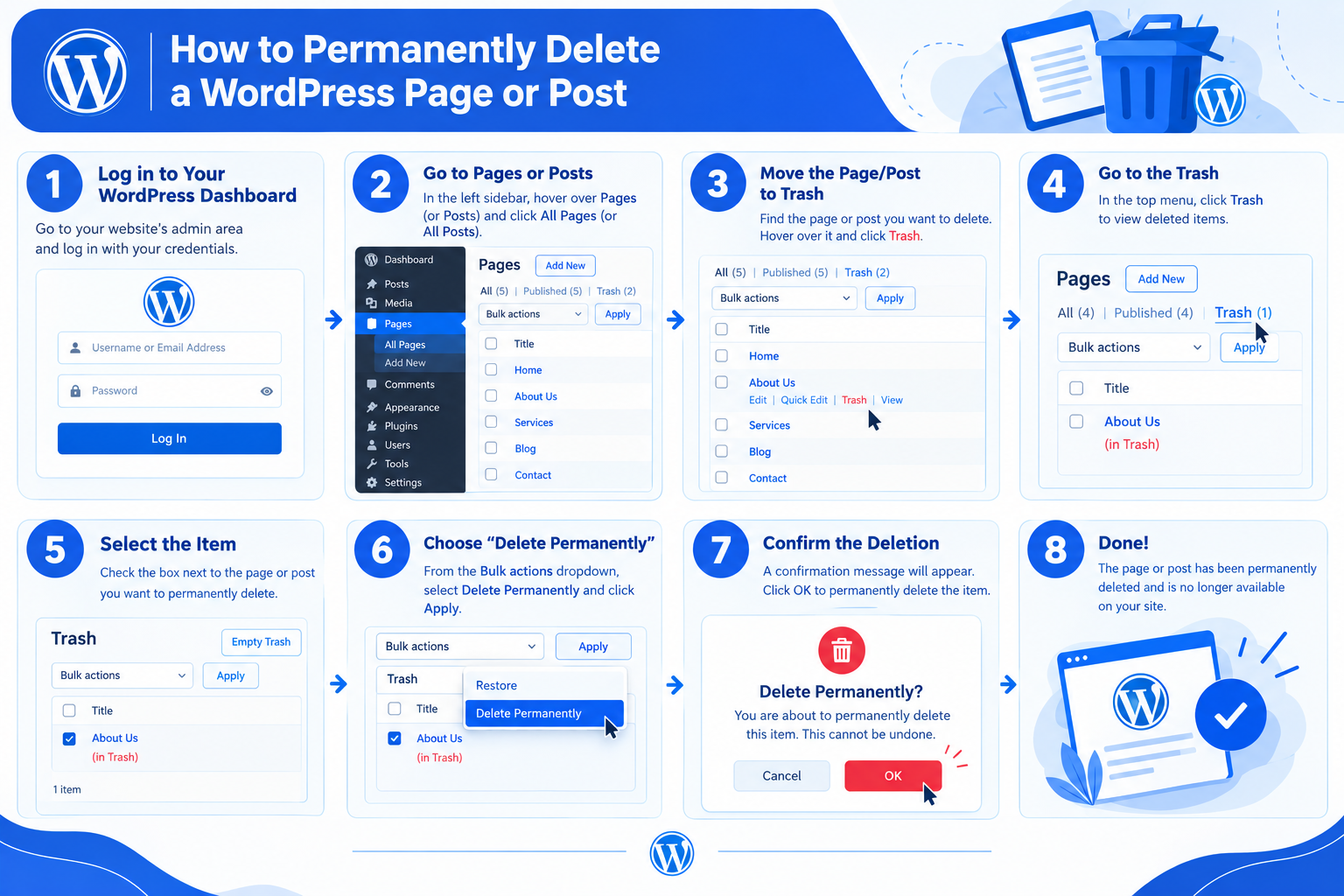
How to Permanently Delete a WordPress Page or Post
Moving content to Trash does not immediately remove it permanently. If you are certain you no longer need an item, follow these steps.
- Navigate to Pages → All Pages or Posts → All Posts.
- Select the Trash link above the content list.
- Locate the page or post you want to remove.
- Hover over its title and click Delete Permanently.
- Confirm the action if prompted.
You can also use Empty Trash to permanently delete all items currently in that content type’s Trash. Be careful: this action can affect multiple items, not just one page or post.
WordPress normally retains trashed content for 30 days before automatically deleting it, although this behavior can be changed through configuration.
Important: Once an item has been permanently deleted, you generally cannot recover it through the WordPress dashboard. You may need a suitable backup or have to recreate the content manually.
How to Restore a Deleted WordPress Page or Post
If you delete the wrong item, you can usually recover it from the Trash as long as it has not been permanently removed.
- Open Pages → All Pages or Posts → All Posts.
- Click Trash.
- Find the item you want to recover.
- Hover over its title and select Restore.
- Return to the relevant content list and check the item’s status.
After restoring a page or post, verify whether it is published, a draft, or otherwise unpublished. Visit its URL to confirm that it behaves as intended.
If the item is no longer in the Trash, check whether your hosting provider or backup solution has a suitable backup. Before restoring a backup, review its date and scope because restoring an entire website or database may affect other changes made since that backup was created.
What to Check Before Deleting a WordPress Page or Post
Deleting content is straightforward, but removing the wrong page can affect visitors, navigation, and search visibility. Review these points before proceeding.
1. Decide Whether the Content Should Be Deleted
Consider whether the page or post still provides value. If the information is outdated but remains useful, updating it may be better than deleting it.
For example, an old service page may need revised pricing and details rather than complete removal.
2. Review Internal Links and Navigation
Check whether other pages, blog posts, menus, buttons, or footer links point to the content you plan to delete.
Update or remove links that are no longer needed. This helps visitors navigate your website without encountering broken links.
3. Evaluate the SEO Impact
If the page appears in search results, attracts organic traffic, or has valuable backlinks, review its performance before deleting it.
Choose the appropriate action based on the situation:
- The content is still useful: Update the existing page or post instead of deleting it.
- A relevant replacement exists: Consider setting up a permanent redirect from the old URL to the replacement.
- The content is genuinely obsolete with no suitable replacement: The URL can return an appropriate 404 (Not Found) or 410 (Gone) status.
- The page has valuable traffic or backlinks: Evaluate its search performance and links before making a decision.
Avoid redirecting every deleted URL to the homepage. A redirect should lead to a destination that genuinely serves the visitor’s original intent.
Deleting a page does not instantly remove every reference to it from search engines. Search engines may take time to recrawl the URL and update their results.
4. Check Your Backup Options
Before deleting important business content or performing a large cleanup, confirm that you have a recent, usable backup.
A backup can help you recover content if something goes wrong. However, the recovery process depends on what was backed up and whether the relevant content is included.
For routine deletion of a single, unimportant draft, a full-site backup may not be necessary. For important published content or bulk deletion, having a suitable recovery option is a sensible precaution.
5. Check Media and Page Builder Content
Deleting a page or post does not normally delete the images used in it from the WordPress Media Library. Those files may remain available for use elsewhere.
If you later clean up unused media, verify that each file is no longer needed. Deleting an image from the Media Library can break images on other pages or posts that use the same file.
Similarly, if you use a page builder such as Elementor, check whether separate templates, reusable sections, or other associated resources need independent management. Deleting a page does not necessarily remove those separate resources.
Common Mistakes to Avoid When Deleting WordPress Content
Keep these precautions in mind when cleaning up your website:
- Deleting the wrong item: Confirm the title and URL before moving content to Trash.
- Permanently deleting content too quickly: Use Trash first when you may need to restore an item.
- Ignoring SEO implications: Review important URLs before removing content that receives traffic or backlinks.
- Leaving broken internal links: Update links that point to deleted pages or posts.
- Deleting shared media files: Check whether other pages use an image before removing it from the Media Library.
- Restoring content without checking its status: Confirm whether the restored item is published or remains unpublished.
- Using bulk actions carelessly: Verify selected items before moving multiple pages or posts to Trash.
These checks help you manage WordPress content without creating avoidable maintenance or recovery problems.