How to Unpublish a WordPress Post
Sometimes you need to take a published WordPress article offline without deleting it permanently. Perhaps the information is outdated, the content needs a major revision, or you want to temporarily hide an announcement from visitors. You don’t need to delete the article to do this. WordPress allows you to change a published post’s status back […]
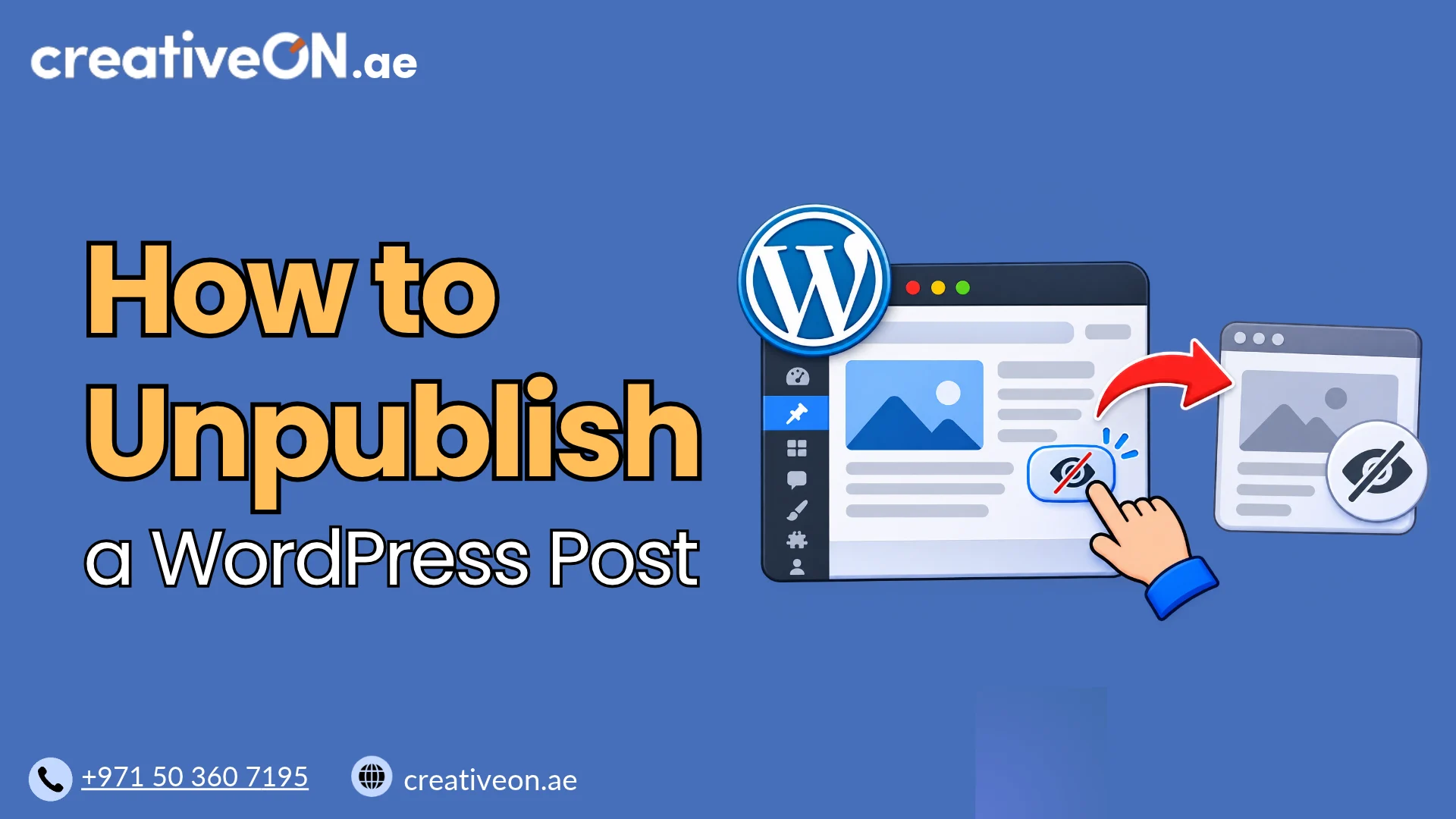
Sometimes you need to take a published WordPress article offline without deleting it permanently. Perhaps the information is outdated, the content needs a major revision, or you want to temporarily hide an announcement from visitors.
You don’t need to delete the article to do this. WordPress allows you to change a published post’s status back to Draft, keeping its content in your dashboard until you’re ready to publish it again.
In this guide, you’ll learn how to unpublish a WordPress post using both the Block Editor and Classic Editor, understand the available visibility options, and republish the article when needed.
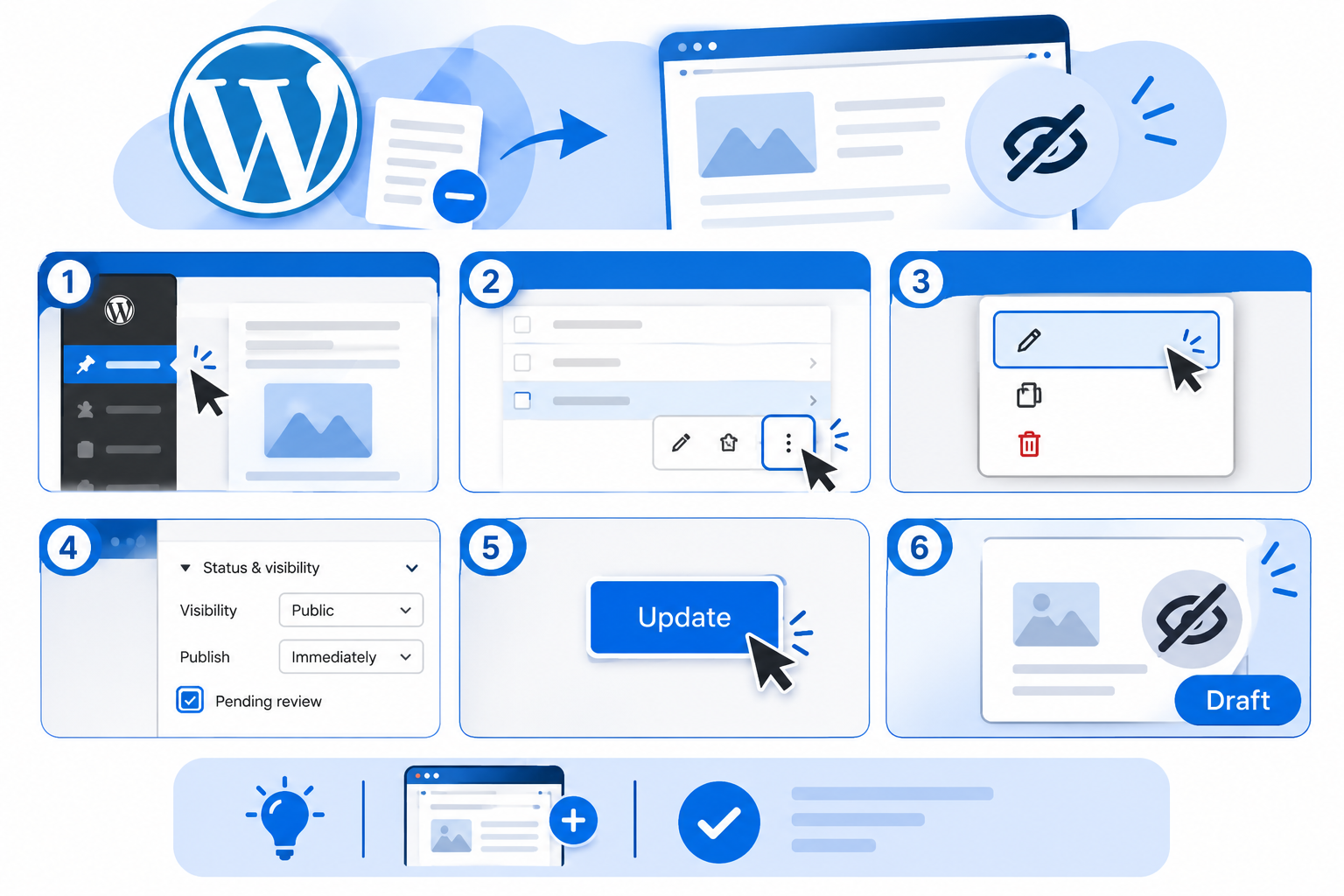
How to Unpublish a WordPress Post Using the Block Editor
The WordPress Block Editor (Gutenberg) is the default editor for creating and managing posts. You can change a published post’s status directly from its settings.
Follow these steps:
- Log in to your WordPress dashboard.
- Navigate to Posts → All Posts.
- Find the published article you want to unpublish.
- Click Edit to open it in the Block Editor.
- Open the Settings sidebar using the gear icon in the top-right corner if it isn’t already visible.
- Under the Post tab, locate the Status and Visibility section.
- Click the current publishing status or its editing control.
- Change the status from Published to Draft.
- Confirm the change if WordPress asks for confirmation.
- Save the changes.
Your post will now be unpublished and moved back to Draft status.
It will no longer be available to regular website visitors, but you can still access and edit its content from your WordPress dashboard.
Tip: After unpublishing the post, open its previous URL in a private or incognito browser window to check that it is no longer publicly accessible.
How to Unpublish a WordPress Post Using the Classic Editor
If your website uses the Classic Editor, you can change the publishing status through the Publish panel.
The Classic Editor is an alternative to the default Block Editor and is commonly available through the Classic Editor plugin.
Follow these steps:
- Log in to your WordPress dashboard.
- Go to Posts → All Posts.
- Find the published post and click Edit.
- Locate the Publish panel on the right side of the editor.
- Find the Status option, which should display Published.
- Click Edit beside the status.
- Select Draft from the dropdown menu.
- Click OK and then select Update.
WordPress will change the post status from Published to Draft.
The article will no longer appear as a publicly published post, but its content will remain available in your dashboard.
Draft vs Private vs Password Protected: What’s the Difference?
WordPress provides different visibility options for controlling who can access your content. Although Draft and Private are both useful when you want to restrict public access, they serve different purposes.
| Option | Who Can Access It? | Best Used For |
| Draft | Authorized dashboard users | Temporarily unpublishing an article |
| Private | Authorized users, generally administrators and editors | Restricting an article to website staff |
| Password Protected | Visitors who know the password | Sharing content with selected visitors |
Choose Draft when:
- You want to temporarily remove an article from public view.
- You need to rewrite or update its content.
- You plan to review the article before publishing it again.
Choose Private when:
- You want to keep the post in a published but restricted state.
- Only authorized WordPress users should be able to read it.
Choose Password Protected when:
- You want visitors to access the article using a password.
- You need to share content with selected people without making it publicly accessible.
For most website owners who simply want to unpublish an article, changing its status to Draft is the most straightforward option.
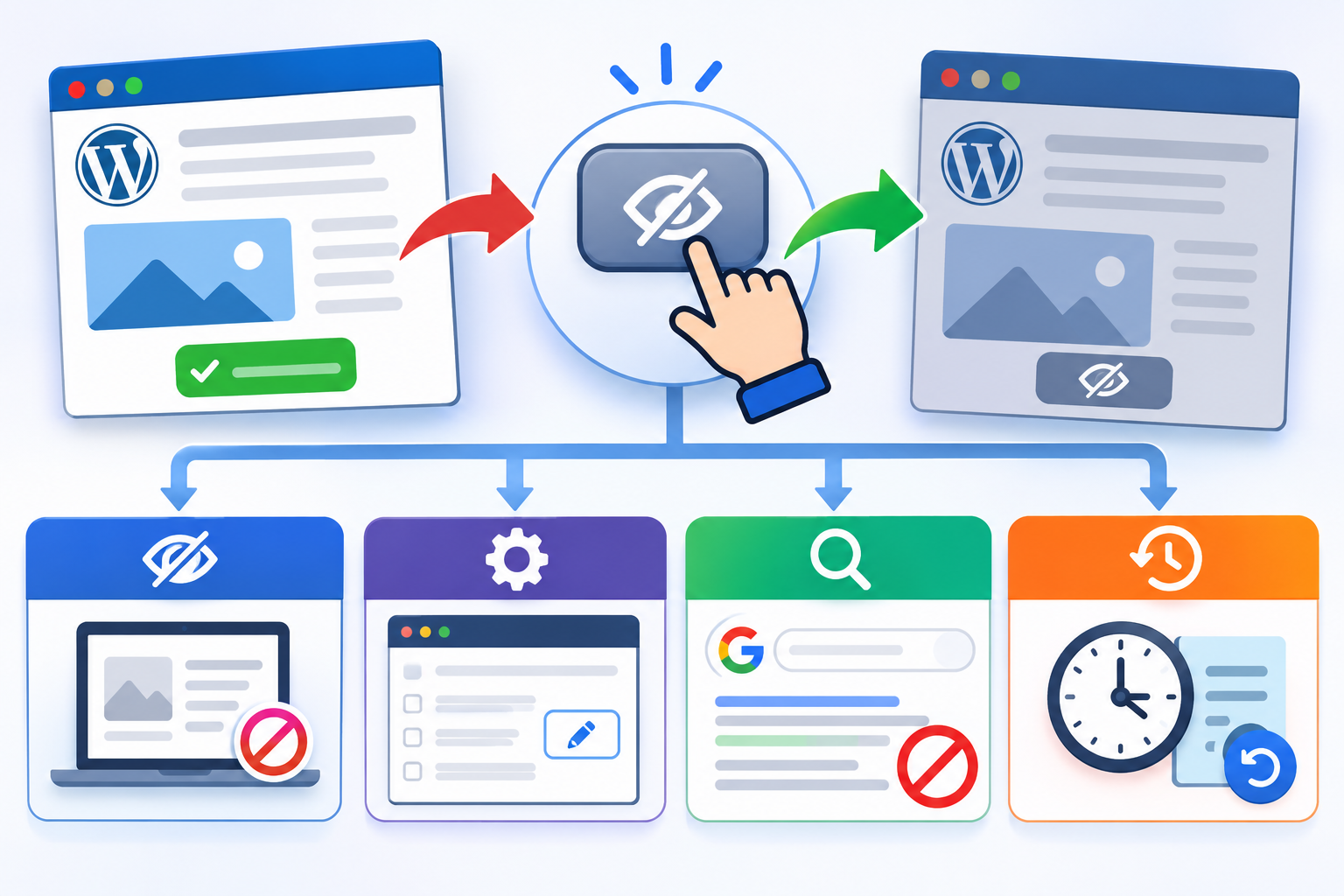
What Happens to Your WordPress Post After Unpublishing?
Changing a published post to Draft affects its public accessibility, but it does not permanently remove its saved content.
Here are the main things to consider.
1. Visitors Can No Longer Access the Published Article
Once you change a post to Draft, regular visitors can no longer access it as a published article.
Anyone visiting its previous URL may see a 404 error or another unavailable-page response, depending on your website configuration.
2. Your Content Remains Saved
Unpublishing a post does not delete its content.
WordPress generally retains:
- Post title and content
- Featured image
- Categories and tags
- Post metadata
- Existing revisions
You can return to your dashboard and continue editing the article whenever needed.
3. Search Engine Visibility May Be Affected
If Google has already indexed the article, its URL may continue appearing in search results for some time after you unpublish it.
Keep in mind:
- Search engines need to recrawl the URL before their index reflects the change.
- Organic traffic may decline because visitors can no longer access the published content.
- Existing backlinks may lead to an unavailable page.
- Internal links pointing to the unpublished article may need updating.
If the article has valuable search traffic or backlinks, consider whether updating it or redirecting its URL would be a better option.
4. The Original Post Slug Is Generally Retained
Changing a post’s status to Draft does not normally remove its saved permalink or slug.
If you publish the same article again without changing its URL, you can generally restore access through the original address.
However, avoid assuming that the URL will remain available if you change the post slug, delete the article, or modify your permalink settings.
How to Republish an Unpublished WordPress Post
If you’ve finished updating an unpublished article and want to make it available again, you can restore its published status.
Follow these steps:
- Log in to your WordPress dashboard.
- Navigate to Posts → All Posts.
- Select the Drafts filter.
- Find the article you want to republish.
- Click Edit.
- Review the article and make any necessary changes.
- Open the Status and Visibility settings.
- Select Published or use the Publish control, depending on your editor version.
- Click Publish or Update to save the changes.
Your article will become publicly accessible again.
Before republishing, check the following:
- Article content and formatting
- Featured image and other media
- Internal and external links
- Categories and tags
- Original permalink
If the original URL has not changed, visitors and search engines can generally access the article through the same address.
Common Mistakes to Avoid When Unpublishing WordPress Posts
Although unpublishing a post is simple, a few mistakes can create unnecessary problems.
- Deleting instead of unpublishing: If you may need the article again, change its status to Draft rather than moving it to Trash.
- Ignoring existing backlinks: Consider the SEO value of an established article before taking it offline.
- Forgetting internal links: Update other website pages that link to the unpublished article where necessary.
- Changing the permalink unnecessarily: Retain the original URL if you plan to republish the article.
- Expecting immediate removal from Google: Search engine results may take time to reflect the change in publishing status.