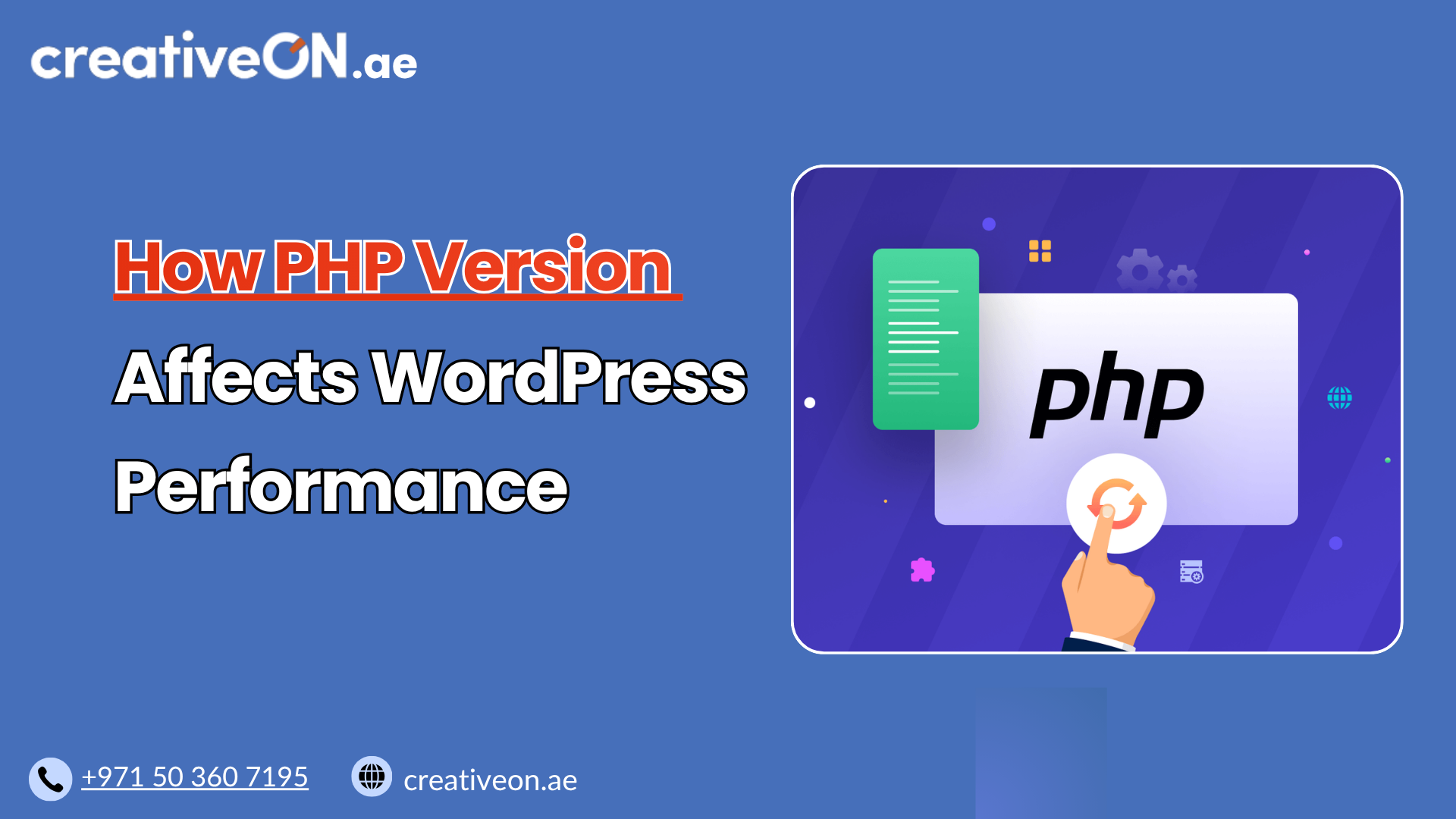
How PHP Version Affects WordPress Performance
If your WordPress site feels slower than it should, the problem might not be your theme, your plugins, or even your hosting plan. It could simply be your PHP version. PHP is the programming language that powers Word Press behind the scenes. Every page load, every database query, and every plugin function runs through PHP […]
If your WordPress site feels slower than it should, the problem might not be your theme, your plugins, or even your hosting plan. It could simply be your PHP version.
PHP is the programming language that powers Word Press behind the scenes. Every page load, every database query, and every plugin function runs through PHP first. When your PHP version is outdated, your site has to work harder to do the same job — and that shows up as slower load times, higher server resource usage, and a less responsive dashboard.
This guide explains exactly how PHP version affects WordPress performance, what changes between versions, and how to check and update your PHP version safely.
Why PHP Version Matters for WordPress Performance
WordPress core, themes, and plugins are all built on PHP. Every time someone visits your site, the server executes PHP code to generate the page before it’s sent to the visitor’s browser. The efficiency of that process depends heavily on which PHP version is running.
Newer PHP versions are built to execute code faster and use less memory to do it. This isn’t a marginal difference — moving from an old PHP version to a modern one can noticeably reduce page generation time, especially on content-heavy sites or stores with lots of database queries, like WooCommerce shops.
For businesses in the UAE running eCommerce stores or lead-generation sites where page speed directly affects conversions, this is one of the simplest performance wins available, often requiring no code changes at all.
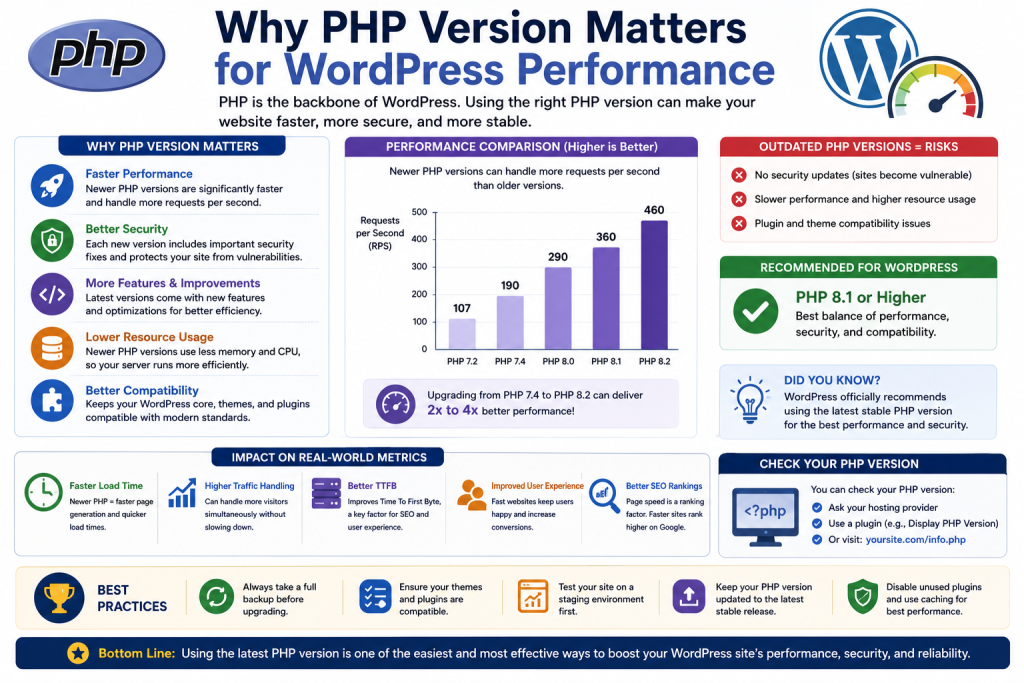
How PHP Version Impacts Speed and Resource Usage
Faster Code Execution
Each major PHP release includes improvements to how the language processes and compiles code. Later versions handle loops, function calls, and object-oriented code more efficiently than older ones. Since WordPress and most plugins rely heavily on these operations, a newer PHP version reduces the time it takes to generate each page.
Lower Memory Consumption
Older PHP versions tend to use more memory to complete the same tasks. On shared or resource-limited hosting environments, this can lead to memory limit errors, slow admin dashboards, or timeouts during heavy operations like plugin updates or bulk content imports.
This is especially noticeable behind the scenes, in the WordPress admin dashboard itself. Editing posts, loading plugin settings pages, or running bulk actions all rely on PHP to process requests before anything appears on screen. On an outdated PHP version, these everyday admin tasks can feel sluggish even if your public-facing site seems fine — a common early sign that a PHP upgrade is overdue. Modern PHP versions are generally more memory-efficient, which reduces the chance of hitting these limits and keeps the dashboard responsive.
Better Handling of Database Queries
WordPress relies constantly on database queries to pull content, settings, and plugin data. Newer PHP versions process the code that generates and handles these queries more efficiently, which reduces the load on both PHP and the database layer — a noticeable benefit for sites with large product catalogs or high traffic.
Reduced Server Load Under Traffic
Because newer PHP versions do more with fewer server resources, your hosting environment can handle more concurrent visitors before performance starts to degrade. This matters most during traffic spikes, such as a sale event or a viral social media post driving visitors to your site.
Real Performance Differences Between PHP Versions
You don’t need benchmarks memorized to understand the pattern: each PHP release from version to version has consistently improved execution speed and reduced memory usage compared to its predecessor. Sites still running PHP 7.4 or earlier are typically using a version that no longer receives security updates and performs noticeably worse than PHP 8.x under the same conditions.
The practical takeaway is simple — if you haven’t checked your PHP version in a while, there’s a good chance you’re leaving performance on the table.
PHP Version and Security
Performance isn’t the only reason to keep PHP updated. Once a PHP version reaches end of life, it stops receiving security patches, even if it still technically runs your site. An outdated PHP version can leave known vulnerabilities unpatched, making your site an easier target regardless of how secure your plugins or hosting environment are otherwise. Staying on a supported PHP version is as much a security practice as it is a performance one. For a deeper look at protecting your site beyond PHP version, CreativeON’s WordPress Security Guide covers this in more detail.
Does PHP Version Affect Core Web Vitals?
PHP version has a direct effect on Time to First Byte (TTFB) — the time your server takes to start sending a response after a request comes in. Since PHP processes WordPress’s backend logic before any HTML is sent, a faster PHP version means a faster TTFB, which contributes to a snappier-feeling site overall.
However, PHP version has little to no direct effect on Largest Contentful Paint (LCP) or Cumulative Layout Shift (CLS). Those metrics depend more on factors like image optimization, font loading, caching, and front-end code — not on how quickly the server generates the page. In short: a good PHP version gives you a faster starting point, but the rest of your Core Web Vitals still depend on how the site is built and optimized on the front end.
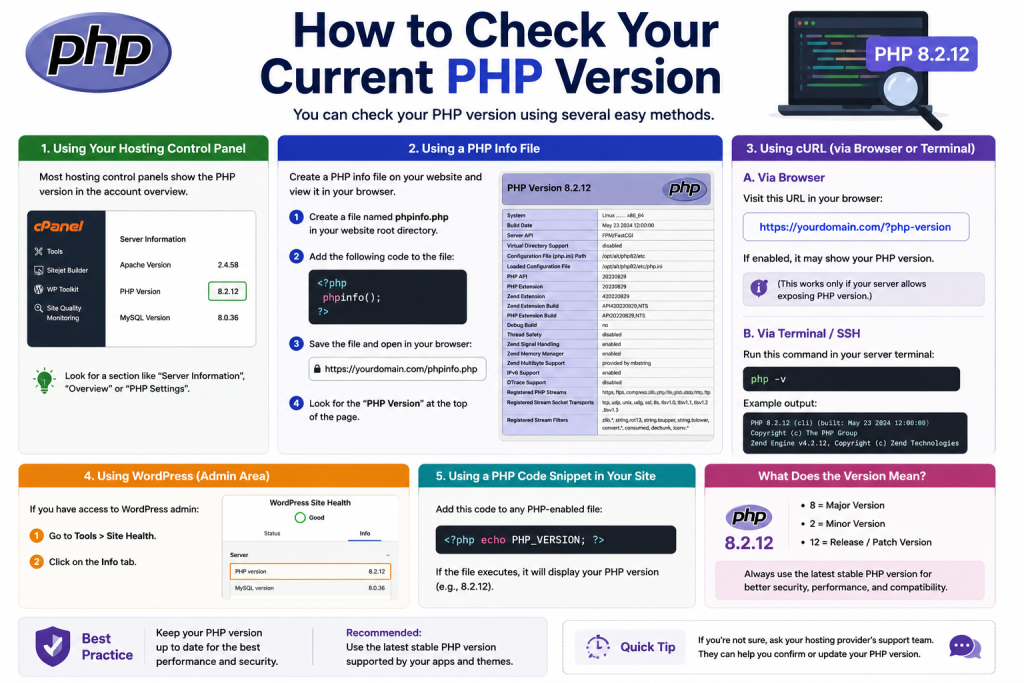
How to Check Your Current PHP Version
You can check your site’s PHP version in a few ways:
- WordPress Dashboard – Go to Tools → Site Health → Info → Server, and look for the PHP version listed there.
- Hosting Control Panel – Most hosting dashboards, including cPanel or custom panels, show the active PHP version under a “PHP Settings” or “PHP Selector” section.
- A Plugin – Health-check plugins can display PHP version details directly on your dashboard.
If you’re running a PHP version that has reached end of life, or one older than what WordPress and your hosting provider currently recommend, it’s worth planning an upgrade. You can check the currently recommended version on WordPress.org, since this changes over time as older versions are phased out.
Best Practices Before Upgrading PHP
Upgrading PHP is usually straightforward, but a little preparation prevents unnecessary downtime:
- Back up your site first. Always have a full backup of your files and database before making server-level changes.
- Test on staging. Run the new PHP version on a staging copy of your site before applying it live, especially if you use several plugins.
- Check plugin and theme compatibility. Outdated plugins or themes are the most common source of PHP-related errors after an upgrade.
- Update everything else too. Make sure WordPress core, themes, and plugins are on their latest versions before switching PHP versions.
- Monitor after switching. Check your site’s front end, admin dashboard, and any custom functionality immediately after the update.
Common Mistakes to Avoid
- Upgrading without a backup. Skipping this step turns a simple upgrade into a risky one.
- Ignoring plugin compatibility warnings. Some older, poorly maintained plugins break on newer PHP versions.
- Assuming PHP version is the only speed factor. PHP version matters, but caching, image optimization, and hosting resources also play a major role in overall performance.
- Never checking the version again. PHP versions eventually reach end-of-life and stop receiving security patches, so this isn’t a one-time task.
For a broader look at overall site speed, CreativeON’s guide on how to speed up WordPress hosting covers additional factors beyond PHP version alone.
Limitations of Upgrading PHP Alone
While updating PHP is one of the most effective performance improvements available, it isn’t a complete fix on its own. If your site relies on outdated themes or unoptimized plugins, or lacks proper caching, those issues will remain even after the PHP upgrade. Think of PHP version as one important layer within a well-configured WordPress hosting environment, not a standalone solution.