How to Restore a Deleted WordPress Post
Introduction Accidentally deleting a WordPress post can be frustrating, especially if it contains important information or valuable website content. Fortunately, WordPress provides a Trash feature that allows you to recover recently deleted posts without recreating them from scratch. If the post has been permanently deleted, you may still be able to recover it using a […]

Introduction
Accidentally deleting a WordPress post can be frustrating, especially if it contains important information or valuable website content. Fortunately, WordPress provides a Trash feature that allows you to recover recently deleted posts without recreating them from scratch.
If the post has been permanently deleted, you may still be able to recover it using a website backup or another saved copy.
This guide explains how to restore a deleted WordPress post, how to recover it when it is no longer in Trash, and what precautions to take during the recovery process.
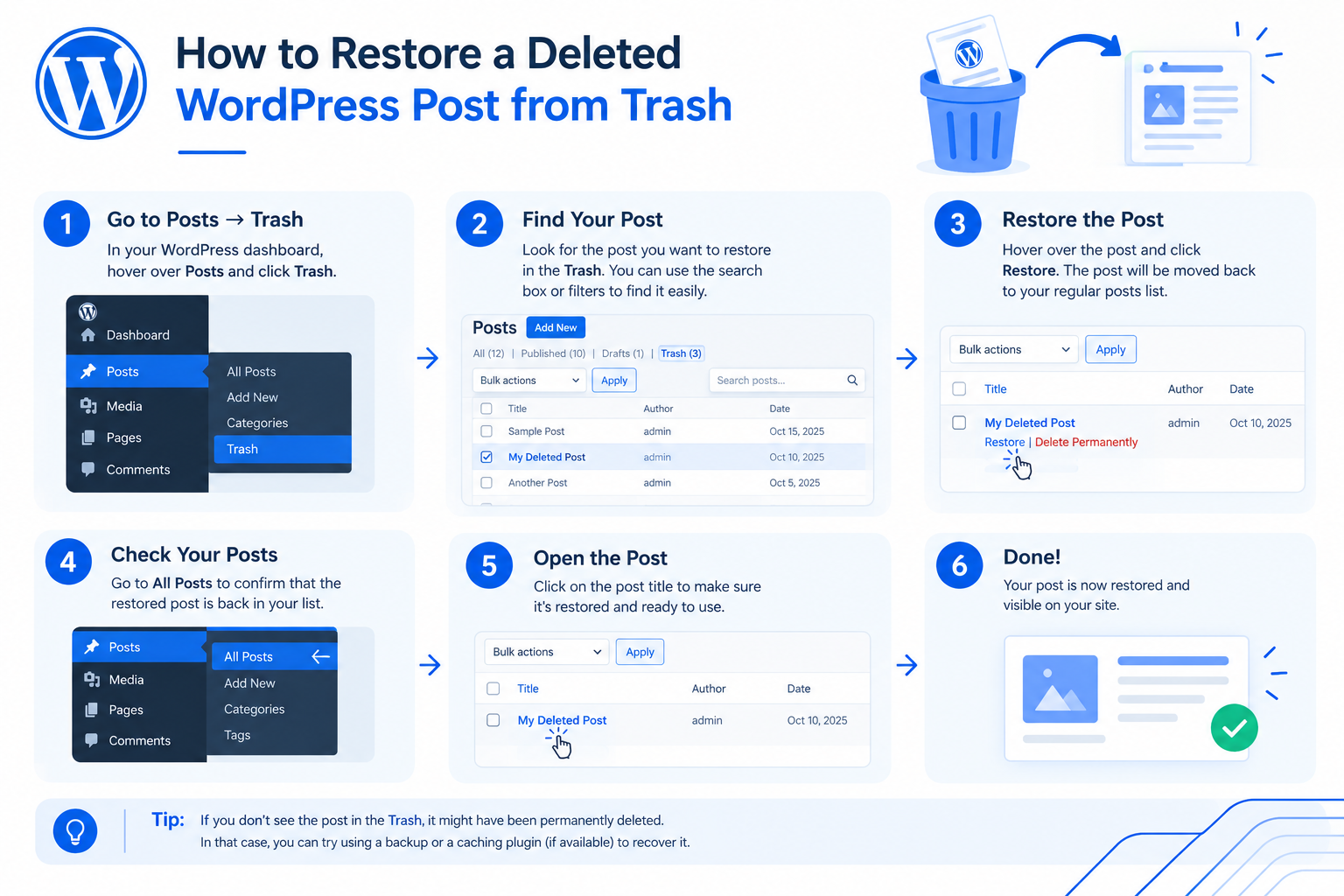
How to Restore a Deleted WordPress Post from Trash
The easiest way to recover a deleted WordPress post is through the WordPress dashboard. When you delete a post normally, WordPress moves it to Trash rather than immediately removing it permanently.
Follow these steps to restore your post.
Step 1: Open the WordPress Dashboard
Log in to your WordPress administration area, usually available at:
https://yourwebsite.com/wp-admin/
Replace yourwebsite.com with your website’s domain name.
Step 2: Navigate to Posts and Trash
From the dashboard menu:
- Go to Posts → All Posts.
- Select the Trash link above the post list.
- Browse the deleted posts to find the one you want to recover.
If the Trash link is not visible, check whether any posts have been deleted. The link may not appear when the Trash is empty.
Step 3: Restore the Deleted Post
Locate the correct post title and hover over it. Click Restore.
WordPress will move the post out of Trash. Its previous publication status is generally restored, so a previously published post should return to Published status, while a draft should return to Draft status.
Step 4: Verify the Restored Post
After restoration, open the post in the editor and check:
- The title and content.
- The featured image and other media.
- Categories and tags.
- The publication status.
- The permalink and public page.
If the post was previously published, open its URL to confirm that it loads correctly.
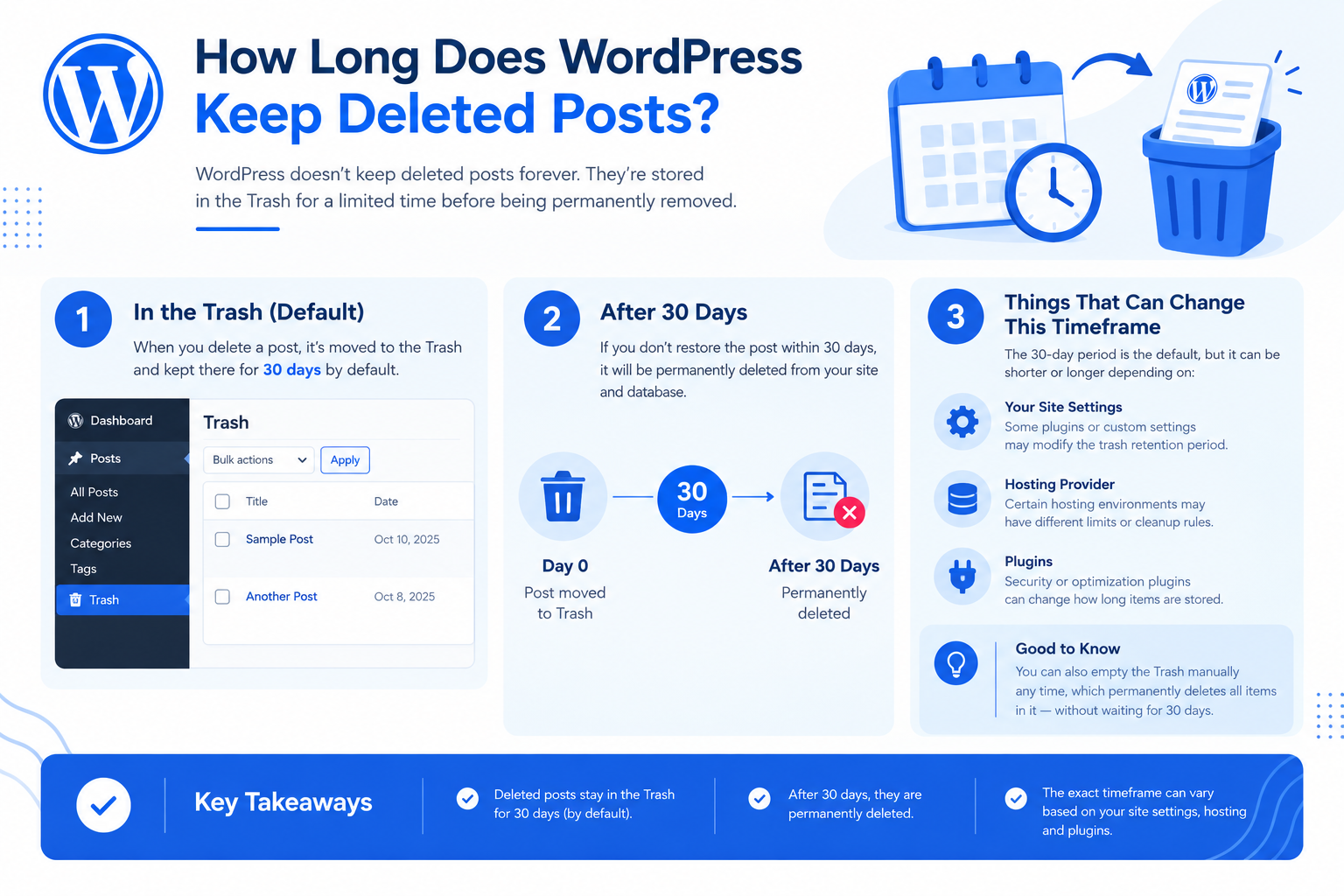
How Long Does WordPress Keep Deleted Posts?
By default, WordPress retains trashed posts for 30 days before automatically deleting them permanently. This retention period can be changed through WordPress configuration, and the Trash feature can also be disabled.
Keep these points in mind:
- Posts in Trash can usually be restored directly from the dashboard.
- Emptying Trash permanently deletes its contents before the normal retention period ends.
- Posts that have been permanently deleted no longer appear in the standard Trash list.
- Recovering permanently deleted content generally requires a backup or another saved copy.
If an important post disappears, check Trash as soon as possible rather than waiting until the retention period expires.
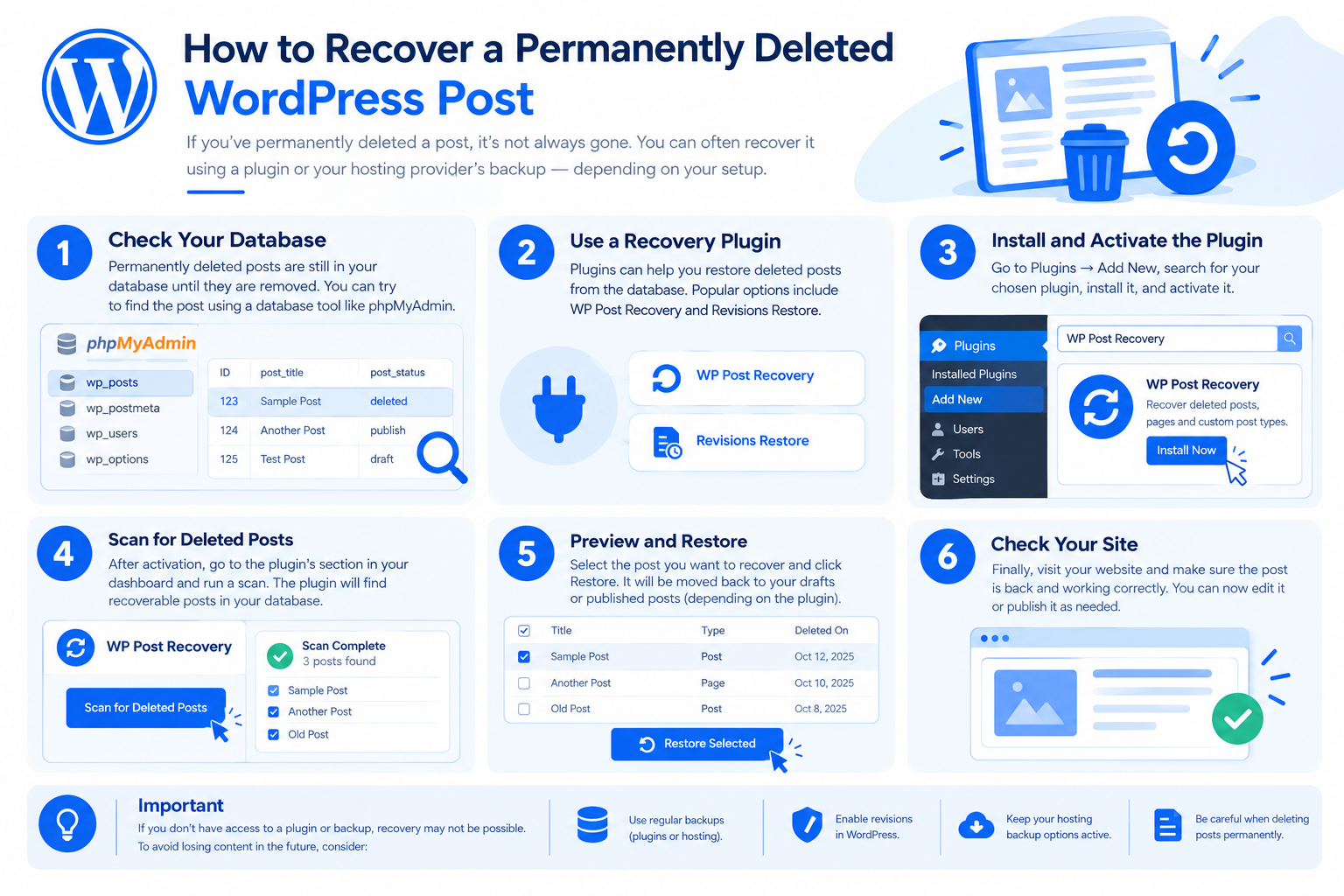
How to Recover a Permanently Deleted WordPress Post
If you cannot find the post in Trash, the next step is to check whether a usable copy exists elsewhere.
1. Check Your WordPress Backup
A backup created before the deletion may contain the missing post.
Depending on the backup system, you may be able to restore an individual post, selected database records, or the entire database.
Follow this process:
- Identify a backup created before the post was deleted.
- Check whether it contains the missing post.
- Determine whether the backup tool supports selective content recovery.
- Restore the post using the tool’s supported procedure.
- Verify the recovered content and associated information.
Important: Before attempting a database or website restoration, create a fresh backup of the current website. Restoring an older database over the live database can overwrite newer posts, comments, user accounts, and other changes.
Whenever possible, recover the post in a staging environment or use a supported selective restoration method.
For more detailed instructions, link this section to CreativeON’s dedicated guide on WordPress backup and restoration once the relevant article is published.
2. Check Your Hosting Provider’s Backups
Some hosting providers maintain website backups independently of WordPress backup plugins.
Contact your hosting provider and ask whether a backup from before the deletion is available. Also ask whether the post can be recovered without replacing the current website database.
The recovery options depend on the provider’s backup schedule, retention policy, and available restoration tools.
If selective recovery is unavailable, the provider may be able to help you restore the backup to a staging environment so you can retrieve the missing content safely.
3. Look for Another Copy of the Post
If no suitable backup is available, check whether the content exists elsewhere.
Possible sources include:
- A Word document or cloud-based writing document.
- A WordPress export file created before the deletion.
- A duplicate of the post on your website.
- An editorial system that retained the original draft.
- A search engine result or web archive containing a copy of the published text.
These sources may help you reconstruct the article, but they might not preserve the original formatting, images, metadata, comments, or publication settings.
If you recreate the post manually, check its original URL and publication status before publishing it again.
Can WordPress Revisions Recover a Deleted Post?
WordPress revisions allow you to review and restore earlier versions of a post that still exists in the system. They are useful when you have accidentally removed text or want to undo previous edits.
However, revisions are not a dependable recovery method for a post that has been permanently deleted. Once the post and its associated revision records have been removed, you may need a backup or another saved copy.
If the post still exists but some content is missing, open it in the editor and look for the Revisions option, when available.
Common Mistakes to Avoid During Recovery
A careful recovery process can prevent further data loss.
- Emptying Trash without checking its contents: Confirm that no important posts need recovery first.
- Restoring an old database over the live website: This can overwrite newer website data.
- Assuming a database backup includes every image: Associated media files may need separate recovery if they are missing.
- Ignoring the original URL: Verify the permalink to avoid accidentally changing the post’s address.
- Assuming recovery is complete: Check the content, featured image, categories, tags, and publication status.
For ongoing protection, maintain regular website backups and periodically confirm that your backup system can restore content successfully.