How to Restrict Google Services for Different Teams
Not every employee needs access to every Google Workspace application. For example, your HR team may require Google Drive and Google Meet to collaborate on confidential documents, while warehouse or frontline staff may only need Gmail and Calendar. Restricting Google services by department helps reduce unnecessary access, improve security, simplify the user experience, and support […]
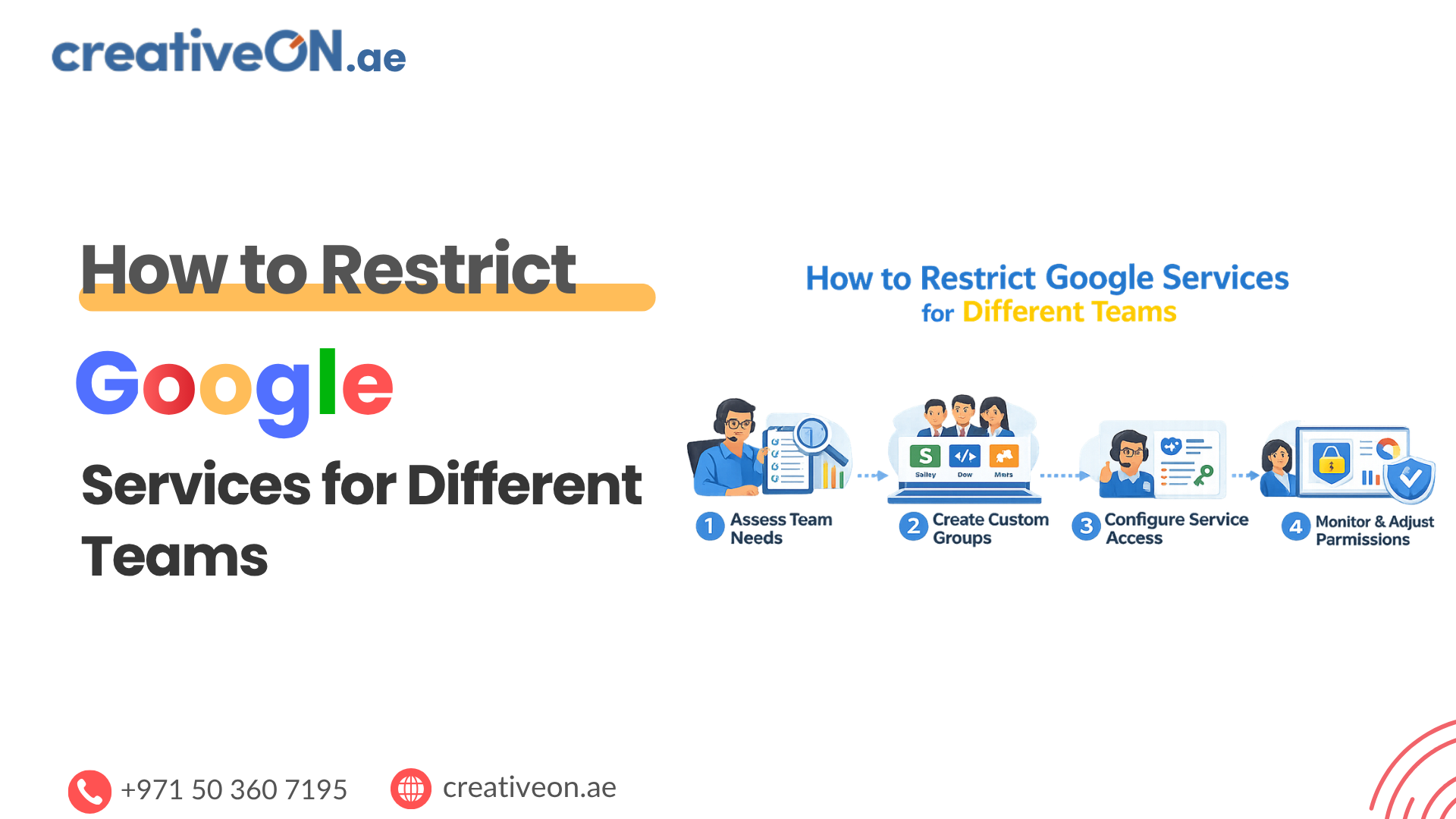
Not every employee needs access to every Google Workspace application. For example, your HR team may require Google Drive and Google Meet to collaborate on confidential documents, while warehouse or frontline staff may only need Gmail and Calendar. Restricting Google services by department helps reduce unnecessary access, improve security, simplify the user experience, and support internal business policies without limiting productivity.
Google Workspace allows administrators to control which services are available to different teams using Organizational Units (OUs) in the Google Admin console. By assigning users to the appropriate department and configuring service availability, businesses can provide employees with the tools they need while reducing unnecessary access to applications they don’t use.
This guide explains how to restrict Google Workspace services for different teams, along with practical administration tips and best practices to help you manage service access efficiently.
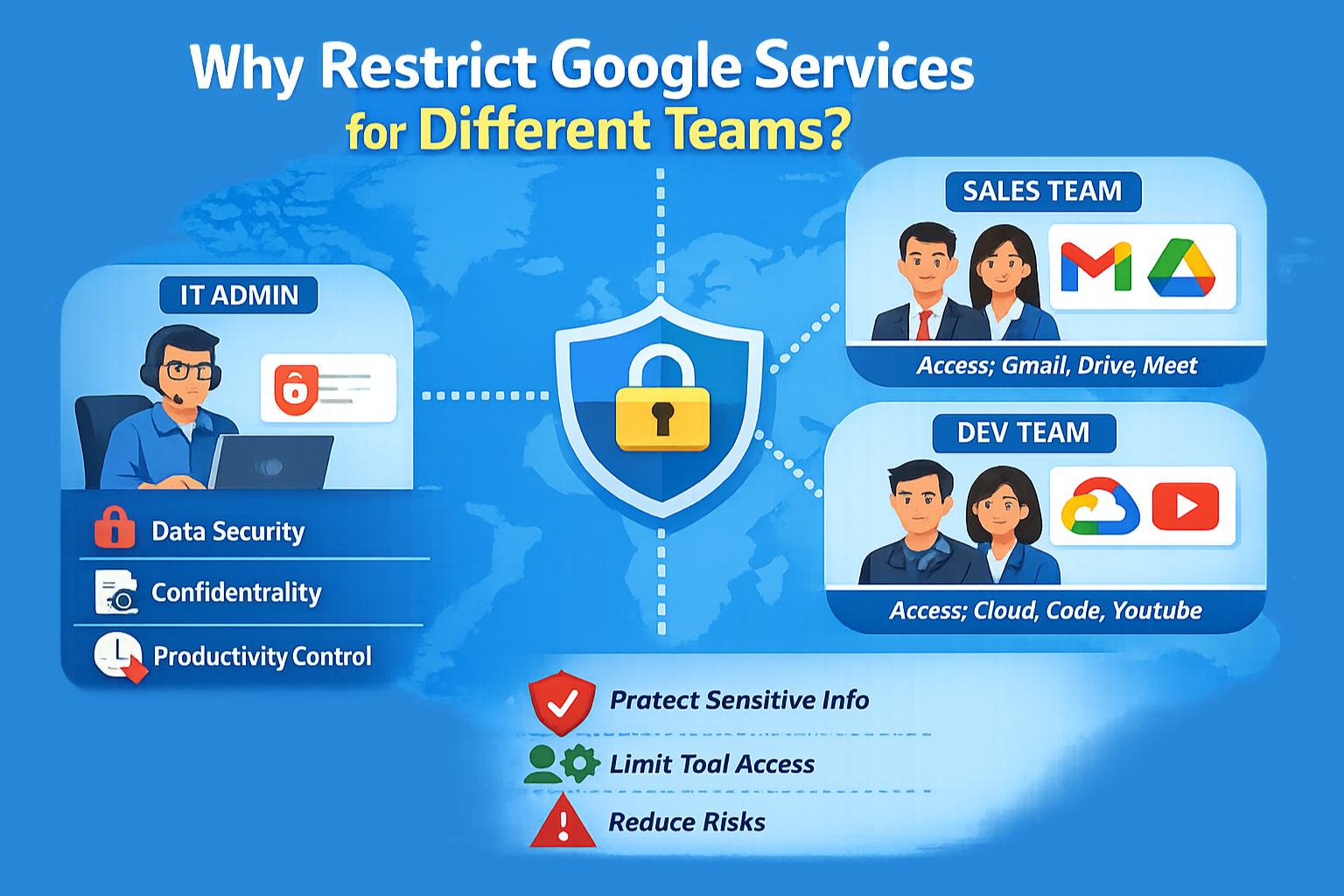
Why Restrict Google Services for Different Teams?
Every department has different responsibilities and software requirements. Giving every employee access to every Google Workspace application can increase security risks, create unnecessary distractions, and make administration more difficult.
Restricting services by department helps you:
- Provide employees with only the applications they need.
- Reduce unnecessary access to company data.
- Support internal security and compliance policies.
- Simplify Google Workspace administration.
- Create a cleaner and more focused user experience.
- Apply consistent access policies across departments.
For example, HR teams often require Google Drive and Google Docs to manage employee records, Finance may rely heavily on Google Sheets for reporting, while warehouse or field staff may only need Gmail and Calendar for day-to-day communication.
Following this approach aligns with the principle of least privilege, a widely accepted security best practice that recommends giving users access only to the resources required to perform their jobs.
Before You Begin
Before restricting Google services, make sure that:
- You have Super Admin or delegated administrator privileges.
- Your users are organized into the correct Organizational Units (OUs).
- You know which Google Workspace services each department requires.
- You have communicated any planned changes to affected teams to minimize confusion.
Properly organizing users before applying service restrictions makes future administration significantly easier.
How to Restrict Google Services for Different Teams
Step 1: Sign in to the Google Admin Console
Sign in using an administrator account with permission to manage Google Workspace services.
From the Admin console, you’ll manage service availability for each department through Organizational Units.
Step 2: Organize Users into Organizational Units
Google Workspace applies most core service settings at the Organizational Unit level.
If your departments are not already separated:
- Open Directory.
- Select Organizational Units.
- Create Organizational Units that reflect your business structure.
For example:
- Executive Management
- Human Resources
- Finance
- Sales
- Marketing
- Customer Support
- Operations
- Warehouse
- Contractors
Once created, move users into the correct Organizational Unit.
This ensures every employee automatically receives the appropriate service configuration based on their department.
Administrator Tip: Before applying service restrictions to an entire department, create a small test Organizational Unit and verify that critical business workflows continue to function as expected. Testing first helps prevent unexpected disruptions across your organization.
Step 3: Open Google Workspace Services
In the Google Admin console, navigate to:
Apps → Google Workspace
You’ll see the Google Workspace services that can be managed for your organization, including:
- Gmail
- Google Drive
- Google Meet
- Google Calendar
- Google Chat
- Google Docs
- Google Sheets
- Google Sites
- Google Keep
- Google Groups
Each service can be configured independently based on your organization’s requirements.
Step 4: Select the Google Service
Choose the application you want to configure.
For example:
- Google Meet
- Google Drive
- Google Chat
- Google Sites
Each service has its own availability settings that can be managed separately.
Step 5: Select the Appropriate Organizational Unit
From the left-hand navigation panel, choose the Organizational Unit you want to configure.
For example:
- Sales
- Finance
- Human Resources
- Warehouse
Google Workspace displays the settings that apply to the selected Organizational Unit.
Service settings are inherited from parent Organizational Units unless you override them for a specific child Organizational Unit. If a service isn’t behaving as expected, check whether the setting is inherited before making additional changes.
Step 6: Enable or Disable the Service
For the selected Organizational Unit, choose whether the service should be:
- ON – Users can access the application.
- OFF – Users cannot access the application.
Save your changes after updating the service status.
Most changes are applied within a short period, although larger organizations may experience slightly longer propagation times.
Note: Some Google Workspace applications work together. Before disabling a service, verify that it isn’t required for another workflow your team relies on. Reviewing the impact beforehand helps prevent unexpected interruptions for users.
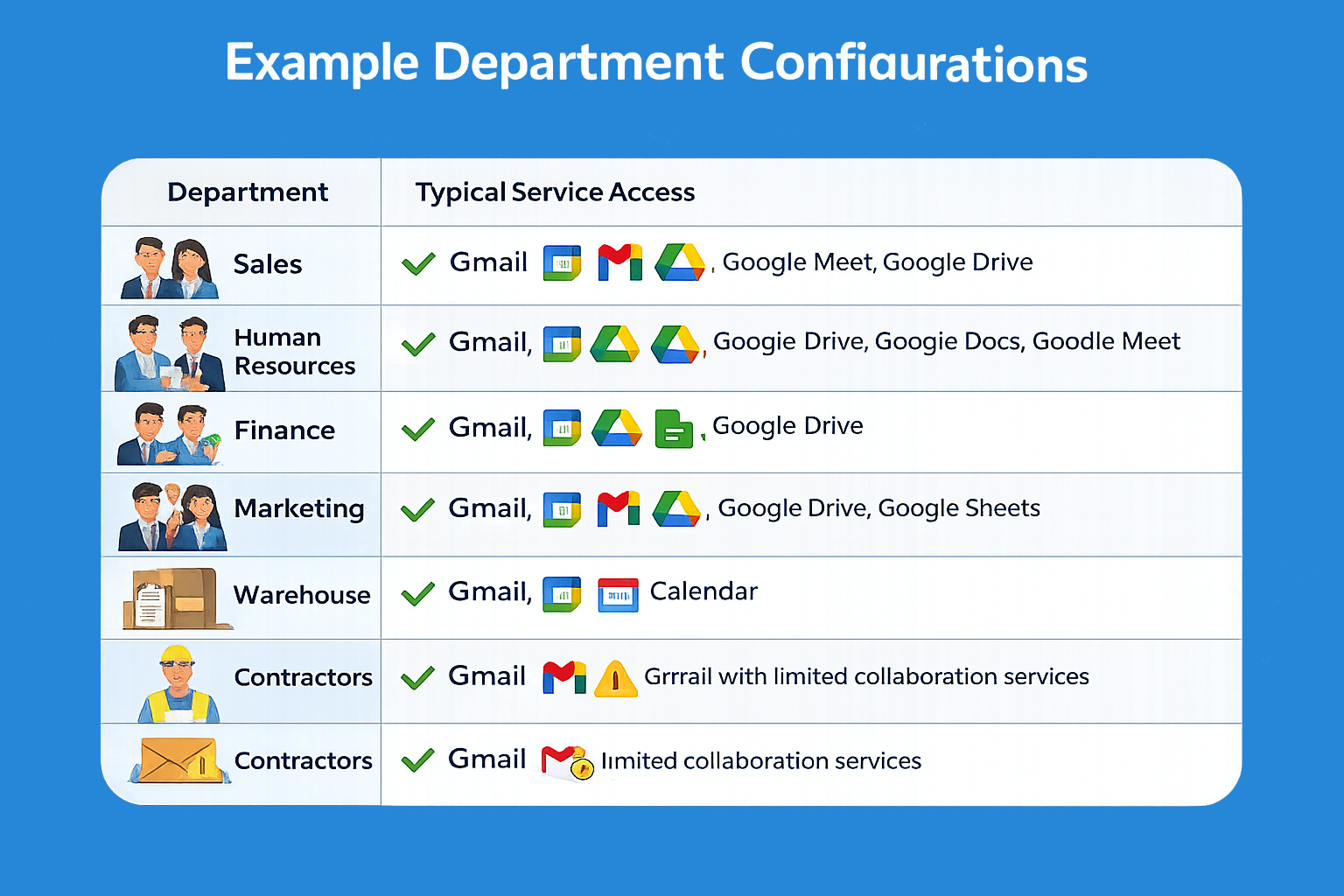
Example Department Configuration
The following example demonstrates how different departments might be configured.
Department | Typical Service Access |
Sales | Gmail, Calendar, Google Meet, Google Drive |
Human Resources | Gmail, Google Drive, Google Docs, Google Meet |
Finance | Gmail, Google Drive, Google Sheets |
Marketing | Gmail, Google Drive, Google Meet, Google Chat |
Warehouse | Gmail, Calendar |
Contractors | Gmail with limited collaboration services |
Every organization has different operational requirements, so configure services according to business needs rather than using a one-size-fits-all approach.
Best Practices for Managing Service Access
A well-planned Organizational Unit structure makes Google Workspace easier to manage as your organization grows.
Follow these best practices:
- Organize users into Organizational Units based on departments or business functions rather than managing individual users.
- Follow the principle of least privilege by granting employees access only to the services they need.
- Test service restrictions with a pilot Organizational Unit before deploying changes across the organization.
- Review service access whenever employees change roles or departments.
- Audit Organizational Units periodically to ensure users remain in the correct department.
- Document department-level service policies so future administrators understand your configuration.
- Review service access regularly as your business adopts new workflows or Google Workspace features.
Taking a structured approach reduces administrative overhead while improving security and consistency.
Common Mistakes to Avoid
Restricting Individual Users Instead of Organizational Units
Managing service access one user at a time quickly becomes difficult as your organization grows. Organizational Units provide a more scalable and consistent way to manage departments.
Ignoring Inherited Settings
Many administrators overlook inherited Organizational Unit settings when troubleshooting service access.
If a service appears unavailable, verify whether the setting is inherited from a parent Organizational Unit before making additional changes.
Disabling Services Without Informing Employees
Employees may assume a service is unavailable because of a technical problem rather than an administrative change.
Notify affected departments before applying new service restrictions to reduce confusion and unnecessary support requests.
Forgetting to Update Access After Role Changes
Employees who move between departments should also be moved into the appropriate Organizational Unit.
Failing to update Organizational Units can result in users keeping access they no longer need—or losing access required for their new role.