What Is a Staging Environment in WordPress Hosting?
If you have ever updated a plugin and watched your live website break in front of visitors, you already understand why a staging environment matters. A staging environment in WordPress hosting is a private copy of your website where you can test changes safely before they go live. It looks and behaves exactly like your […]
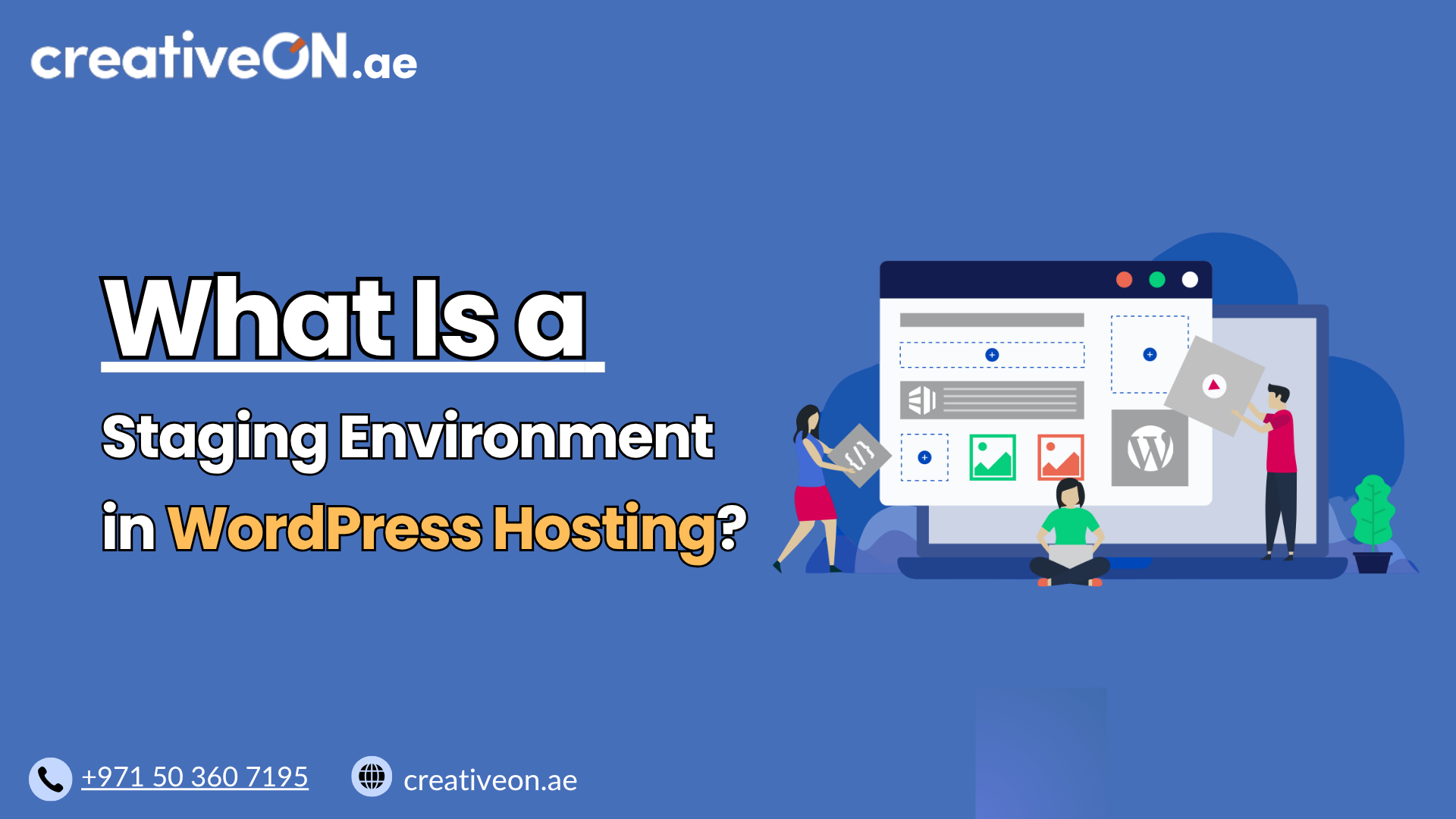
If you have ever updated a plugin and watched your live website break in front of visitors, you already understand why a staging environment matters. A staging environment in WordPress hosting is a private copy of your website where you can test changes safely before they go live. It looks and behaves exactly like your real site, but nothing you do there affects your actual visitors.
For business owners running WordPress sites in the UAE and beyond, this single feature can prevent costly downtime, broken checkouts, and frustrated customers.
Why a Staging Environment Matters
Every WordPress site eventually needs updates — new plugins, theme changes, PHP version upgrades, or design tweaks. The problem is that any of these changes can conflict with your existing setup.
Without a staging environment, you’re testing changes directly on your live site. If something goes wrong:
- Visitors may see broken pages or error messages.
- An online store could lose sales during checkout failures.
- You may need emergency support to fix the issue quickly.
A staging site removes this risk. You make the change on the copy first, confirm everything works, and only then apply it to your live website.
How a WordPress Staging Environment Works
Most managed WordPress hosting providers offer one-click staging, allowing you to create an exact copy of your website within minutes, directly from your hosting dashboard. Here’s what happens behind the scenes:
- Cloning the site – Your hosting platform copies your website’s files, theme, plugins, and database.
- Creating a separate URL – The staging copy usually lives on a temporary or subdomain URL, separate from your live domain.
- Isolating the environment – Changes made on staging do not sync automatically to production, and search engines are typically blocked from indexing it.
- Testing freely – You can install plugins, edit code, or preview design changes without any risk.
- Pushing changes live – Once you’re satisfied, most managed WordPress hosting platforms let you push the tested changes to your live site with a single action.
This workflow is one of the main reasons businesses choose managed WordPress hosting over basic hosting plans, since staging tools are usually built into the hosting panel rather than requiring manual setup.

What You Can Test in a Staging Environment
A staging site is useful anytime you want certainty before making a change public. Common use cases include:
- Plugin and theme updates – Confirm compatibility before updating your live site.
- WordPress core updates – Check that a new WordPress version doesn’t break existing functionality.
- Design changes – Preview a new layout, color scheme, or homepage redesign.
- Custom code or snippets – Test PHP, CSS, or JavaScript changes safely.
- WooCommerce updates – Verify that cart, checkout, and payment flows still work correctly after changes.
When Should You Use a Staging Environment?
Not every change needs staging, but for anything that could disrupt your site, it’s worth the extra step. Common moments to use it include:
- Before updating WordPress core
- Before installing or updating plugins
- Before redesigning pages or changing themes
- Before editing code or custom snippets
- Before changing WooCommerce settings
If a change is purely cosmetic and low-risk — like fixing a typo — staging usually isn’t necessary. But anything touching functionality, checkout, or core files is worth testing first.
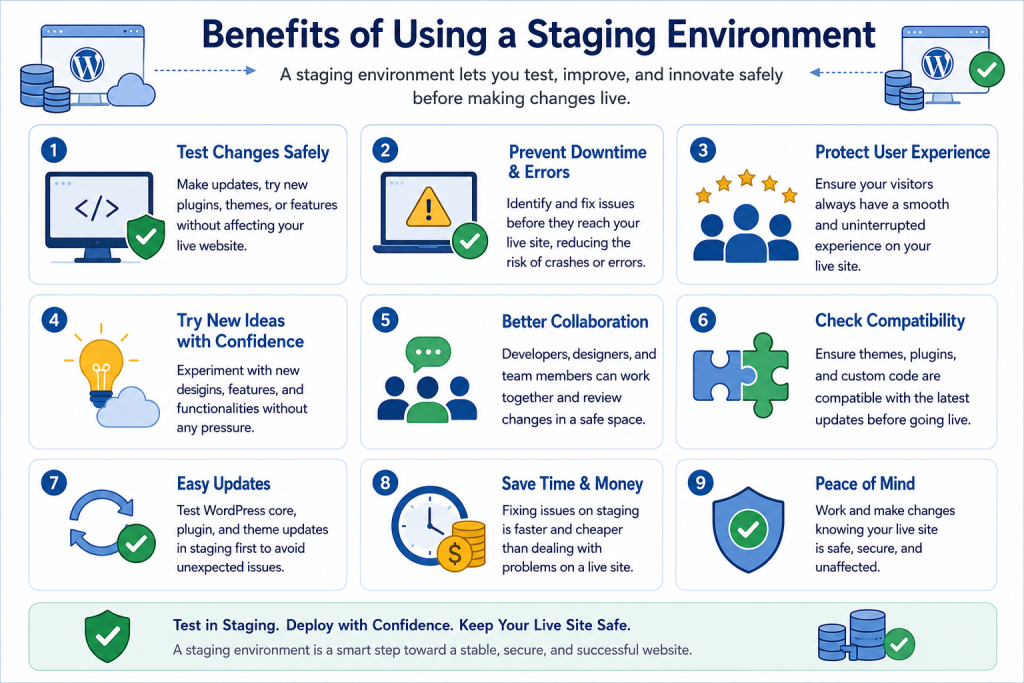
Benefits of Using a Staging Environment
Reduced downtime risk Testing changes separately means your live site keeps running normally while you work.
Better client and customer experience Visitors never see half-finished updates, broken layouts, or error screens.
Safer collaboration Developers, designers, and agencies can make changes on staging without needing full access to the live production site.
Faster troubleshooting If an update causes an issue, you already know it happened on staging — not from a live customer complaint.
Confidence before major changes Whether it’s a redesign or a new plugin, staging gives you a clear “before you commit” checkpoint.
Limitations to Keep in Mind
A staging environment is powerful, but it’s not automatic protection against every issue:
- It’s not a backup. Staging is for testing changes, not for storing a recovery copy of your site. That’s a separate practice covered in our WordPress backup guide.
- Database changes need care. If your live site collects new orders or form entries while you’re testing on staging, pushing an outdated staging database live can overwrite recent data. Always check what syncs before publishing changes.
- Not all hosting plans include it. Staging environments are typically a feature of managed WordPress hosting rather than basic shared hosting plans.
Best Practices for Using a Staging Environment
- Create a fresh staging copy before major updates, rather than reusing an old one that may be out of date.
- Test one change at a time where possible, so it’s easier to identify what caused an issue.
- Check core functionality first — homepage, navigation, forms, and (for online stores) the checkout process.
- Review on multiple devices to catch layout issues on mobile as well as desktop.
- Delete outdated staging sites once testing is complete, to avoid confusion about which version is current.
Common Mistakes to Avoid
- Skipping staging entirely and updating the live site directly “because it’s usually fine.”
- Forgetting to test WooCommerce or forms, focusing only on visual design.
- Pushing staging live without checking for new orders or submissions that occurred on the live site in the meantime.
- Leaving staging sites publicly accessible. Protect staging sites with password authentication and ensure they remain excluded from search engine indexing.
Some hosting platforms also allow selective deployment of files or database changes, though capabilities vary by provider.
Staging Environments and Agencies or Developers
For agencies and development teams managing client websites, a staging environment is often non-negotiable. It allows a team to build and refine changes without ever risking the client’s live site, which matters especially for eCommerce stores and service-based businesses where downtime directly affects revenue. This is one reason staging tools are a standard part of solid WordPress hosting security and workflow practices for professional teams. Even experienced developers rarely make significant changes directly on a production website. Testing in staging is considered a standard industry practice because it reduces operational risk.