How to Transfer User Data Before Deleting an Account
When an employee leaves your company, deleting their Google Workspace account immediately might seem like the quickest solution. However, doing so without transferring important files, emails, and other business data can result in permanent data loss, disrupted workflows, and missing project information. Google Workspace provides administrators with several ways to transfer ownership of files and […]
When an employee leaves your company, deleting their Google Workspace account immediately might seem like the quickest solution. However, doing so without transferring important files, emails, and other business data can result in permanent data loss, disrupted workflows, and missing project information.
Google Workspace provides administrators with several ways to transfer ownership of files and preserve business information before removing a user account. Taking a few extra minutes to complete this process helps ensure that your organization keeps access to valuable documents and continues operating smoothly.
In this guide, you’ll learn how to transfer user data before deleting a Google Workspace account, what data can and cannot be transferred, and the best practices every administrator should follow during employee offboarding.
Why You Should Transfer User Data Before Deleting an Account
A Google Workspace user account often contains much more than emails. It may include years of business documents, spreadsheets, presentations, meeting recordings, shared folders, contacts, calendars, and files that multiple teams rely on every day.
If an account is deleted without first transferring ownership of these assets, recovering that information may become difficult or impossible after Google’s recovery period expires.
Transferring user data helps your organization:
- Preserve important business files
- Maintain team productivity
- Prevent accidental data loss
- Keep project ownership organized
- Support compliance and record retention
- Simplify employee offboarding
For companies in the UAE managing remote teams or multiple office locations, having a consistent offboarding process is especially important to ensure business continuity.
What User Data Can Be Transferred?
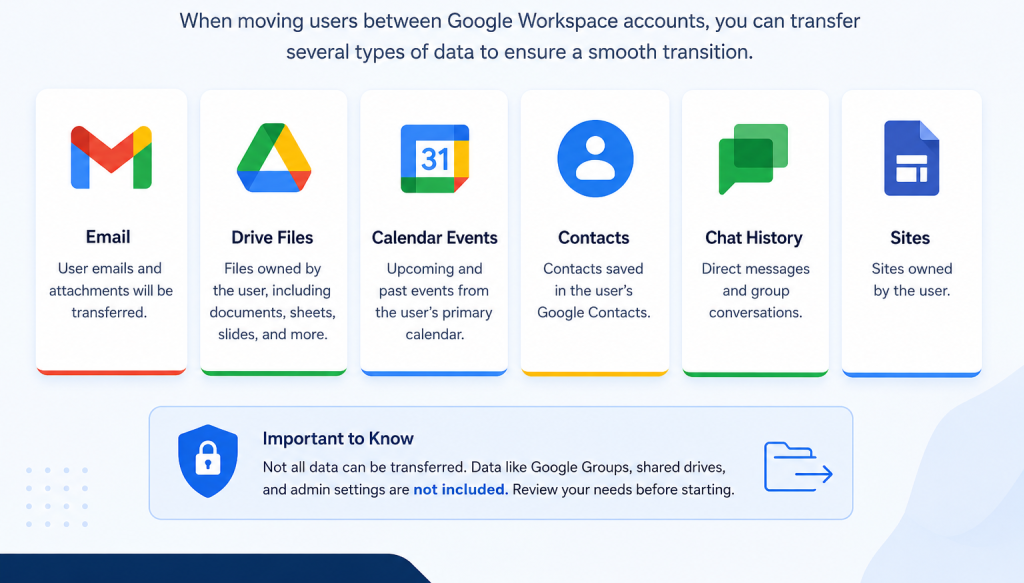
Not every type of Google Workspace data behaves the same way. Some information can be reassigned to another employee, while other items require different management methods.
Common data that can be transferred includes:
- Google Drive files
- Google Docs
- Google Sheets
- Google Slides
- Google Forms
- Shared file ownership
- Some Calendar events
- Contacts (using export/import methods)
Some data cannot simply be transferred, such as:
- Personal Gmail labels
- Personal browser settings
- Google Chat history (depending on retention settings)
- Some third-party application data
Understanding these differences helps administrators choose the right transfer method before deleting an account.
Before You Start
Before deleting any employee account, gather a few important details.
You’ll need:
- Super Admin or appropriate administrative privileges
- The departing user’s account
- The destination user account
- Enough storage space for transferred files
- A clear understanding of which business assets need to remain accessible
It’s also a good idea to confirm with department managers that no important work is still pending under the employee’s account.
Step 1: Transfer Google Drive Ownership
For most organizations, Google Drive contains the most valuable business information.
Google Workspace allows administrators to transfer ownership of Drive files to another user before deleting the original account.
The process generally involves:
- Open the Google Admin console.
- Locate the user account.
- Choose the option to transfer Drive files.
- Enter the destination user’s email address.
- Confirm the transfer.
Google will then begin moving ownership of eligible files to the new account.
Depending on the amount of data involved, the transfer may take several minutes or even several hours.
Step 2: Preserve Important Gmail Information
Unlike Google Drive files, Gmail messages are not automatically transferred to another user’s mailbox during account deletion.
If important emails must be retained, administrators should decide on the appropriate retention strategy before deleting the account.
Common options include:
- Using Google Vault for retention
- Exporting mailbox data
- Delegating mailbox access before departure
- Forwarding important conversations
- Archiving required communications
Organizations with compliance requirements should establish a documented email retention policy before employee offboarding.
Step 3: Review Shared Drives
If the departing employee primarily worked within Shared Drives, the process becomes much simpler.
Files stored inside Shared Drives belong to the organization rather than individual users.
This means:
- Files remain accessible
- Ownership does not depend on one employee
- Teams continue working without interruption
- Deleting the user account does not remove Shared Drive content
For this reason, many organizations encourage employees to store collaborative work in Shared Drives instead of personal My Drive locations.
Step 4: Transfer Calendar Responsibilities
Employees often own meetings that involve clients, vendors, or internal teams.
Before deleting an account:
- Review upcoming meetings
- Reassign meeting ownership where necessary
- Inform attendees about organizer changes
- Export calendars if required
- Share important calendars with replacement staff
This helps avoid missed meetings and scheduling confusion after the employee leaves.
Step 5: Check Third-Party Applications
Many Google Workspace users connect external business applications using Google Sign-In.
Examples include:
- CRM platforms
- Project management software
- HR systems
- Accounting applications
- Marketing tools
Before deleting the account:
- Review connected applications
- Transfer ownership where supported
- Update administrator contacts
- Remove unnecessary access
This prevents unexpected service interruptions after the account is removed.
Step 6: Verify the Data Transfer
Before permanently deleting the account, verify that the transfer completed successfully.
Check that:
- Documents open correctly
- File ownership changed
- Shared permissions remain intact
- Required folders are accessible
- Team members can continue working normally
Taking time to verify everything can prevent major issues later.
Common Mistakes to Avoid
Even experienced administrators occasionally overlook important steps during employee offboarding.
Some of the most common mistakes include:
- Deleting the account immediately after the employee leaves
- Forgetting to transfer Google Drive ownership
- Ignoring Shared Drive permissions
- Not preserving legally required emails
- Skipping verification after the transfer
- Overlooking third-party applications connected to the account
Following a documented checklist helps reduce these risks.
Best Practices for Employee Offboarding
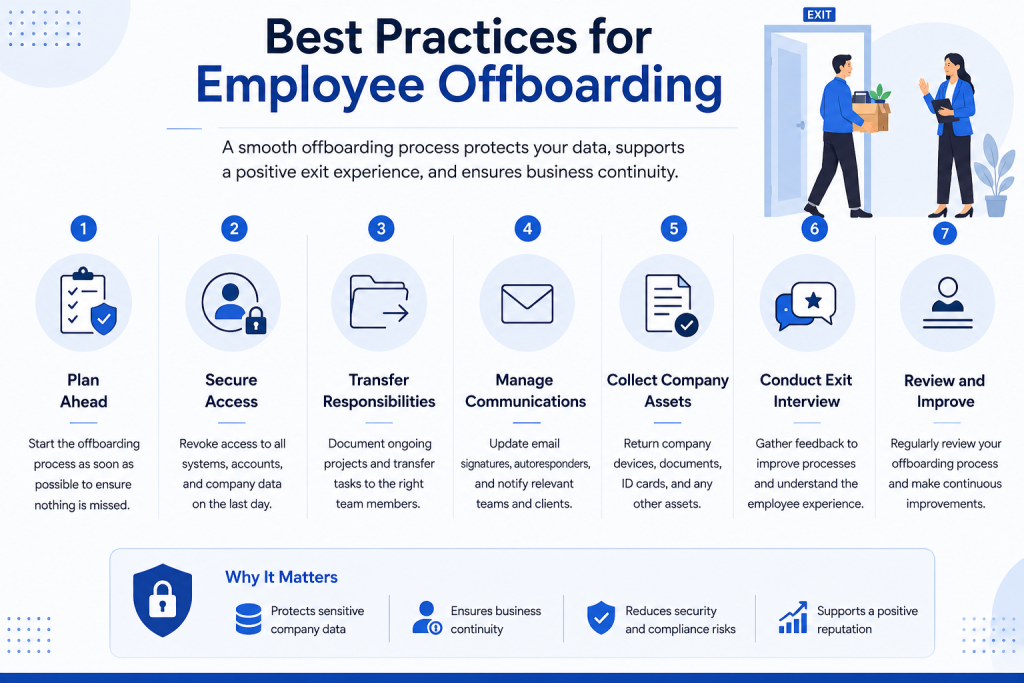
Rather than handling every departure differently, establish a standardized offboarding process for your organization.
A typical workflow includes:
- Disable user sign-in.
- Reset passwords if necessary.
- Transfer Google Drive ownership.
- Preserve required emails.
- Review Calendar events.
- Check Shared Drives.
- Verify transferred files.
- Remove licenses if appropriate.
- Delete the account only after confirming everything is complete.
This approach helps maintain security while protecting valuable business data.
When Should You Use Google Vault?
If your organization uses Google Vault, it can help preserve emails, chats, and certain Workspace data for legal, regulatory, or internal compliance purposes.
Vault is especially useful when:
- Employees leave unexpectedly
- Legal holds are required
- Regulatory compliance applies
- Email retention policies must be enforced
Vault is not a replacement for transferring file ownership, but it complements a well-planned offboarding process.
Visual Content Recommendations
To make this guide easier to follow, consider adding:
- A screenshot of the Google Admin console user management page.
- A step-by-step flowchart showing the employee offboarding process.
- A checklist graphic titled “Transfer User Data Before Deleting an Account.”
- A comparison table showing transferable vs. non-transferable data.
Suggested image ALT text:
- “Transfer user data before deleting an account in Google Workspace”
- “Google Workspace Admin console transfer user data”
- “Transfer Google Drive ownership before deleting a user”
Recommended Internal Links
To help readers continue learning, link naturally to:
- Google Workspace (Pillar Page)
- Google Workspace Admin (Feature Page)
- How to Recover a Deleted User
- How to Assign Admin Roles in Google Workspace
- Google Drive Sharing Permissions Explained
- Employee Offboarding Checklist for Google Workspace
Frequently Asked Questions
No. Google Drive ownership can be transferred, but some data, such as Gmail messages and third-party application data, requires separate handling or retention methods.
Files owned only by that user may become inaccessible or be permanently deleted after Google’s recovery period, depending on your organization’s settings.
Not directly. You may need to use Google Vault, export mailbox data, or other approved migration methods depending on your requirements.
Usually not. Files stored in Shared Drives belong to the organization rather than an individual user, so they remain available after the account is deleted.
Yes. Suspending the account first allows administrators to secure access while completing data transfers and other offboarding tasks.
Conclusion
Deleting a Google Workspace account should always be the final step in your employee offboarding process—not the first. By transferring file ownership, preserving important emails, reviewing calendars, and verifying access before removal, you can protect valuable business information and ensure a smooth transition for the rest of your team.
For businesses in the UAE, following a structured offboarding process helps maintain security, productivity, and compliance. CreativeON can help organizations implement Google Workspace best practices so administrators can manage user accounts confidently and avoid unnecessary data loss.