WordPress File Structure: A Practical Guide for WordPress Hosting Users
If you’ve ever logged into your hosting account and opened a file manager or FTP client, you’ve probably seen a long list of folders and files with names like wp-admin, wp-content, and wp-config.php. At first glance, it can look confusing. But understanding the WordPress file structure is one of the most useful things you can […]
If you’ve ever logged into your hosting account and opened a file manager or FTP client, you’ve probably seen a long list of folders and files with names like wp-admin, wp-content, and wp-config.php. At first glance, it can look confusing. But understanding the WordPress file structure is one of the most useful things you can learn as a website owner, especially if you’re troubleshooting an issue, installing a plugin manually, or simply trying to understand what’s happening behind your site.
This guide breaks down the WordPress file structure in plain language, so you know exactly what each part does and why it matters for your WordPress hosting environment.
Why Understanding WordPress File Structure Matters
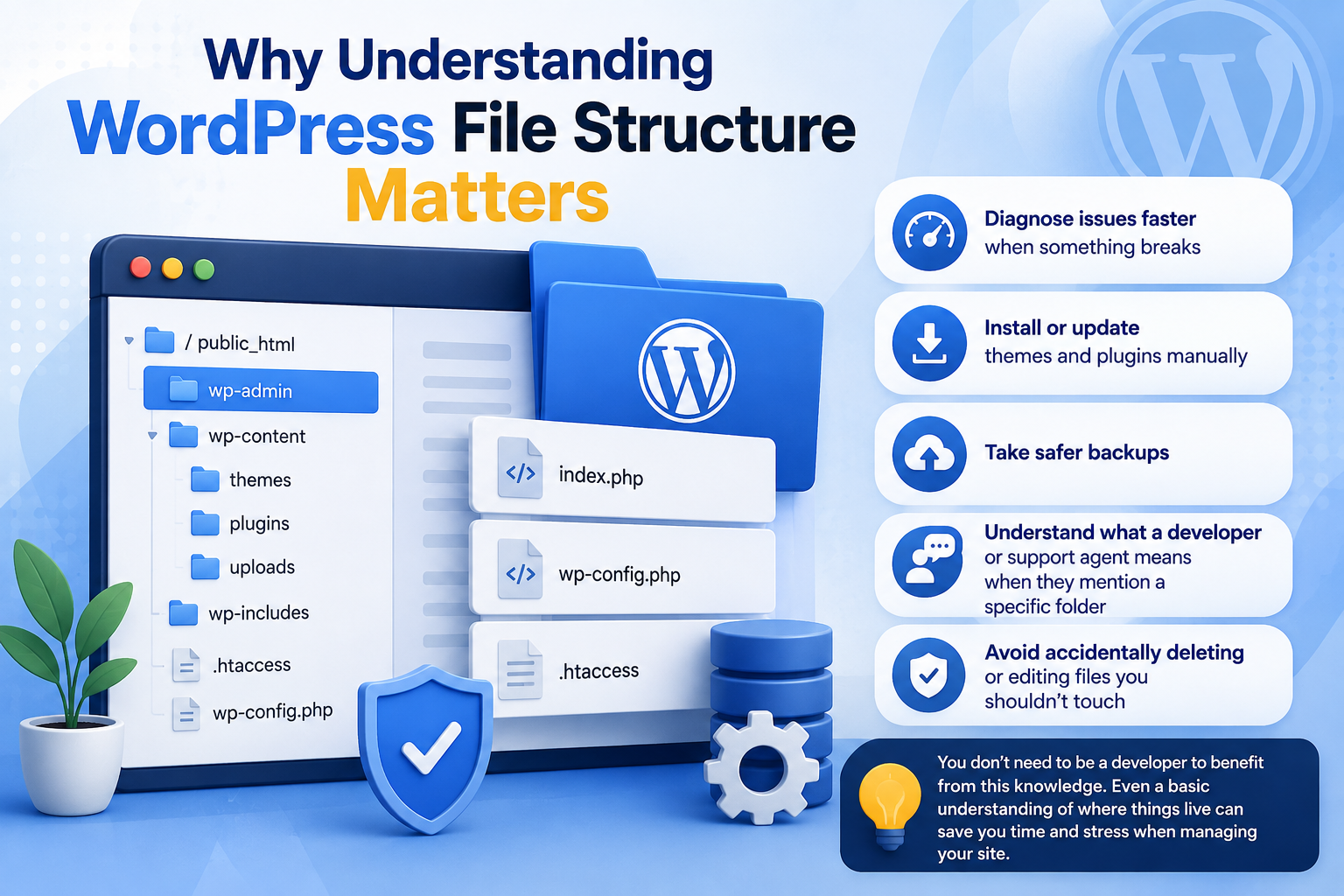
Every WordPress website is built on the same basic file structure, no matter which theme or plugins you use. Knowing this structure helps you:
- Diagnose issues faster when something breaks
- Install or update themes and plugins manually
- Take safer backups
- Understand what a developer or support agent means when they mention a specific folder
- Avoid accidentally deleting or editing files you shouldn’t touch
You don’t need to be a developer to benefit from this knowledge. Even a basic understanding of where things live can save you time and stress when managing your site.

The WordPress Root Directory
When WordPress is installed, all of its files sit inside what’s called the root directory. This is usually the main folder connected to your domain, often named public_html, www, or something similar depending on your hosting provider.
Inside the root directory, you’ll find three core folders and several individual files. These make up the entire WordPress installation.
The three main folders are:
- wp-admin
- wp-includes
- wp-content
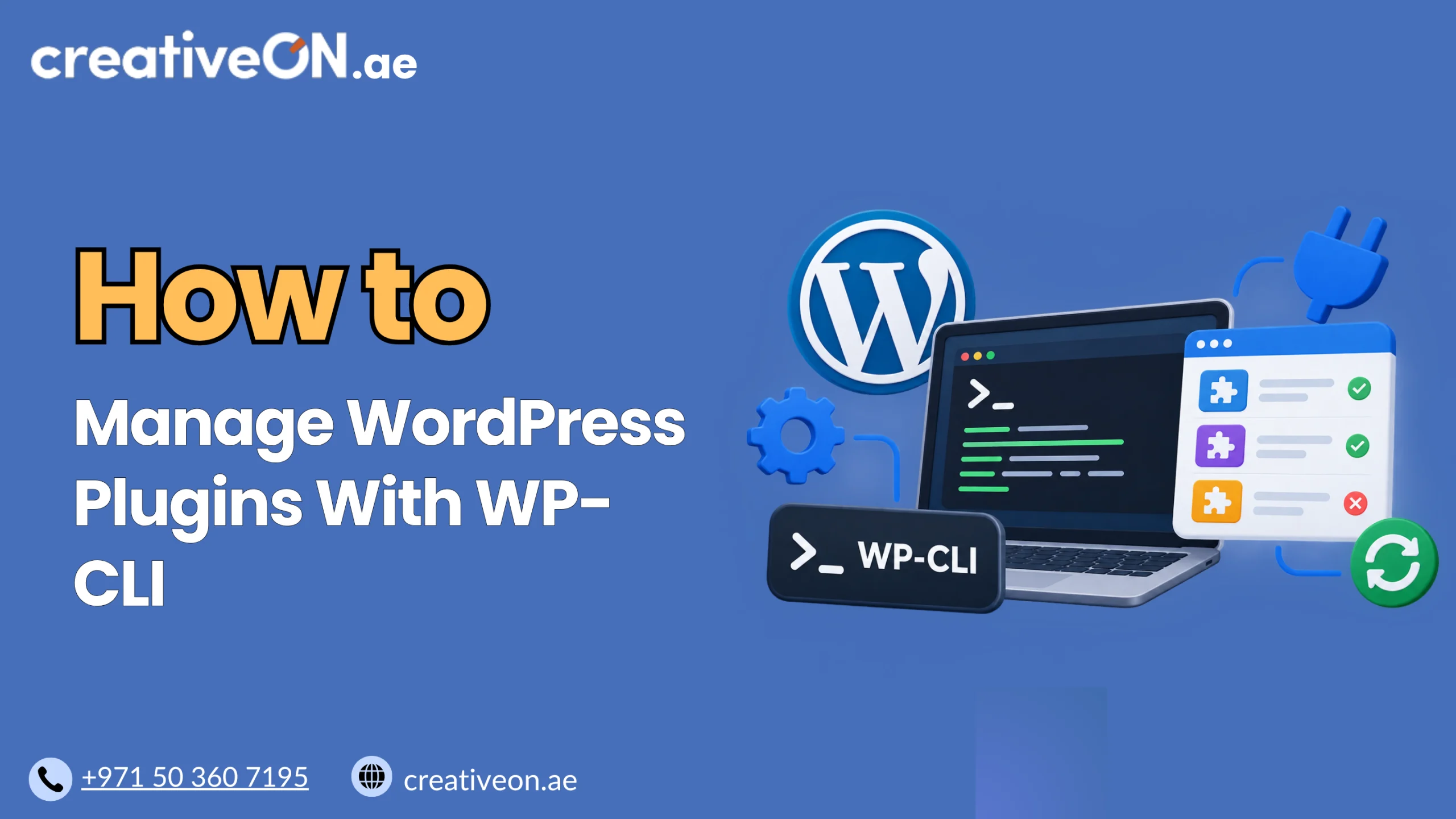
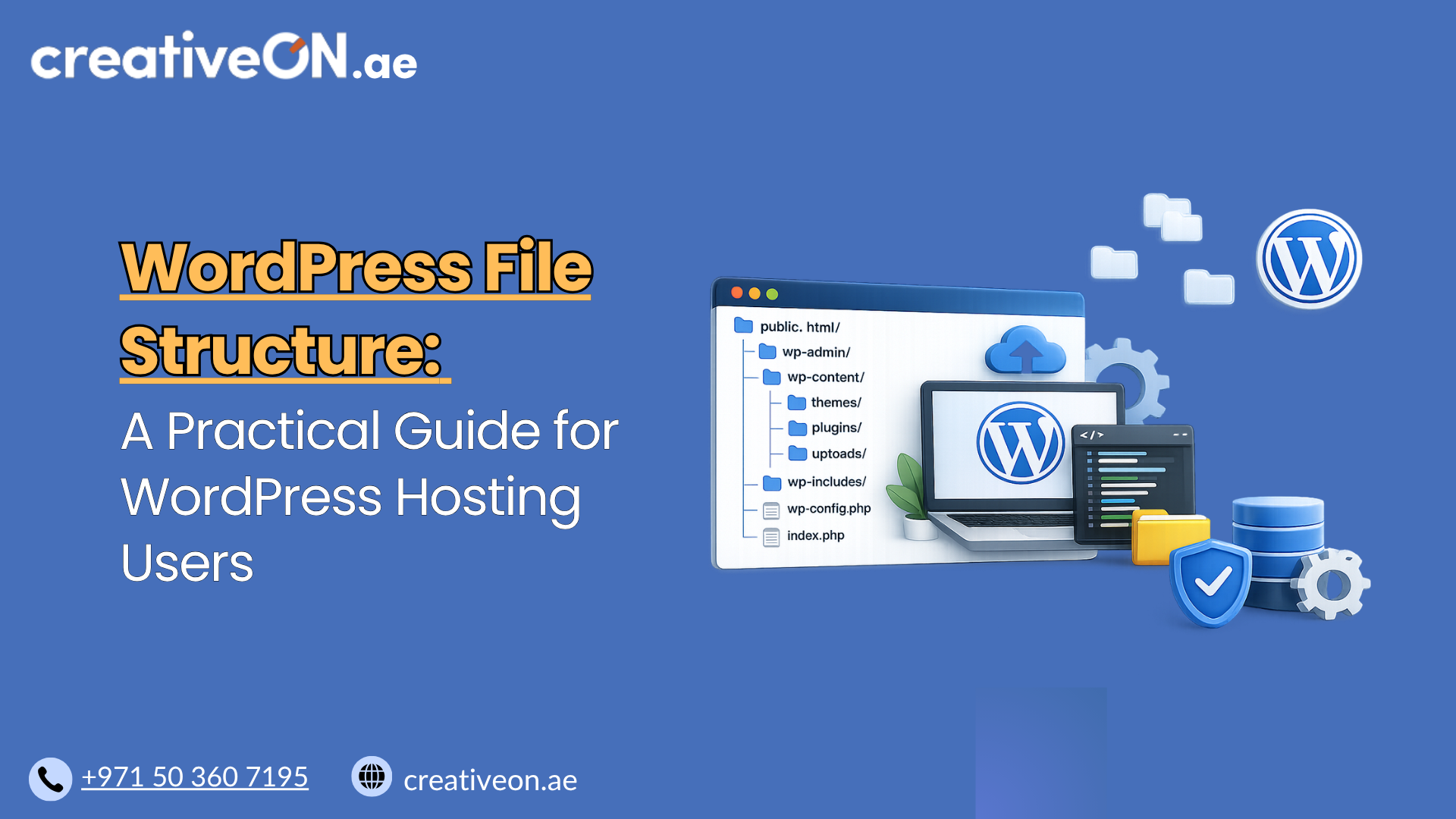
Here’s what a typical WordPress installation looks like at a glance:
public_html/
│
├── wp-admin/
├── wp-content/
│ ├── themes/
│ ├── plugins/
│ ├── uploads/
│ └── languages/
├── wp-includes/
├── wp-config.php
└── index.php
For most website owners, wp-content is the only directory you’ll regularly interact with. The other core folders run quietly in the background, and you rarely need to open them unless you’re troubleshooting a deeper issue.
Let’s look at each one.
wp-admin: The Dashboard Engine
The wp-admin folder contains the files that power your WordPress dashboard, the area you log into to write posts, manage settings, and install plugins. Everything you interact with when you visit yourdomain.com/wp-admin comes from this folder.
This folder is part of WordPress core, meaning it’s maintained and updated by the WordPress software itself. As a general rule, you should never manually edit files inside wp-admin. Doing so can break your dashboard or create security vulnerabilities, and any changes will usually be overwritten the next time WordPress updates.
wp-includes: The Core Functionality
The wp-includes folder holds the core code that makes WordPress function, things like formatting content, handling media, managing widgets, and running background processes. Think of it as the engine room of your website.
Like wp-admin, this folder is also part of WordPress core and updates automatically. It’s not something you should edit directly. If you ever see this folder referenced in an error message, it usually points to a core WordPress issue rather than something caused by your theme or plugins.
wp-content: Where Your Website Actually Lives
This is the folder that matters most to everyday WordPress users. Unlike wp-admin and wp-includes, wp-content is not part of WordPress core. It’s where all your customizations, content, and site-specific files are stored.
Inside wp-content, you’ll typically find:
themes — This folder stores every theme installed on your site, including the one currently active. Your site’s design and layout files live here.
plugins — Every plugin you install, activated or not, is stored in this folder. If a plugin is causing issues, this is where you’d go to disable it manually by renaming its folder.
uploads — All media files you’ve added through the WordPress dashboard, images, PDFs, videos, are stored here, organized by year and month.
languages — This folder stores translation files for your site, allowing WordPress, your theme, and your plugins to display content in different languages.
Because wp-content holds your actual site data, it’s the folder most relevant to backups, migrations, and troubleshooting. If you’re moving your site to new WordPress hosting, this is one of the key folders you’ll need to transfer correctly.
Key WordPress Files You Should Know
Beyond the three main folders, a few individual files in the root directory play an important role.
wp-config.php — This is one of the most important files in your WordPress installation. It stores your database connection details, security keys, and various configuration settings. It should be handled carefully and never shared publicly, as it contains sensitive information.
.htaccess — On many hosting environments, this file controls how URLs are handled and how your site’s permalinks work. It also plays a role in security rules and redirects. A misconfigured .htaccess file is a common cause of “500 Internal Server Error” or broken permalink issues.
index.php — This is the file that loads your website when someone visits your domain. It’s a small file, but it’s the starting point that connects everything else together.
wp-load.php — This file bootstraps WordPress, loading the settings and functions needed for the site to run. You’ll rarely need to touch it directly, but it’s worth knowing it exists.
Best Practices for Managing WordPress Files
Only edit what you need to. Stick to wp-content for customizations like themes, plugins, and uploads. Avoid modifying core folders like wp-admin and wp-includes.
Back up before making changes. Before editing wp-config.php, .htaccess, or any theme files directly, take a backup. A small mistake in these files can take your site offline.
Use a child theme for customizations. If you’re editing theme files, always do it through a child theme rather than modifying the parent theme directly. Otherwise, your changes will be lost during a theme update.
Keep an eye on file permissions. WordPress files and folders need correct permission settings to function securely. Incorrect permissions can either expose your site to security risks or prevent WordPress from writing necessary files.
Never change file permissions unless you understand the implications. Setting permissions too loosely can expose sensitive files like wp-config.php to unauthorized access, while setting them too strictly can prevent WordPress from updating themes, plugins, or uploading media.
Don’t install plugins by uploading random files to random folders. Always install plugins through the WordPress dashboard or by placing properly structured plugin folders inside wp-content/plugins.
Common Mistakes to Avoid
- Editing core files directly, which get overwritten during updates and can introduce vulnerabilities
- Deleting the wp-content/uploads folder without a backup, resulting in permanent loss of media files
- Sharing or exposing wp-config.php publicly, which can compromise your entire site
- Renaming or moving core folders like wp-admin, which breaks WordPress functionality
- Ignoring .htaccess issues, which often show up as broken links or server errors
If you’re managing a growing WordPress site, especially one handling sensitive data or transactions, it’s worth reviewing our WordPress Security Best Practices guide to understand how file structure ties into overall site protection.
How File Structure Connects to Hosting Performance
Your WordPress file structure doesn’t just affect organization, it also plays a role in how your hosting environment performs. For example, a bloated wp-content/uploads folder with unoptimized images can slow down your site, while poorly managed plugins in the plugins folder can create conflicts or security gaps.
If performance is a concern, our WordPress Caching Guide covers how caching interacts with your file structure to speed up load times. And if you’re planning to move providers, our WordPress Migration Guide walks through how to transfer your file structure safely without losing data.