WordPress Plugins Explained
If you’re running a WordPress website, you’ve probably heard the word “plugin” more times than you can count. Whether you’re setting up your first site or managing one that’s been live for years, understanding WordPress plugins is one of the most important steps toward getting the most out of your site. This guide explains exactly […]
If you’re running a WordPress website, you’ve probably heard the word “plugin” more times than you can count. Whether you’re setting up your first site or managing one that’s been live for years, understanding WordPress plugins is one of the most important steps toward getting the most out of your site.
This guide explains exactly what WordPress plugins are, how they work, and how to use them without slowing down or breaking your website.
What Are WordPress Plugins?
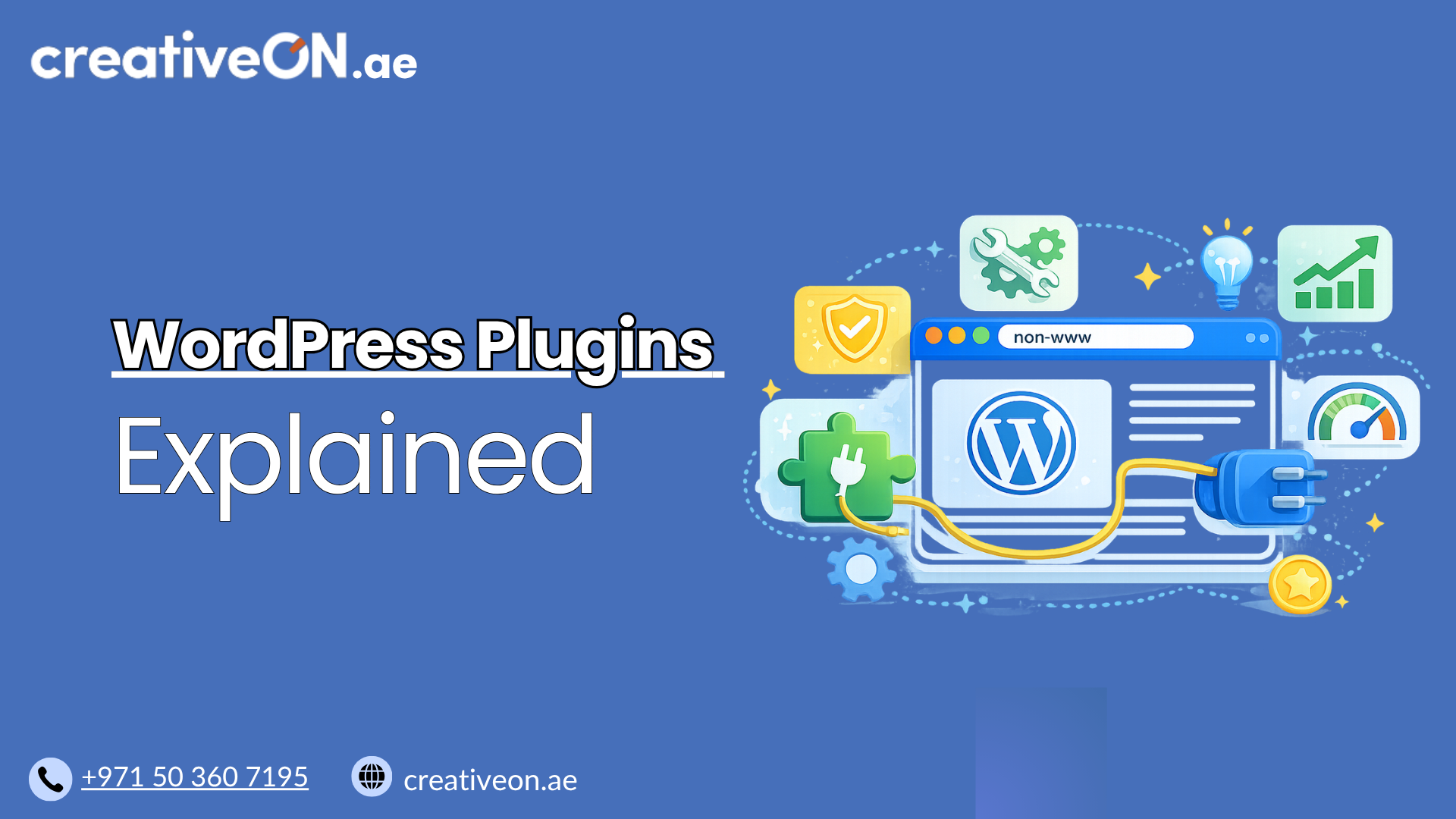
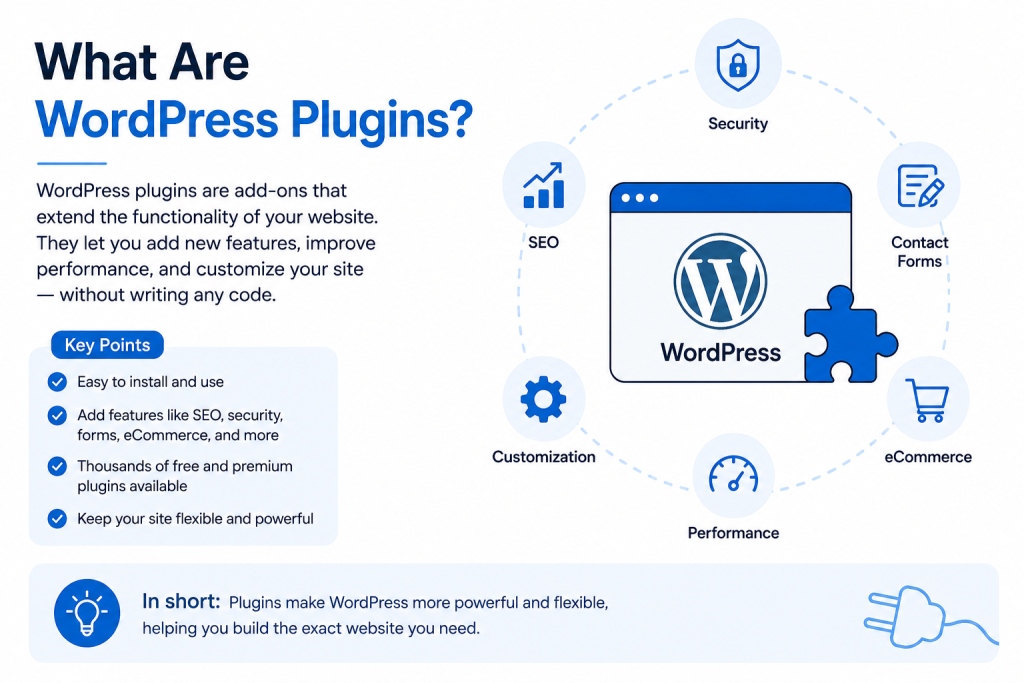
A WordPress plugin is a piece of software that adds new features or functionality to your WordPress site — without you needing to write any code yourself.
Think of WordPress as a smartphone. Out of the box, it does the basics well: it lets you publish pages and posts. But if you want a contact form, an online store, an SEO toolkit, or a booking system, you install an “app” for that. In WordPress, those apps are called plugins.
There are over 60,000 free plugins available in the official WordPress Plugin Directory, along with thousands more premium (paid) options built by third-party developers. This is one of the biggest reasons WordPress powers such a large share of websites worldwide — almost anything you want your site to do, a plugin probably already exists for it.
The official WordPress Plugin Directory is generally the safest place to source free plugins, since every listing goes through a basic review process and displays update history, install numbers, and user ratings — all useful signals before you install anything.
Why WordPress Plugins Matter
Plugins matter because they let business owners, bloggers, and agencies build powerful websites without hiring a developer for every small change.
A few common things plugins let you do:
- Add a contact form or newsletter signup
- Turn your site into an online store (e.g., WooCommerce)
- Optimize your content for search engines
- Add caching to improve page speed
- Secure your site against spam and malicious login attempts
- Create backups automatically
- Build custom layouts with page builders
Without plugins, WordPress would just be a basic blogging tool. With them, it becomes a flexible platform capable of running anything from a personal blog to a full eCommerce store.
How WordPress Plugins Work
When you install a plugin, you’re adding a folder of code files into your WordPress installation. Once activated, that code “hooks” into WordPress and either:
- Adds new functionality — like a contact form, a booking calendar, or a social sharing button.
- Modifies existing behavior — like changing how images are displayed or how URLs are structured.
- Connects your site to an external service — like a payment gateway, email marketing platform, or CRM.
Because plugins run as part of your site’s codebase, they share resources with your theme and your WordPress core files. This is important to understand, because it explains both the power and the risk of using plugins — more on that below.
Types of WordPress Plugins
Most WordPress plugins fall into a few broad categories:
- SEO plugins — help optimize content, metadata, and site structure for search engines.
- Security plugins — protect against brute-force login attempts, malware, and spam.
- Performance plugins — handle caching, image compression, and code minification. For a closer look at speeding up your site, see our [WordPress Caching Guide].
- eCommerce plugins — power online stores, product listings, and checkout flows. If you’re building a store, our [WooCommerce Hosting] guide covers the hosting side of this in detail.
- Form and lead-generation plugins — build contact forms, surveys, and quizzes.
- Backup plugins — create and store copies of your site so you can restore it if something goes wrong. Our [WordPress Backup Guide] walks through setting up a reliable backup routine.
- Page builder plugins — allow drag-and-drop design without writing code.
Most WordPress sites run a combination of these, rather than relying on just one.
Free vs. Premium Plugins
Both free and premium plugins have their place, and the right choice usually comes down to how critical the feature is to your business.
- Free plugins are usually enough for standard needs — a contact form, basic SEO setup, or simple caching. Many of the most trusted WordPress plugins are free and actively maintained.
- Premium plugins make sense when you need advanced functionality, such as multi-vendor eCommerce features, advanced booking logic, or deeper customization options not available in the free version.
- Paid support is often the real value. Beyond extra features, premium plugins typically include dedicated customer support, faster bug fixes, and priority updates — which matters for businesses that can’t afford downtime while waiting on a community forum reply.
A practical approach is to start with a well-reviewed free plugin and only upgrade to premium if you hit a genuine feature or support limitation.
Benefits of Using WordPress Plugins
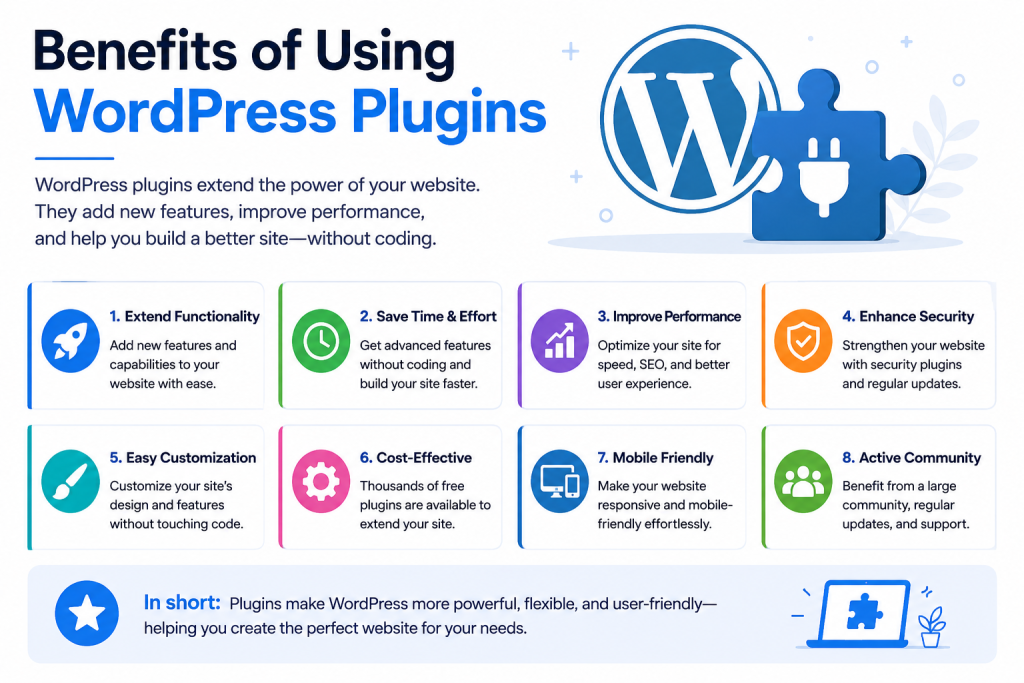
- No coding required Most plugins are designed for non-developers. You install, activate, and configure through simple settings screens.
- Faster development Instead of building a feature from scratch, you can add a tested plugin in minutes.
- Scalability As your website grows — more traffic, more products, more content — you can add plugins to match those new needs.
- Community-tested solutions Popular plugins are used (and reviewed) by millions of sites, so bugs are usually identified and fixed quickly.
Limitations and Risks of WordPress Plugins
Plugins are powerful, but they’re not risk-free. Being aware of the downsides helps you use them responsibly.
- Site speed — Poorly coded or excessive plugins can slow your website down significantly.
- Security vulnerabilities — Outdated or abandoned plugins are one of the most common ways WordPress sites get hacked. Our [WordPress Security Best Practices] guide covers how to lock this down beyond plugin choice alone.
- Compatibility conflicts — Two plugins (or a plugin and your theme) can sometimes conflict, causing errors or broken layouts.
- Maintenance overhead — Every plugin needs occasional updates. The more you install, the more upkeep is required.
- Plugin abandonment — Some developers stop maintaining their plugins, leaving sites exposed to unpatched vulnerabilities.
None of these risks mean you should avoid plugins altogether — they simply mean plugins should be chosen and managed carefully.
Best Practices for Using WordPress Plugins
- Only install what you actually need Every plugin adds some amount of code that has to load. Before installing, ask whether the feature is essential or just “nice to have.”
- Check plugin quality before installing Look at:
- Last updated date (avoid plugins untouched for a year or more)
- Number of active installations
- User reviews and support responsiveness
- Compatibility with your current WordPress version
- Keep plugins updated Updates often include security patches, not just new features. Delayed updates are one of the leading causes of WordPress hacks.
- Verify plugin compatibility before major WordPress updates Before updating WordPress core to a new major version, check that your key plugins have confirmed compatibility. Developers usually note supported WordPress versions on the plugin’s listing page — skipping this check is a common cause of post-update breakage.
- Remove inactive plugins Deactivated plugins still sit in your file system and can pose a security risk. If you’re not using it, delete it.
- Use a staging environment for testing Before activating a new plugin (or updating an existing one) on your live site, test it in a staging environment first to catch conflicts early.
- Limit page builder and “all-in-one” plugin overlap Running multiple plugins that do similar jobs (e.g., two SEO plugins or two caching plugins) often causes conflicts rather than added benefit.
Common Mistakes Businesses Make with Plugins
- Installing too many plugins “just in case”
- Ignoring plugin update notifications for months
- Downloading premium plugins from unofficial (“nulled”) sources, which often contain malware
- Never testing plugin updates before applying them to a live site
- Assuming all plugins are compatible with all themes
Avoiding these mistakes alone prevents the majority of plugin-related issues WordPress site owners run into.
Plugins and Website Performance
It’s a common myth that “more plugins = slower site.” In reality, it’s less about quantity and more about quality and configuration. A handful of poorly coded plugins can hurt performance far more than a dozen well-built, lightweight ones.
If your WordPress site is running on [Managed WordPress Hosting] with built-in caching and performance monitoring, many of these issues are minimized automatically — but plugin choice still plays a major role in how fast your site loads.
Plugins and Website Security
Because plugins have direct access to your site’s core files, they’re a frequent entry point for attackers. This is why security-conscious WordPress management includes regular plugin audits, prompt updates, and removing anything unused.