WordPress Revisions Explained: How to View, Compare, and Restore Previous Versions
Introduction Have you ever edited a WordPress post or page and later realized that an important paragraph was accidentally deleted? Or perhaps you updated a published article and wanted to return to an earlier version. WordPress includes a built-in feature called Revisions that helps you recover previous versions of your content. It keeps a history […]
Introduction
Have you ever edited a WordPress post or page and later realized that an important paragraph was accidentally deleted? Or perhaps you updated a published article and wanted to return to an earlier version.
WordPress includes a built-in feature called Revisions that helps you recover previous versions of your content. It keeps a history of saved changes to supported posts and pages, allowing you to review earlier edits, compare content changes, and restore a previous version when needed.
WordPress revisions are particularly useful for bloggers, website owners, content editors, and teams that regularly update website content. Instead of manually recreating deleted paragraphs or rewriting an earlier version, you can use revision history to recover your previous work.
In this guide, you will learn how WordPress revisions work, how to view and compare previous versions, how to restore earlier content, and how to manage revision settings effectively.
What Are WordPress Revisions?
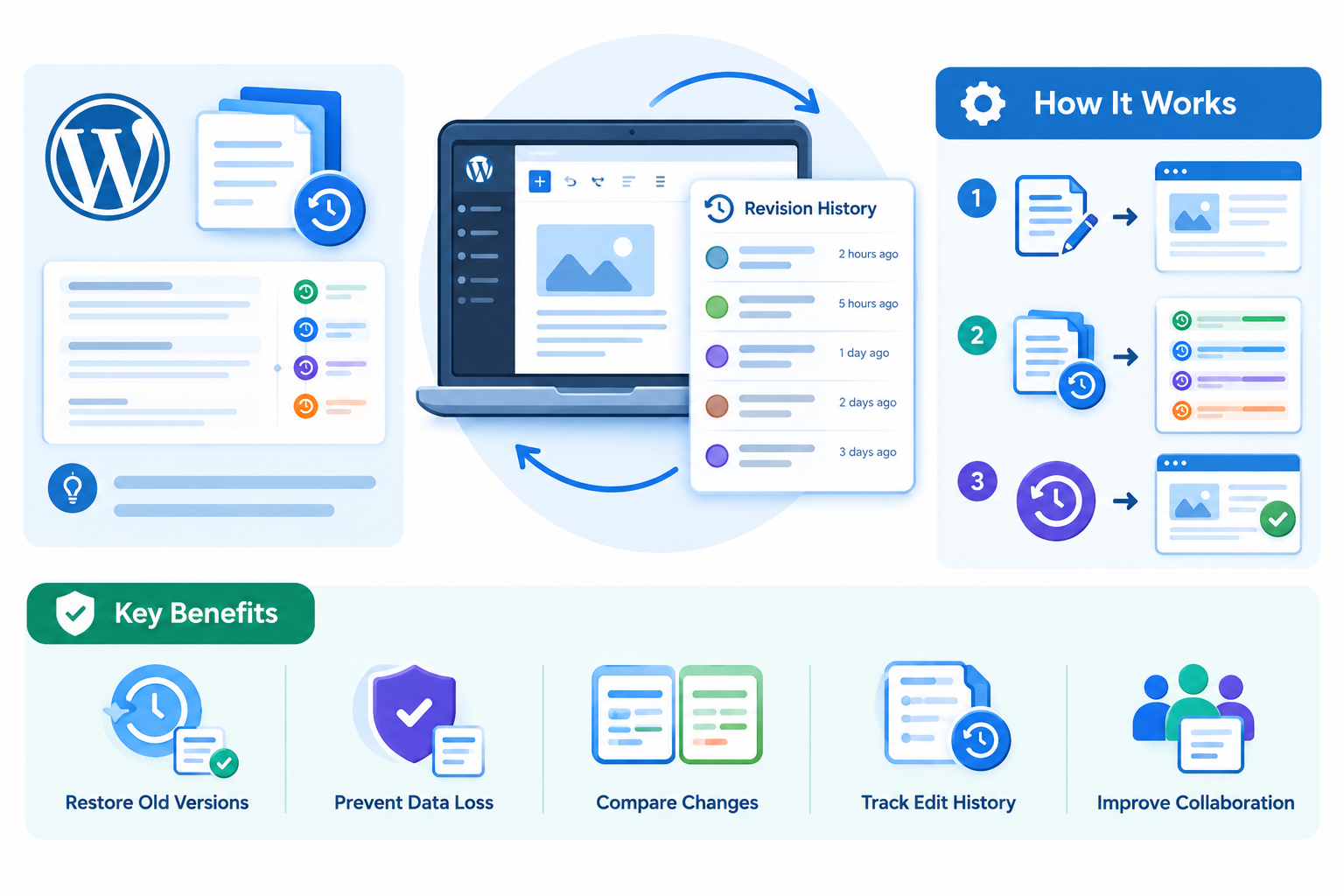
WordPress Revisions are saved records of previous versions of a post or page. Whenever you make changes to supported content and save it, WordPress can preserve an earlier version in its revision history.
These records allow you to review changes and return to an earlier version if something goes wrong.
For example, imagine you have a published article containing 1,500 words. You edit it, remove several paragraphs, and update the post. Later, you realize that some of the deleted information was important.
Instead of rewriting those paragraphs, you can open the WordPress revision history, locate an earlier version, and restore it.
WordPress revisions can help you:
- Recover accidentally deleted paragraphs or sections.
- Review previous versions of published articles.
- Compare changes between different edits.
- Reverse unwanted content updates.
- Review editing history when multiple people manage website content.
The revision feature is built into WordPress, so you do not need an additional plugin to use its standard functionality.
How Do WordPress Revisions Work?
WordPress stores revision records in its database and associates them with the original post or page.
Technically, revisions are stored in the wp_posts database table using the revision post type. Each revision is associated with its original content through its parent post ID.
The process generally works as follows:
- You create or edit a WordPress post or page.
- You save or update the content.
- WordPress creates a revision when the relevant revision conditions are met.
- Additional saved changes can generate further revisions.
- You can access the revision history through the editor.
- You can compare saved versions and restore an earlier version when necessary.
The number of revisions WordPress retains depends on your revision settings and the applicable retention rules.
What Information Do WordPress Revisions Track?
WordPress revisions can preserve supported content information, including:
- Post or page title.
- Main content.
- Excerpt, where supported.
- Supported custom fields registered for revision tracking.
However, revisions do not automatically preserve every website setting or plugin-specific change. For example, a page builder may maintain its own editing history, separate from WordPress’s native revision system.
This distinction is important when managing websites built with tools such as Elementor or other page builders.
How to View WordPress Revisions
You can access WordPress revision history directly through the WordPress editor.
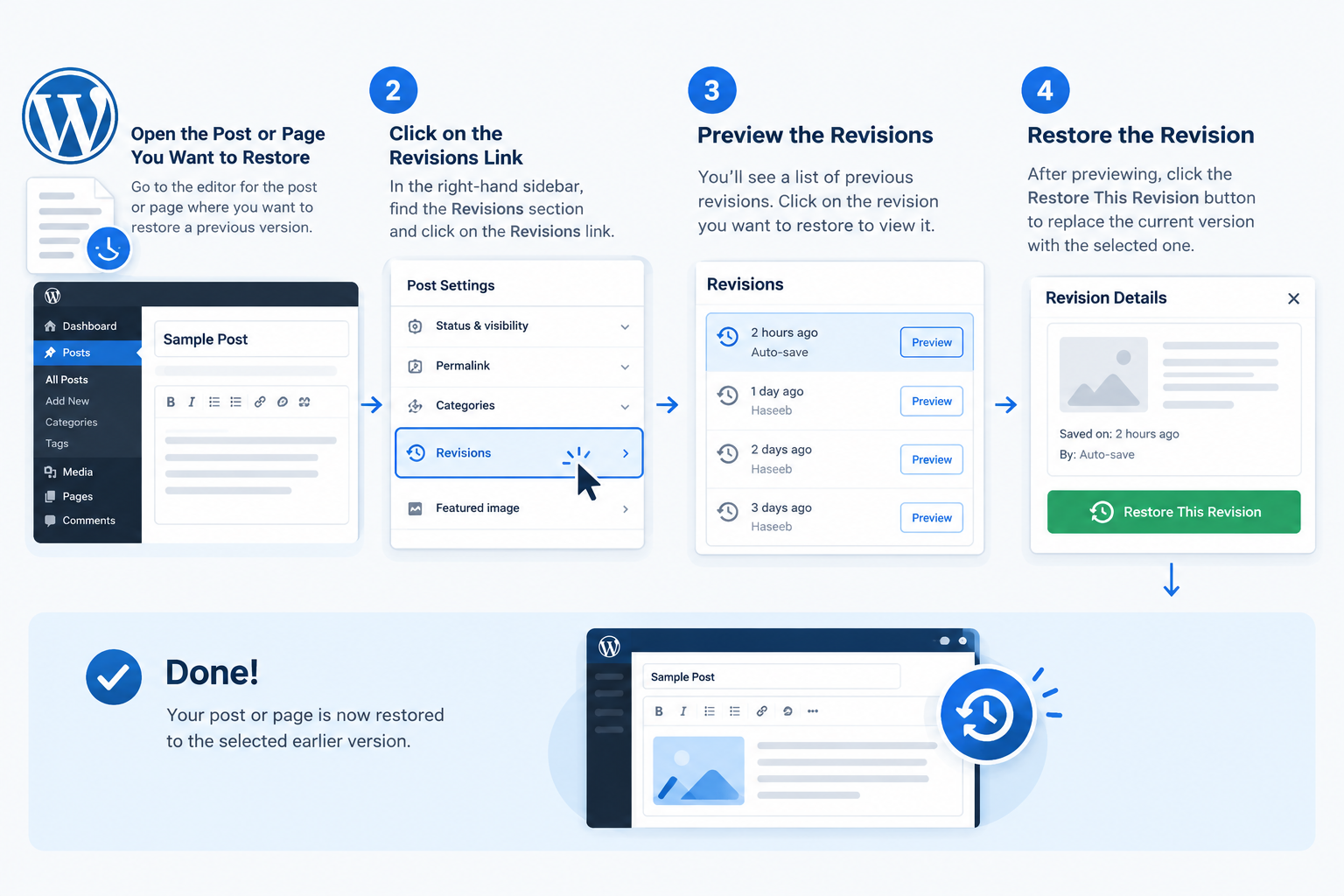
Follow these steps:
- Log in to your WordPress dashboard.
- Navigate to Posts → All Posts or Pages → All Pages.
- Open the post or page you want to review.
- Open the Settings sidebar in the block editor.
- Select the Post or Page tab, depending on the content type.
- Locate the Revisions section.
- Click the revision count to open the revision history.
WordPress will display the available saved versions of your content.
The revision section may not appear if no revisions are available. Its location can also vary depending on the editor, WordPress version, and content type.
How to Compare Different WordPress Revisions
One of the most useful features of WordPress revision history is the ability to compare two versions of your content.
Instead of manually reviewing an entire article, you can use the revision comparison interface to identify what changed between saved versions.
WordPress highlights differences such as:
- Added content: Text or information introduced in the selected version.
- Removed content: Text deleted from the earlier version.
- Modified content: Existing text that has been changed.
You can navigate through available revisions using the Previous and Next controls or the revision timeline.
Comparing WordPress revisions is particularly useful when:
- Multiple editors work on the same website.
- You regularly update published articles.
- You want to identify when a paragraph was removed.
- You need to review changes before restoring an earlier version.
For example, if an editor changes several paragraphs in a published article, revision comparison can help you identify the exact content that was modified.
How to Restore an Earlier WordPress Revision
If you find an earlier version that contains the content you want, you can restore it directly from the revision comparison screen.
Follow these steps:
- Open the post or page in the WordPress editor.
- Navigate to the Revisions section.
- Click the revision count to open the revision history.
- Browse the available versions using the Previous and Next controls.
- Select the revision you want to recover.
- Review the displayed changes carefully.
- Click Restore This Revision to restore the selected version.
WordPress will replace the current content with the content from the selected revision.
What Happens After Restoring a Revision?
Restoring an earlier revision does not simply erase the entire revision history.
WordPress restores the selected content as the current version. The restoration can itself be recorded as a new revision, allowing you to review the history of changes.
This means you can generally return to the content that existed before the restoration if you need to reverse the change.
Things to Check Before Restoring a WordPress Revision
Before restoring an earlier version, take a moment to review the selected revision. This helps prevent accidentally removing newer and useful content.
Follow these precautions:
- Verify the revision: Make sure you have selected the correct version.
- Compare the content: Review added, removed, and modified sections.
- Preserve newer information: Copy any important changes made after the selected revision.
- Create a backup: Consider backing up your website before restoring significant content.
- Check the published page: After restoration, preview the page to ensure everything appears correctly.
For example, if you restore an article from last week, you may lose useful information added yesterday. Comparing revisions first helps you identify and preserve those updates.
How to Control the Number of WordPress Revisions
WordPress can retain multiple revisions for individual posts and pages. On websites with frequent content updates, the number of saved revisions can grow over time.
You can control the number of regular revisions WordPress retains by configuring the WP_POST_REVISIONS constant in your wp-config.php file.
Limit WordPress Revisions Using wp-config.php
For example, to retain a maximum of 10 regular revisions per post, add the following code:
define( ‘WP_POST_REVISIONS’, 10 );
Place this setting before the following line in your wp-config.php file:
/* That’s all, stop editing! Happy publishing. */
WordPress supports the following settings:
| Configuration | Behaviour |
| true | Allows unlimited regular revisions. |
| false | Disables regular revision creation. |
| 5 | Retains up to five regular revisions. |
| 10 | Retains up to ten regular revisions. |
Important: This setting controls regular revisions. WordPress autosaves are handled separately and can still operate when regular revisions are disabled.
For most business websites and blogs, keeping a reasonable number of revisions is a practical approach.
A limit of 10–20 revisions can be a reasonable starting point, depending on how frequently your content is updated.
Always create a backup of your configuration file before modifying it. If you are unfamiliar with editing WordPress configuration files, ask your hosting administrator for assistance.
Enable Revision Support for Custom Post Types
WordPress revisions are not automatically available for every custom post type. Developers must enable revision support when registering a custom post type.
For example:
‘supports’ => array(
‘title’,
‘editor’,
‘revisions’
)
Adding revisions to the supported features enables native revision tracking for that custom post type, subject to the registered fields and implementation.
This is particularly useful for websites that use custom content types for portfolios, services, properties, products, or other structured information.
Do WordPress Revisions Affect Database Storage?
Yes. WordPress revisions consume database storage because each saved revision is stored as a separate record.
On websites that publish frequently or have several content editors, revision records can accumulate over time.
However, having many revisions does not automatically mean your website will become slow. The actual impact depends on factors such as:
- The number of posts and pages.
- How frequently content is updated.
- The size of saved content.
- The number of revisions retained.
- Overall database size and hosting resources.
How to Manage Revision Storage
You can manage revision storage through a few practical measures:
- Set a reasonable revision limit.
- Review database usage periodically.
- Remove unnecessary revision records only when appropriate.
- Create a database backup before performing cleanup.
- Avoid running multiple database-cleanup tools that perform overlapping operations.
For larger WordPress websites, database maintenance can help control unnecessary storage growth.
Recommendation: Do not delete all revisions simply to reduce database size. Older revisions may be valuable when recovering important content changes.
WordPress Revisions vs Autosaves: What Is the Difference?
WordPress revisions and autosaves both help protect your content, but they serve different purposes.
Autosaves are special revision records that periodically preserve your work while editing. They help recover content that may not have been saved through a regular update.
Regular revisions, on the other hand, provide a history of previously saved content versions.
| Feature | WordPress Revisions | WordPress Autosaves |
| Main purpose | Preserve previous content versions | Protect ongoing editing work |
| When created | When supported content is saved or updated | Periodically during editing |
| Storage | WordPress database | WordPress database |
| Access | Through revision history | Through autosave recovery or revision history |
| Main benefit | Review and restore earlier content | Recover recent unsaved work |
When Should You Use Each Feature?
Use WordPress revisions when:
- You accidentally delete content and have already updated the post.
- You want to compare previous and current versions.
- You need to reverse an unwanted content update.
Use autosaves when:
- Your browser closes unexpectedly while editing.
- You lose work before manually saving.
- You want to recover recent changes that were not included in your last regular update.
Both features are useful, but neither replaces regular website backups.
Limitations of WordPress Revisions
Although WordPress revisions are useful for recovering content, they do not protect every part of your website.
There are several limitations to understand:
- Not a complete website backup: Revisions primarily preserve supported content changes, not your entire website.
- Limited by retention settings: Older revisions may no longer be available if they have been removed or are outside the configured retention limit.
- Depends on revision support: Custom post types must support revisions for native revision tracking to work.
- Plugin-specific history: Page builders and other plugins may maintain their own revision or editing history.
- Database dependency: If revision records are deleted or the database becomes damaged, the saved versions may no longer be accessible.
For comprehensive website protection, maintain regular backups that include your database, themes, plugins, and media files.
Best Practices for Managing WordPress Revisions
Following a few practical recommendations can help you use WordPress revision history effectively.
- Keep revisions enabled: They provide a convenient way to recover previous content.
- Set a reasonable revision limit: Avoid retaining unnecessary revisions while preserving useful editing history.
- Review changes before restoring: Confirm that the selected version contains the correct information.
- Maintain regular backups: Revisions cannot replace complete website backups.
- Use revision history when working with multiple editors: It helps review content changes and identify previous versions.
- Perform database maintenance carefully: Always create a backup before removing old revision records.
- Check restored content: Preview the post or page after restoration to confirm that everything is correct.
For websites with frequent content updates, these practices help maintain manageable revision history without sacrificing useful recovery options.