WordPress Themes Explained: What They Are and Why They Matter for Your Site
If you’ve ever browsed WordPress and wondered why your site looks a certain way, the answer usually comes down to one thing: your theme. In this guide, we’ll cover what a WordPress theme actually is, how it works behind the scenes, and — since this affects hosting performance directly — what to keep in mind […]
If you’ve ever browsed WordPress and wondered why your site looks a certain way, the answer usually comes down to one thing: your theme. In this guide, we’ll cover what a WordPress theme actually is, how it works behind the scenes, and — since this affects hosting performance directly — what to keep in mind when choosing one for a live, business-critical website.
This article focuses specifically on themes. If you’re looking for guidance on speeding up your site or securing it, we have dedicated guides for those topics linked below.
What Is a WordPress Theme?
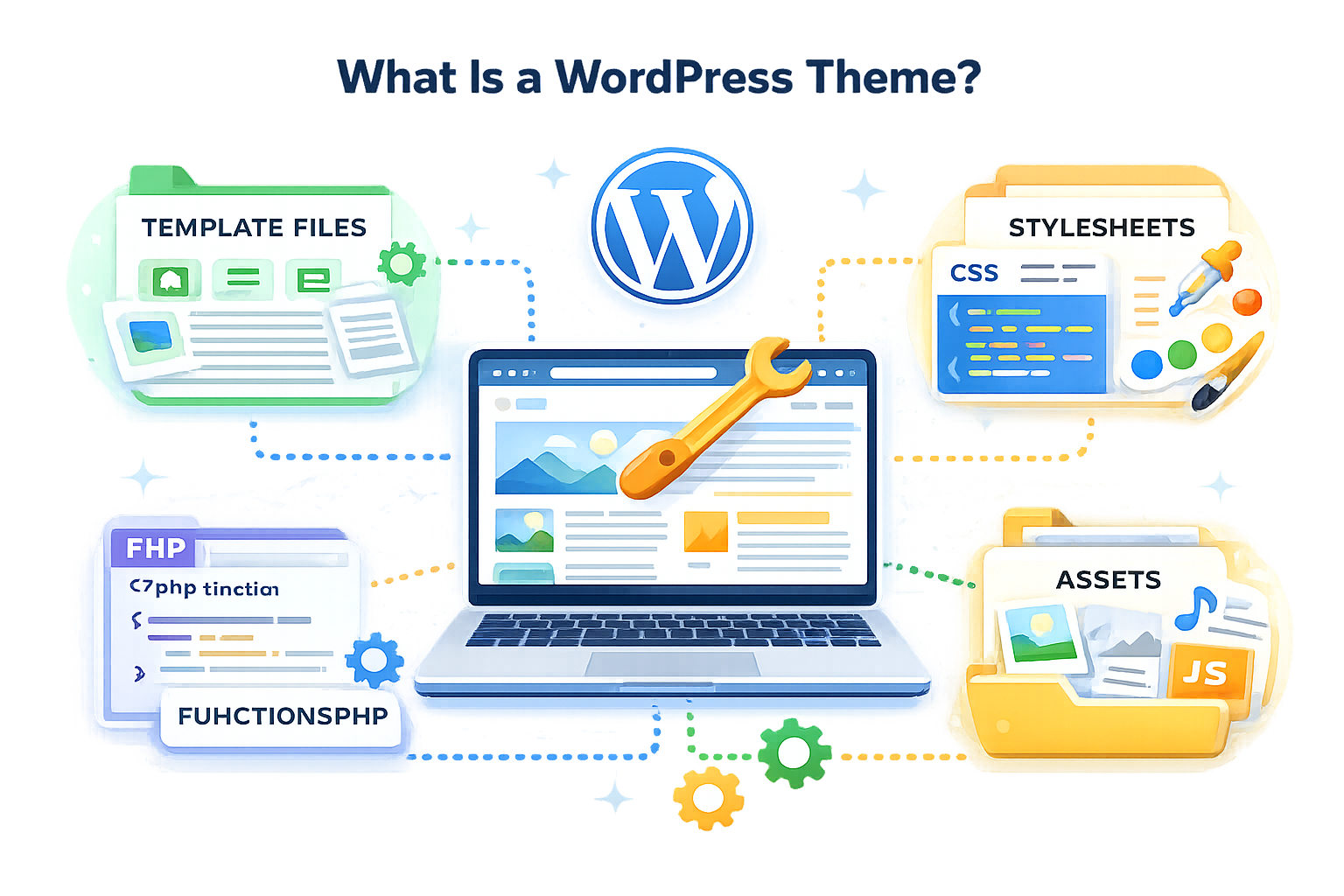
A WordPress theme is a collection of files — templates, stylesheets, and sometimes scripts — that controls how your website looks and, to some extent, how it behaves. Think of your website content (posts, pages, products, images) as the furniture in a house, and the theme as the layout, paint, and structural design around it.
Every WordPress theme typically includes:
- Template files that define how different pages (homepage, blog posts, archives) are structured
- A stylesheet (style.css) that controls colors, fonts, and spacing
- functions.php, which adds features and hooks into WordPress’s core functionality
- Assets like images, icons, and sometimes JavaScript for interactive elements
When you activate a theme, WordPress uses its templates to render your content on the front end. Switch themes, and the same content can look completely different.
How WordPress Themes Work
WordPress follows something called the template hierarchy — a system that decides which template file to use for each type of page. For example, when someone visits a single blog post, WordPress looks for a single.php file in your theme; if it doesn’t exist, it falls back to a more generic template.
This is why themes can vary so much in complexity. A simple blog theme might only need a handful of template files, while a theme built for online stores or magazines can include dozens of templates, custom widgets, and configuration options.
There are generally three categories of WordPress themes:
- Classic themes – built with PHP templates and traditional customizer settings.
- Block themes – built for the Site Editor (Full Site Editing), using HTML block templates that let you edit headers, footers, and layouts visually.
- Page builder–compatible themes – lightweight themes designed to work alongside tools like Elementor or Divi, which handle most of the layout work themselves.
Understanding which category a theme falls into matters because it affects how much control you have, how the site is maintained long-term, and how much extra software (plugins, builders) you’ll be relying on.
Theme Type | Best For |
Classic | Existing sites already built around PHP templates or specific plugins |
Block | Modern WordPress sites that want visual editing via the Site Editor |
Page Builder | Custom landing pages and highly visual, design-heavy layouts |
Nearly all modern themes, regardless of category, are also responsive — meaning the layout automatically adapts to different screen sizes, so your site performs well on desktops, tablets, and smartphones. This isn’t optional in 2026; a non-responsive theme will hurt both usability and search rankings.
Why Your Theme Choice Matters for Hosting Performance
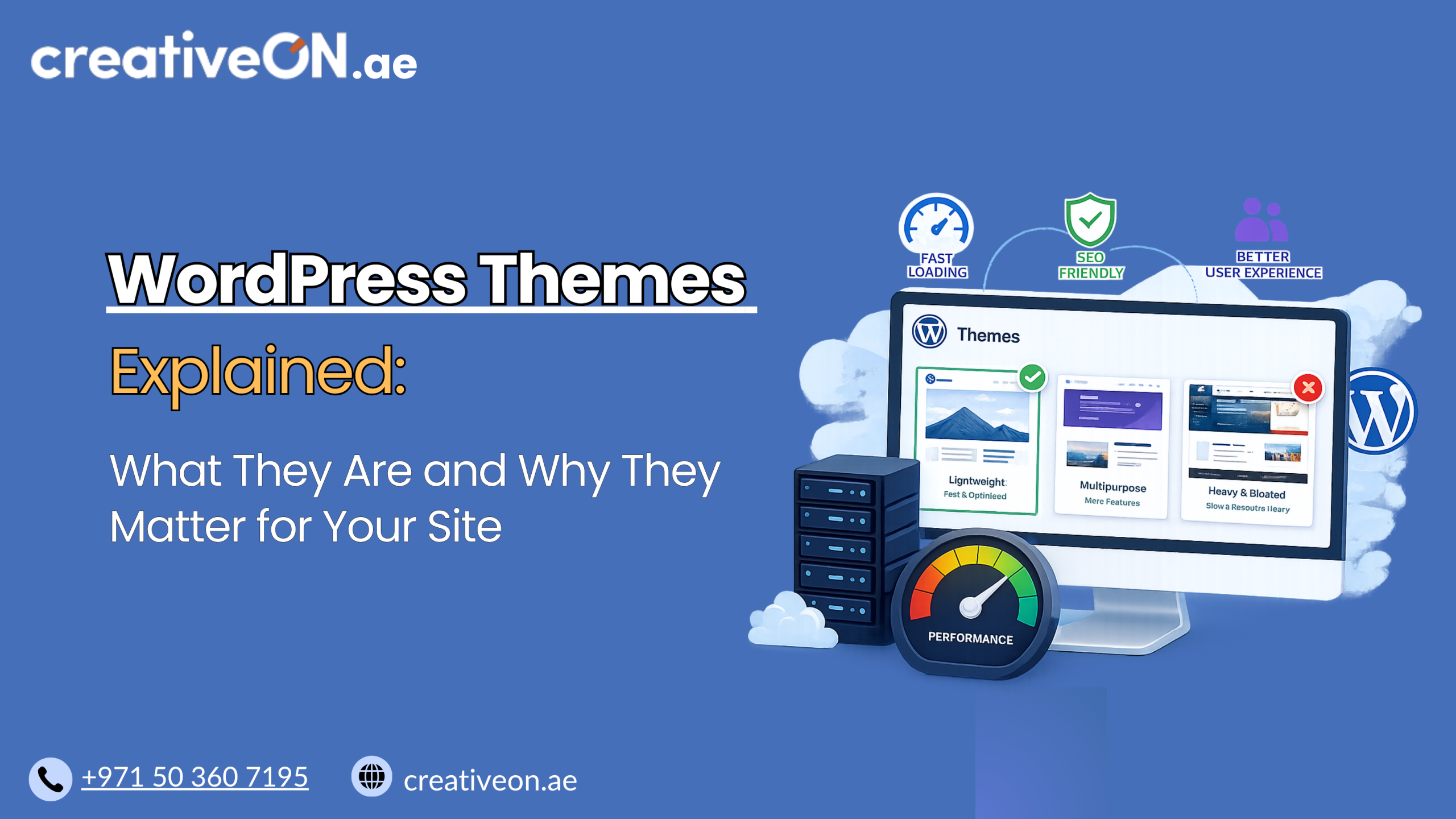
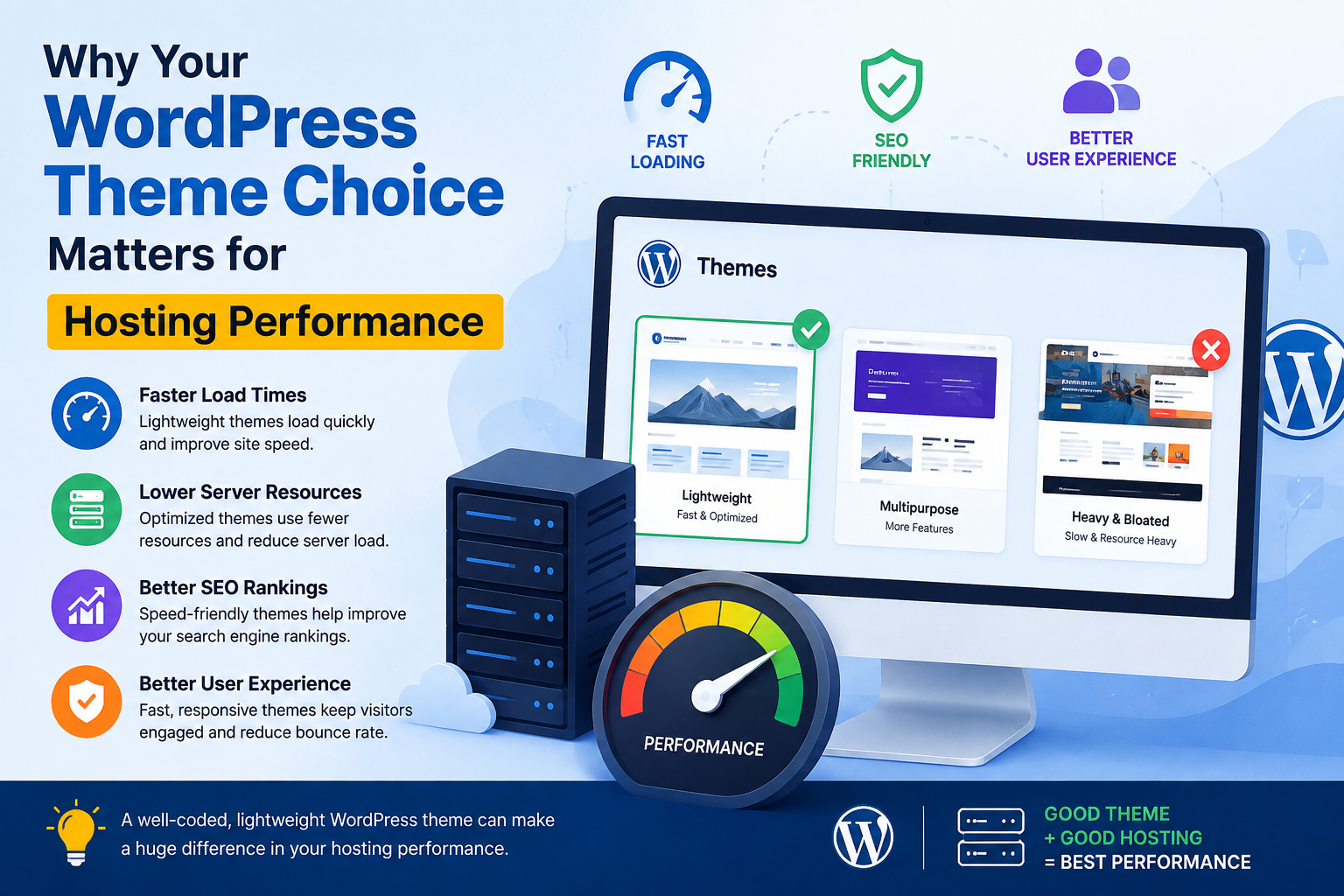
This is the part most guides skip, but it’s the most practical for anyone running a business site: your theme has a direct impact on server load and page speed.
A poorly coded or overly “feature-rich” theme can:
- Load unnecessary CSS and JavaScript on every page, even pages that don’t need it
- Make excessive database queries to render dynamic elements
- Bundle bloated frameworks or sliders you’ll never use
- Increase memory usage on your hosting plan, which matters especially on shared or entry-level environments
On the other hand, a lightweight, well-coded theme:
- Loads faster, which improves both user experience and SEO
- Uses fewer server resources, so your hosting plan handles traffic more efficiently
- Plays nicely with caching, which we cover in more detail in our WordPress Caching Guide
In short: even the best hosting plan can feel slow if the theme sitting on top of it is inefficient. Theme choice and hosting performance are two sides of the same coin.
How to Choose the Right WordPress Theme
With hundreds of thousands of themes available, narrowing the field comes down to a few practical checks:
- Match your site’s purpose. A portfolio, a blog, and a WooCommerce store each need different theme features — don’t pay for functionality you won’t use.
- Choose an actively maintained theme. Check the last update date; themes that go untouched for a year or more are a compatibility and security risk.
- Test the demo with PageSpeed Insights. A theme demo will tell you far more about real-world speed than screenshots ever will.
- Check plugin compatibility. Make sure the theme works cleanly with the plugins your site already depends on (SEO, forms, WooCommerce, etc.).
- Verify mobile responsiveness. Load the demo on an actual phone, not just a resized browser window.
- Avoid unnecessary bundled features. Sliders, page builders, and demo content you won’t use still add weight to every page load.
- Look for accessibility support. Well-built themes follow accessibility best practices — proper keyboard navigation and readable color contrast — which benefits all visitors, not just those using assistive technology.
Benefits of Choosing the Right Theme
- Faster load times — fewer unnecessary scripts mean quicker rendering
- Better SEO foundation — clean code and semantic HTML help search engines understand your content
- Easier maintenance — well-documented, actively updated themes reduce compatibility issues after WordPress core updates
- Design flexibility — modern block themes let you customize layouts without touching code
- Lower resource usage — translates into smoother performance on your hosting plan, even during traffic spikes
Common Mistakes When Choosing a Theme
Picking a theme based on design alone. A visually stunning demo often hides bloated code underneath. Always check page speed test results, not just screenshots.
Ignoring update history. Themes that haven’t been updated in over a year are a security and compatibility risk. Check the last update date before installing.
Installing multiple “all-in-one” themes with built-in page builders, sliders, and demo content. These often load far more code than a typical site actually uses.
Not testing on staging first. Switching themes directly on a live site can break layouts or plugins unexpectedly. If you’re not familiar with staging environments, our WordPress Staging Environment Guide walks through the process.
Overlooking mobile performance. A theme might look great on desktop but load slowly or render poorly on mobile — which matters both for user experience and for how search engines rank your site.
Best Practices for Using a WordPress Theme
- Use a child theme for customizations. If you need to tweak theme code, do it in a child theme rather than editing the parent theme directly — this way, updates to the parent theme won’t wipe out your changes.
- Avoid stacking too many plugins to compensate for a theme’s missing features — this adds even more load on your hosting environment.
- Pair your theme with proper caching and, if you’re running an online store, hosting optimized for WooCommerce. Our WooCommerce Hosting guide covers this in detail.
- Back up before switching themes. If something breaks, you’ll want a clean restore point. See our WordPress Backup Guide for a walkthrough.
For businesses in the UAE running customer-facing sites — whether it’s an eCommerce store in Dubai or a service business site in Sharjah — theme performance directly affects bounce rates and conversions, especially for visitors on mobile networks. A lightweight, well-optimized theme is one of the simplest ways to protect that experience.