How to Bulk Edit WordPress Posts
Managing a WordPress website with dozens or hundreds of published articles can become time-consuming, especially when you need to update the same settings across multiple posts. Opening each article individually to change its author, status, or comment settings is not always practical. WordPress makes this easier with its built-in Bulk Edit feature. It allows you […]
Managing a WordPress website with dozens or hundreds of published articles can become time-consuming, especially when you need to update the same settings across multiple posts. Opening each article individually to change its author, status, or comment settings is not always practical.
WordPress makes this easier with its built-in Bulk Edit feature. It allows you to select multiple posts and apply certain changes simultaneously from the dashboard.
In this guide, you’ll learn how to bulk edit WordPress posts, which settings you can update, and how to use the feature without making unnecessary changes to your content.
What Is Bulk Editing in WordPress?
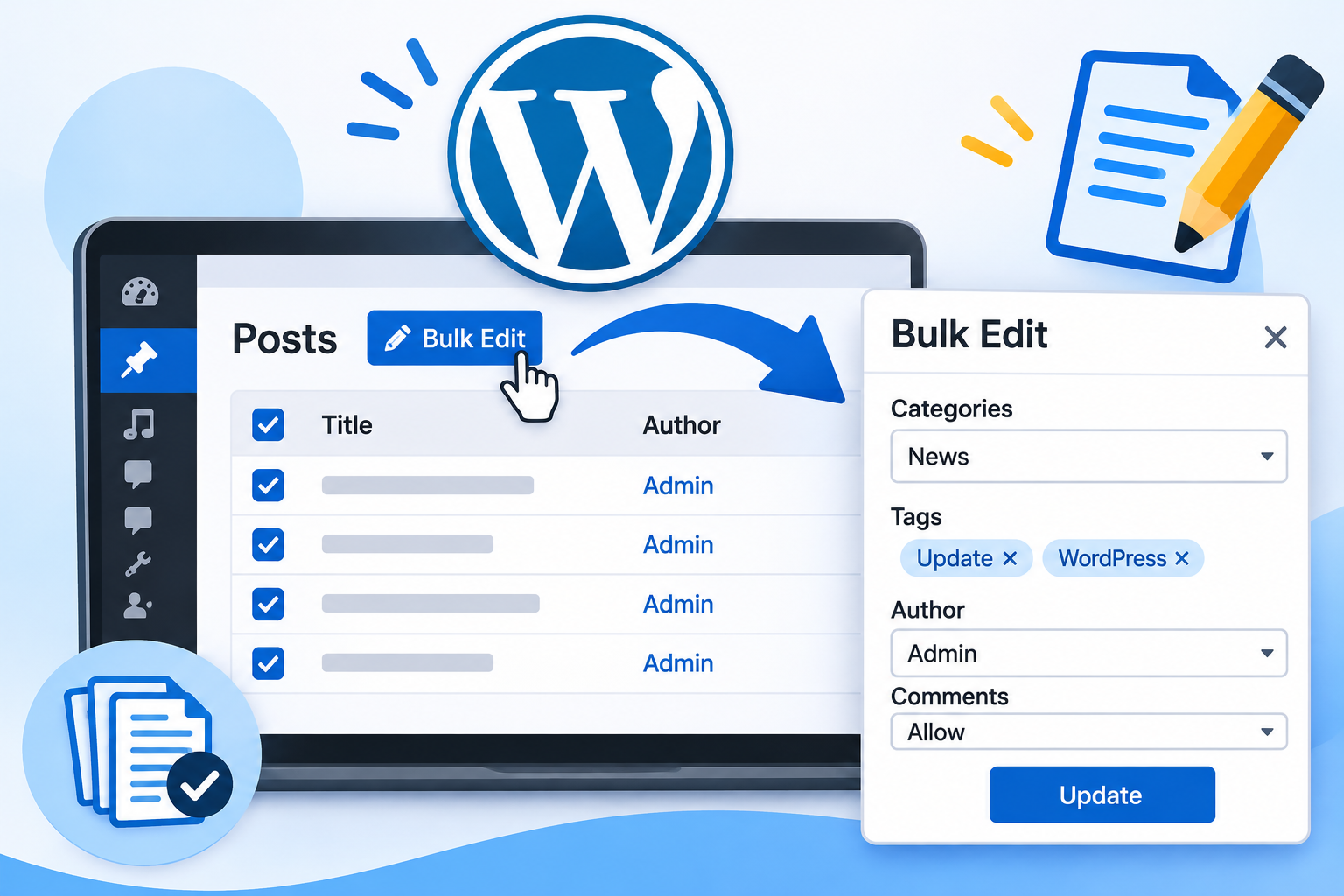
Bulk editing is a built-in WordPress feature that lets you apply the same settings to multiple posts at once.
For example, if you manage a blog with 30 tutorials and want to assign them to a new category, you can select those posts and add the category in one operation.
WordPress bulk editing supports several common tasks, including:
- Changing the author of multiple posts.
- Updating post status.
- Enabling or disabling comments.
- Changing pingback settings.
- Adding categories and tags.
- Making selected posts sticky or removing their sticky status.
This feature is particularly useful for website owners, bloggers, and administrators who regularly manage large content libraries.
How to Bulk Edit WordPress Posts
You can bulk edit WordPress posts directly from the dashboard without installing an additional plugin.
Follow these steps:
Step 1: Open the All Posts Section
Log in to your WordPress admin dashboard.
Navigate to:
Dashboard → Posts → All Posts
You’ll see a list of your existing posts, including published articles, drafts, and posts awaiting review.
Step 2: Find and Select the Posts
Before selecting posts, use the available search and filtering options to find the content you want to update.
You can filter posts by:
- Publication status.
- Publication date.
- Category.
- Search terms.
Once you’ve identified the required posts, select the checkboxes beside their titles.
To select all posts displayed on the current page, use the checkbox at the top of the list.
Important: The header checkbox selects posts on the current page only. If your posts appear across multiple pages, you’ll need to repeat the process for each page.
Step 3: Choose the Bulk Edit Option
After selecting your posts:
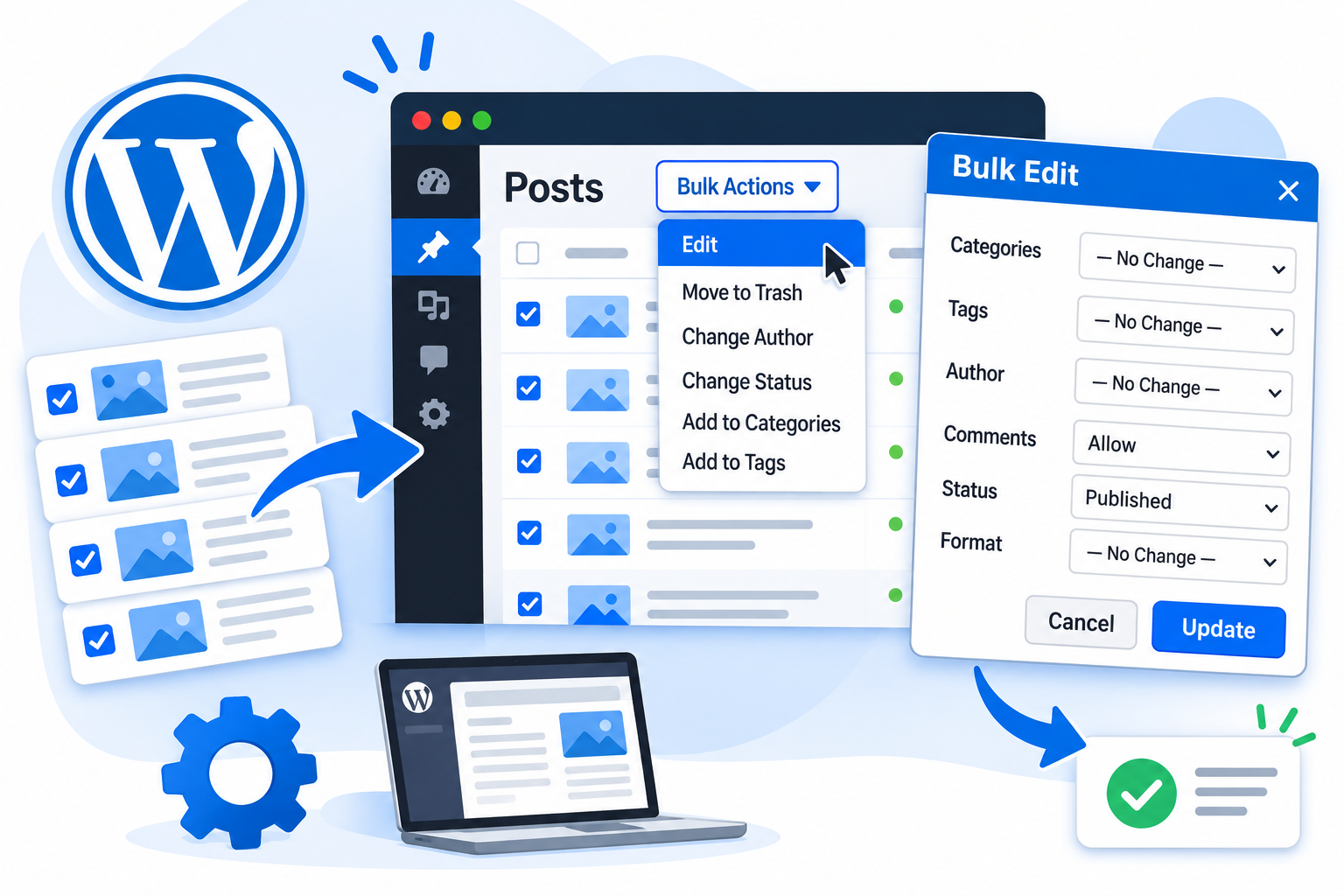
- Find the Bulk Actions dropdown above the posts list.
- Select Edit.
- Click Apply.
WordPress will display a bulk editing panel below the posts list.
Step 4: Update the Required Settings
The bulk editing panel allows you to modify several settings for all selected posts.
Depending on your permissions and WordPress configuration, the available options include:
- Author: Assign a different author to selected posts.
- Status: Change the status of selected posts, such as Published, Draft, or Pending Review.
- Comments: Allow or disable comments.
- Pings: Enable or disable pingbacks and trackbacks.
- Sticky: Make selected posts sticky or remove their sticky status.
- Categories: Add additional categories to selected posts.
- Tags: Add tags to multiple posts.
Choose only the settings you want to change. Leave other options unchanged.
Step 5: Apply and Verify the Changes
After selecting the required settings, click Update in the bulk editing panel.
WordPress will process the selected posts and apply the changes.
Return to the All Posts screen and review the results. Check a few individual posts if necessary to confirm that the correct settings were applied.
What Can You Change Using WordPress Bulk Edit?
WordPress provides several native bulk editing options, but it does not allow every post field to be modified simultaneously.
Here is a quick overview:
| Editing Task | Native Bulk Edit |
| Change post author | Yes |
| Change post status | Yes |
| Enable or disable comments | Yes |
| Change pingback settings | Yes |
| Make posts sticky | Yes |
| Add categories | Yes |
| Add tags | Yes |
| Remove existing categories | No |
| Remove existing tags | No |
| Change post titles | No |
| Change post slugs | No |
| Change featured images | No |
| Edit SEO metadata | No |
Some additional bulk editing options may be available through plugins or custom WordPress functionality.
Note: When you add categories or tags using Bulk Edit, WordPress retains the existing assignments. It does not automatically replace or remove them.
How to Bulk Change WordPress Post Categories
Adding categories to multiple posts is a common content management task.
For example, imagine you have 30 WordPress tutorials currently assigned to different categories. You want to assign all relevant tutorials to a new category called WordPress Guides.
Instead of opening each article individually, you can use Bulk Edit.
Follow these steps:
- Navigate to Posts → All Posts.
- Filter the posts or search for the relevant articles.
- Select the required posts using their checkboxes.
- Choose Edit from the Bulk Actions dropdown.
- Click Apply.
- Find the Categories option in the bulk editing panel.
- Select WordPress Guides.
- Click Update.
WordPress will add the selected category to all the chosen posts.
Important: Existing categories will remain assigned. If you want to remove an old category or replace existing assignments, you’ll need to edit the affected posts individually or use an appropriate bulk editing solution.
Bulk Edit vs Quick Edit: What’s the Difference?
WordPress offers two editing options from the All Posts screen: Bulk Edit and Quick Edit.
Although both help manage posts without opening the full editor, they serve different purposes.
| Feature | Bulk Edit | Quick Edit |
| Edit multiple posts | Yes | No |
| Change post title | No | Yes |
| Change post slug | No | Yes |
| Change author | Yes | Yes |
| Change categories | Add only | Edit individual assignments |
| Change tags | Add only | Edit individual assignments |
| Change post status | Yes | Yes |
| Change publication date | No | Yes |
| Manage comments | Yes | Yes |
When should you use each option?
- Use Bulk Edit when you need to apply the same supported settings to several posts.
- Use Quick Edit when you want to modify individual post details, such as its title, slug, date, or category assignments.
Quick Edit is available by hovering over a post title and selecting the Quick Edit link.
Best Practices for Bulk Editing WordPress Posts
Bulk editing saves time, but applying changes to the wrong posts can create unnecessary problems.
Follow these practices before making updates:
- Filter posts carefully: Use categories, dates, status, or search terms to identify the correct posts.
- Review your selection: Confirm that you have selected the intended articles before applying changes.
- Update only necessary fields: Avoid changing settings that do not require modification.
- Work in smaller batches: For large websites, update posts in manageable groups.
- Verify the results: Check the posts list after completing the operation.
- Keep a recent backup: Back up your website before making extensive changes to its content.
Be particularly careful when changing published posts to Draft. These posts will no longer be available as normal published articles. Their existing URLs may stop serving the published content, which can affect visitors and search visibility.
If you need to temporarily review published articles, plan the changes carefully before modifying their status.
Common WordPress Bulk Editing Problems
Sometimes bulk editing does not produce the expected results. Here are a few common issues and their possible solutions.
1. Bulk Edit Option Is Not Available
Make sure you have selected at least one post. The Edit option is available through the Bulk Actions dropdown when posts are selected.
2. Some Posts Are Not Updated
Check whether the intended posts were selected and whether you have sufficient permissions to edit them. Plugins or custom functionality may also affect the editing process.
3. Existing Categories Are Still Assigned
This is expected WordPress behavior. Bulk Edit adds selected categories rather than replacing or removing existing category assignments.
4. Post Titles Cannot Be Changed in Bulk
The native WordPress Bulk Edit feature does not include post title editing. Use Quick Edit to change titles individually or a suitable plugin if you need to update many titles together.
5. Custom Fields Are Not Available
WordPress does not natively provide bulk editing for every custom field or SEO setting. Additional functionality may be required to update these fields across multiple posts.