How to Manage Google Workspace Marketplace Apps
Google Workspace Marketplace apps let you extend Google Workspace by connecting trusted third-party applications with services like Gmail, Google Drive, Google Calendar, Google Docs, and Google Meet. While these integrations can improve productivity, they can also access business data if not managed properly. If you’re a Google Workspace administrator, it’s important to review, approve, and […]

Google Workspace Marketplace apps let you extend Google Workspace by connecting trusted third-party applications with services like Gmail, Google Drive, Google Calendar, Google Docs, and Google Meet. While these integrations can improve productivity, they can also access business data if not managed properly.
If you’re a Google Workspace administrator, it’s important to review, approve, and monitor Marketplace apps so users only install applications that meet your organization’s security and compliance requirements.
This guide explains how to manage Google Workspace Marketplace apps using the Google Admin console while following Google’s recommended security best practices.
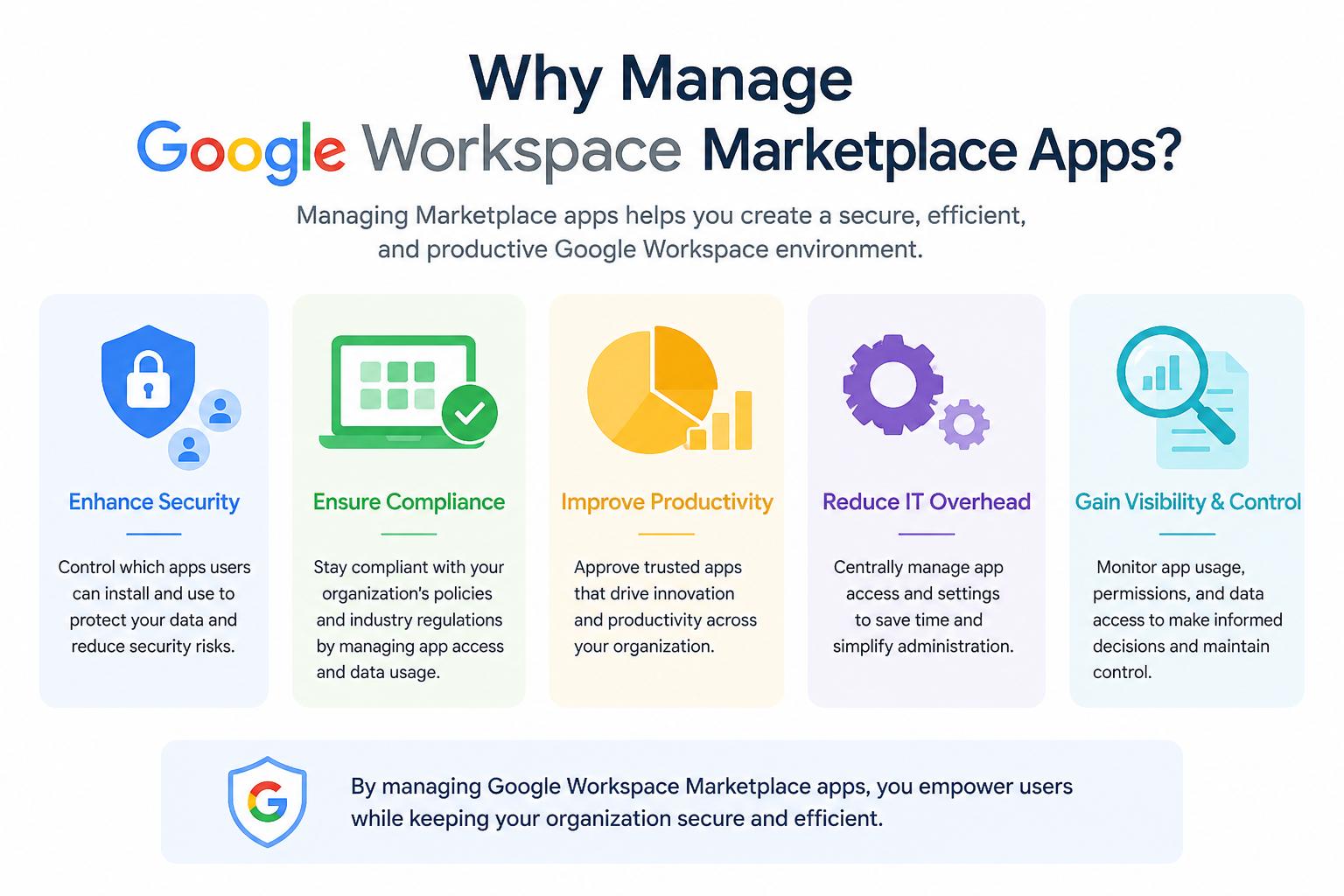
Why Manage Google Workspace Marketplace Apps?
Marketplace apps often request permission to access Google Workspace data through OAuth. Without proper oversight, users could install applications that have broader access than necessary.
Managing Marketplace apps helps you:
- Protect sensitive business data
- Control third-party application access
- Reduce shadow IT
- Standardize approved business tools
- Improve compliance and security
- Maintain better visibility across your Google Workspace environment
For businesses with multiple departments or offices across the UAE, centralized app management helps maintain consistent security policies.
How to Manage Google Workspace Marketplace Apps
Google Workspace administrators can manage Marketplace apps from the Google Admin console.
Step 1: Open the Google Admin Console
Sign in with a Super Admin or another administrator account that has the required privileges.
From the Admin console, navigate to the Marketplace app management section (the exact navigation may vary as Google updates the interface).
Here you can:
- View installed Marketplace apps
- Review app permissions
- Configure installation policies
- Approve or block applications
- Monitor organization-wide access
Step 2: Review Installed Apps
Before approving new applications, review the apps already installed within your organization.
Look for:
- Applications no longer in use
- Apps with broad access permissions
- Duplicate tools serving the same purpose
- Unsupported or outdated integrations
Regular reviews help reduce unnecessary security risks.
Step 3: Choose an App Access Policy
Google Workspace allows administrators to decide how Marketplace apps are managed.
Common approaches include:
| Policy | Best For |
| Allow all apps | Small organizations with minimal restrictions |
| Approve selected apps only | Most businesses seeking stronger security |
| Block specific apps | Organizations that only need to restrict certain applications |
Most businesses benefit from approving only trusted applications rather than allowing unrestricted installations.
Step 4: Review OAuth Permissions Carefully
Before approving any Marketplace app, examine the OAuth permissions it requests.
For example:
- A file management app requesting Google Drive access is generally expected.
- A scheduling app requesting Calendar access is usually appropriate.
- An invoicing app requesting Gmail, Contacts, and Drive access may require additional review.
Always verify that requested permissions match the application’s intended purpose.
Step 5: Assign Apps to the Right Teams
Not every department needs the same integrations.
Using Organizational Units (OUs), administrators can provide different applications to different teams.
For example:
- Finance may use accounting software.
- HR may use recruitment tools.
- Marketing may use design or social media platforms.
- IT may require monitoring and administration tools.
This reduces unnecessary access while giving each department the tools it needs.
Admin vs User Permissions
Understanding who controls Marketplace apps helps avoid confusion.
| Action | User | Administrator |
| Install approved apps | ✔ (depending on policy) | ✔ |
| Approve new apps | ✖ | ✔ |
| Block applications | ✖ | ✔ |
| Configure organization-wide policies | ✖ | ✔ |
| Review organization-wide app usage | ✖ | ✔ |
Best Practices
To keep your Google Workspace environment secure and well-managed:
- Review Marketplace apps every few months.
- Remove applications that are no longer used.
- Approve apps from reputable vendors only.
- Follow the principle of least privilege by granting only the permissions an app genuinely needs.
- Educate employees about requesting new applications instead of installing unapproved software.
Google also recommends reviewing OAuth scopes carefully before granting third-party applications access to organizational data.
Common Mistakes to Avoid
Administrators often make a few avoidable mistakes when managing Marketplace apps.
- Allowing every Marketplace app without review.
- Ignoring requested OAuth permissions.
- Forgetting to audit installed applications regularly.
- Approving multiple apps that perform the same function.
- Allowing outdated or unsupported integrations to remain installed.
Regular reviews help maintain a cleaner and more secure Workspace environment.
Example Scenario
A company in Dubai allows its Finance department to use an accounting integration while restricting access for all other departments. This approach reduces unnecessary access to financial data while still allowing the teams that need the software to work efficiently.
Applying Marketplace app policies by Organizational Unit is a practical way to balance productivity and security.
Recommended Internal Links
To continue learning about Google Workspace administration, explore:
Pillar Page
- Google Workspace Complete Guide
Feature Pages
- Google Workspace Admin Console
- Google Workspace Security
- Google Drive
- Gmail
Supporting Articles
- Managing Third-Party Apps in Google Workspace
- How to Review OAuth App Permissions
- How to Assign Admin Roles
- Google Workspace Security Best Practices
- How to Recover Deleted Users
Visual Content Recommendations
Suggested Visuals
- Screenshot of Marketplace app settings in the Google Admin console
- Workflow diagram showing the app approval process
- Organizational Unit app assignment example
- Marketplace app review checklist
Suggested ALT Text
- Manage Google Workspace Marketplace apps in Google Admin console
- Google Workspace Marketplace app approval workflow
- Reviewing OAuth permissions for Marketplace apps
- Assigning Marketplace apps to Organizational Units