How to Move Users Between Organizational Units
SEO Title: How to Move Users Between Organizational Units in Google Workspace URL Slug (recommended): /google-workspace/move-users-between-organizational-units Meta Description: Learn how to move users between organizational units in Google Workspace. A step-by-step guide for admins managing OUs, policies, and access controls. Introduction Every growing business eventually needs to reorganize its Google Workspace structure. Maybe a staff […]
SEO Title: How to Move Users Between Organizational Units in Google Workspace URL Slug (recommended): /google-workspace/move-users-between-organizational-units Meta Description: Learn how to move users between organizational units in Google Workspace. A step-by-step guide for admins managing OUs, policies, and access controls.
Introduction
Every growing business eventually needs to reorganize its Google Workspace structure. Maybe a staff member changed departments, an employee moved from “Sales” to “Marketing,” or your company restructured its teams across offices in Dubai and Abu Dhabi. Whatever the reason, moving users between organizational units (OUs) is one of the most common tasks Google Workspace administrators handle.
Done correctly, this process takes less than a minute. Done incorrectly, it can accidentally apply the wrong security policies, remove access to critical apps, or apply different Gmail routing policies configured for the destination OU. This guide walks you through exactly how to move users between organizational units in Google Workspace, what to check before and after the move, and mistakes to avoid.
This article focuses only on relocating existing users between OUs. If you’re looking to create a new organizational structure from scratch, that’s a separate topic covered in our Organizational Units setup guide.
What Are Organizational Units, and Why Do They Matter?
Organizational units are how Google Workspace groups users so administrators can apply different settings, policies, and app access to different parts of the company. For example, your Finance OU might have stricter Google Drive sharing restrictions than your Marketing OU, or your Sales team might have access to Google Meet recording while other departments don’t.
When you move a user to a new OU, that user immediately inherits the settings of the new OU—unless a more specific policy overrides it. This is why moving users isn’t just an organizational housekeeping task; it directly affects what apps, security rules, and data controls apply to that person.

Before You Move a User: What to Check
Before moving anyone between organizational units, confirm the following:
- Know the destination OU’s policies. Check Gmail routing rules, Drive sharing settings, and app access for the OU you’re moving the user into.
- Check for group-based policies. Some settings are applied through Google Groups rather than OUs, and those won’t change automatically.
- Review 2-Step Verification and security settings. If the new OU enforces stricter security policies, the user may be prompted to update their sign-in method.
- Confirm license assignment. If your organization uses automatic license assignment based on Organizational Units, moving a user may change the licenses assigned to their account.
Taking five minutes to check these details prevents support tickets later.
How to Move Users Between Organizational Units: Step-by-Step
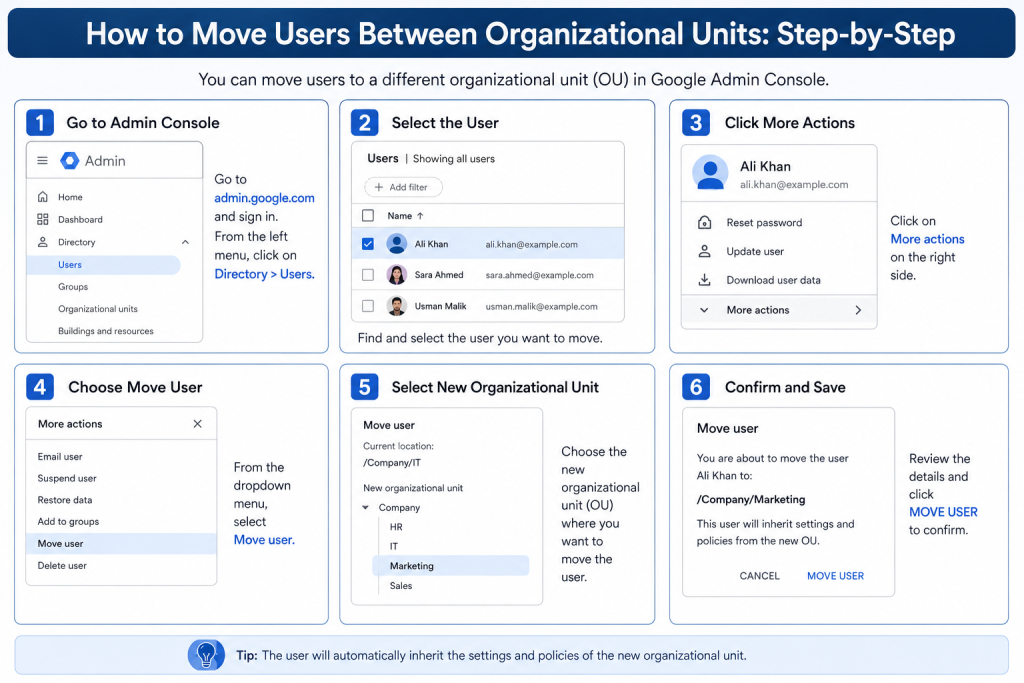
Step 1: Sign in to the Google Admin Console
Go to admin.google.com and sign in with an account that has admin privileges. You’ll need at least User Management admin rights to move users between OUs.
Step 2: Open the Users Page
From the Admin console home page, click Directory > Users.
Step 3: Select the User (or Users) You Want to Move
You can move a single user or multiple users at once:
- Single user: Click on the user’s name to open their profile.
- Multiple users: Use the checkboxes next to each user’s name on the Users list.
Step 4: Choose “Change Organizational Unit”
Select the user (or users), then choose the option to change their Organizational Unit. For a single user, this option appears within their account details. For multiple users, it appears as an action icon above the selected list. Menu labels can shift slightly between Admin Console updates, but the option is always available wherever you’ve selected the user(s).
Step 5: Select the Destination OU
A panel will appear showing your organization’s OU structure. Select the new organizational unit you want to move the user(s) into, then click Continue.
Step 6: Confirm the Move
Review the confirmation screen, which shows the current OU and the destination OU. Click Change to finalize the move.
Changes to OU membership typically apply within a few minutes, though some settings (like Gmail routing) can take up to 24 hours to fully propagate across Google’s servers.
What Happens After the Move
Once a user is moved to a new OU, they will:
- Immediately inherit the app access and settings of the new OU
- Lose any settings that were specific to the previous OU (unless also present in the new one)
- Potentially see changes to their Gmail signature, routing, or security requirements
- Keep their existing files, emails, and Drive content—moving OUs does not delete or transfer data
It’s good practice to notify the user if the move affects their login requirements or app access, especially if 2-Step Verification enforcement changes.
What Doesn’t Change After Moving a User
It’s worth being clear with your team about what an OU move does not affect. The following stay exactly the same:
- Email address — the user keeps their existing address unless changed separately.
- Drive files — all files, ownership, and sharing history remain intact.
- Calendar — existing events, invites, and calendar settings are unaffected.
- Contacts — the user’s saved contacts carry over without changes.
- Google Chat history — past conversations and spaces remain accessible.
- Meet history — recordings and meeting history saved to Drive are untouched.
An OU move changes which policies apply going forward—it doesn’t touch the user’s existing data or history.
Troubleshooting OU Moves
If something doesn’t look right after moving a user, check these common causes first:
Policies aren’t applying immediately Some settings, especially Gmail-related policies, can take up to 24 hours to fully propagate. Before assuming something is broken, wait and recheck.
A service or app is missing after the move This usually means the destination OU has that service turned off, or the user’s license doesn’t include it. Check Apps settings for the new OU and confirm the user’s license assignment.
“You don’t have permission to move this user” This means your admin role doesn’t include User Management privileges for that OU. Ask a Super Admin to either make the change or grant the appropriate admin role.
Best Practices for Managing OU Moves
- Move users during low-activity hours if the destination OU has different Gmail routing rules, to minimize disruption.
- Use the Admin Console’s multi-select move for moderate batches of users instead of moving them one by one. For very large-scale reorganizations, a CSV-based bulk update is a faster alternative.
- Document your OU structure so future admins understand why users are grouped the way they are.
- Avoid deeply nested OUs. Keeping your OU hierarchy simple makes user moves faster and reduces the chance of policy conflicts.
- Audit OU-based policies quarterly, especially for UAE-based businesses managing multiple branches or Emirates, where compliance and data residency requirements may differ by department.
Common Mistakes to Avoid
- Forgetting group-based settings. Assuming an OU move updates everything can leave outdated permissions in place if those permissions were actually managed through Google Groups.
- Moving users without checking license impact. This can accidentally downgrade or remove access to paid features like Gemini or advanced Drive storage.
- Ignoring propagation time. Some admins panic when settings don’t change instantly—remember that certain policies take time to apply.
- Moving an entire department at once without testing. For large reorganizations, move one test user first to confirm the destination OU’s policies work as expected.