Best Backup Plugins for WordPress Websites
If you run a WordPress website, backups aren’t optional—they’re your safety net. A plugin update gone wrong, a hacked website, accidental file deletion, or even a server failure can undo months of work in minutes. Whether you manage a personal blog, a business website, or a WooCommerce store, having a reliable WordPress backup strategy is […]
If you run a WordPress website, backups aren’t optional—they’re your safety net. A plugin update gone wrong, a hacked website, accidental file deletion, or even a server failure can undo months of work in minutes. Whether you manage a personal blog, a business website, or a WooCommerce store, having a reliable WordPress backup strategy is one of the easiest ways to protect your website and reduce downtime.
While many managed WordPress hosting providers include automated backups, a dedicated WordPress backup plugin gives you greater control over how often backups are created, where they’re stored, and how quickly you can restore your website. Using both hosting backups and plugin-based backups creates a stronger, layered backup strategy that helps minimize data loss.
In this guide, we’ll explore the best backup plugins for WordPress websites, the features that matter most, how plugin backups compare with hosting backups, and what to consider when choosing the right solution for your website.
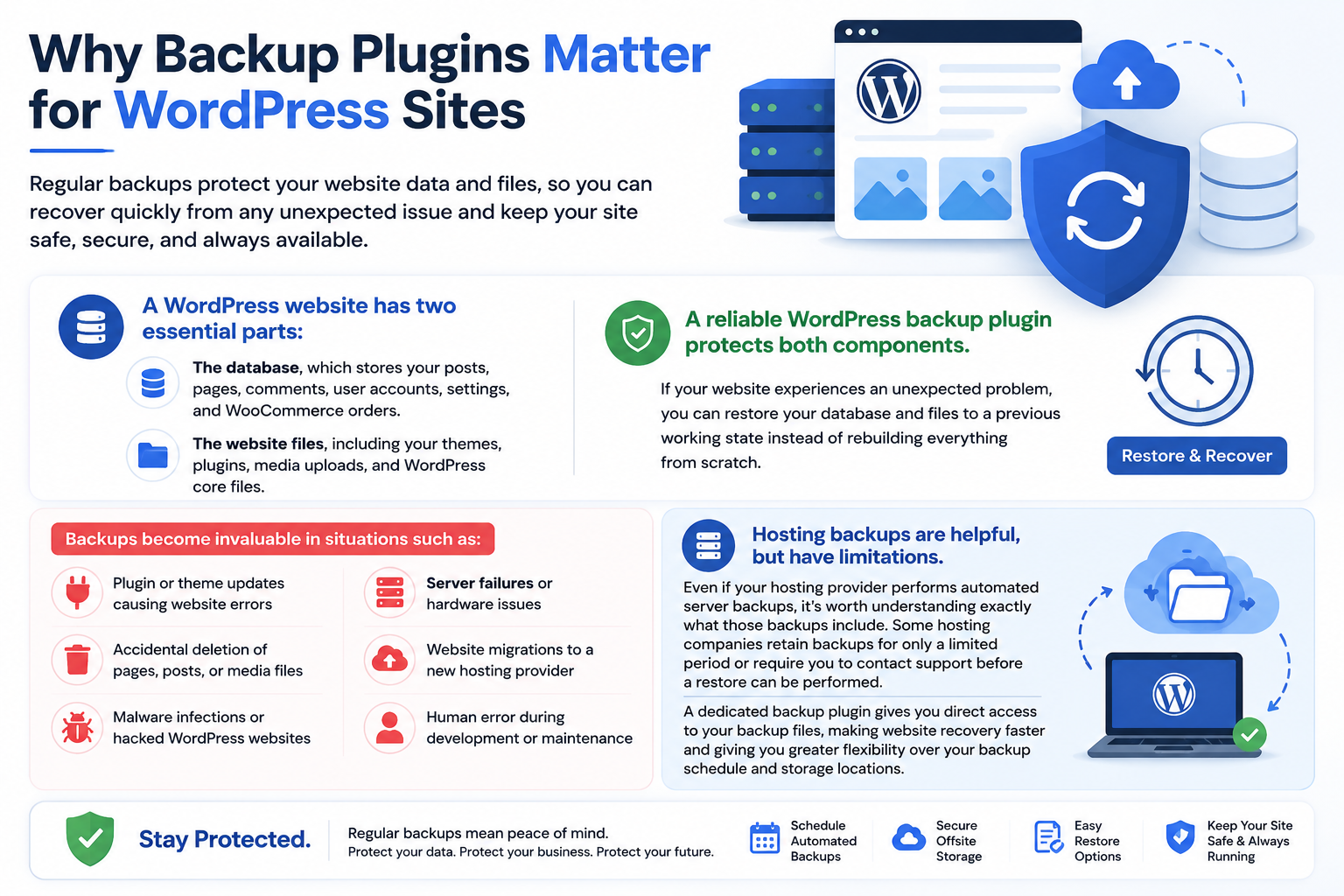
Why Backup Plugins Matter for WordPress Sites
A WordPress website consists of two essential parts:
- The database, which stores your posts, pages, comments, user accounts, settings, and WooCommerce orders.
- The website files, including your themes, plugins, media uploads, and WordPress core files.
A reliable WordPress backup plugin protects both components. If your website experiences an unexpected problem, you can restore your database and files to a previous working state instead of rebuilding everything from scratch.
Backups become invaluable in situations such as:
- Plugin or theme updates causing website errors
- Accidental deletion of pages, posts, or media files
- Malware infections or hacked WordPress websites
- Server failures or hardware issues
- Website migrations to a new hosting provider
- Human error during development or website maintenance
For businesses, every minute of downtime can mean lost sales, damaged customer trust, and reduced search engine visibility. Having a recent website backup allows you to recover quickly and continue operating with minimal disruption.
Even if your hosting provider performs automated server backups, it’s worth understanding exactly what those backups include. Some hosting companies retain backups for only a limited period or require you to contact support before a restore can be performed. A dedicated backup plugin gives you direct access to your backup files, making website recovery faster and giving you greater flexibility over your backup schedule and storage locations.
What to Look for in a WordPress Backup Plugin
Not every backup plugin offers the same level of protection. Before choosing one, consider the features that have the biggest impact on website recovery and long-term reliability.
Full Website Backups
A quality backup plugin should create complete backups of both your WordPress database and website files. Restoring only one component often results in a broken or incomplete website.
Automatic Backup Scheduling
Manual backups are easy to forget. Scheduled daily, weekly, or real-time backups help ensure your website is always protected without requiring manual intervention.
Off-Site Cloud Storage
Storing backups only on the same hosting server defeats the purpose if the server experiences hardware failure or a security breach. Look for plugins that support cloud storage services such as Google Drive, Dropbox, Microsoft OneDrive, Amazon S3, or other remote storage providers.
One-Click Restore
During an emergency, speed matters. The best WordPress backup plugins allow you to restore your website with just a few clicks instead of requiring complicated manual recovery procedures.
Incremental Backups
Large WordPress websites and WooCommerce stores change frequently. Incremental backups save only the changes made since the previous backup, reducing storage requirements while making backups faster and more efficient.
Backup Retention
Good backup solutions allow you to keep multiple backup versions instead of replacing the previous one each time. Having several restore points can be invaluable if a problem goes unnoticed for several days.
Secure Backup Storage
Some premium backup solutions encrypt backup files before storing them remotely, providing additional protection for sensitive business data and customer information.
Compatibility with Your Hosting Environment
Many managed WordPress hosting providers include automatic daily backups as part of their hosting plans. Before installing another plugin, check what your hosting provider already offers. In many cases, combining hosting backups with plugin-based backups provides the best overall protection.
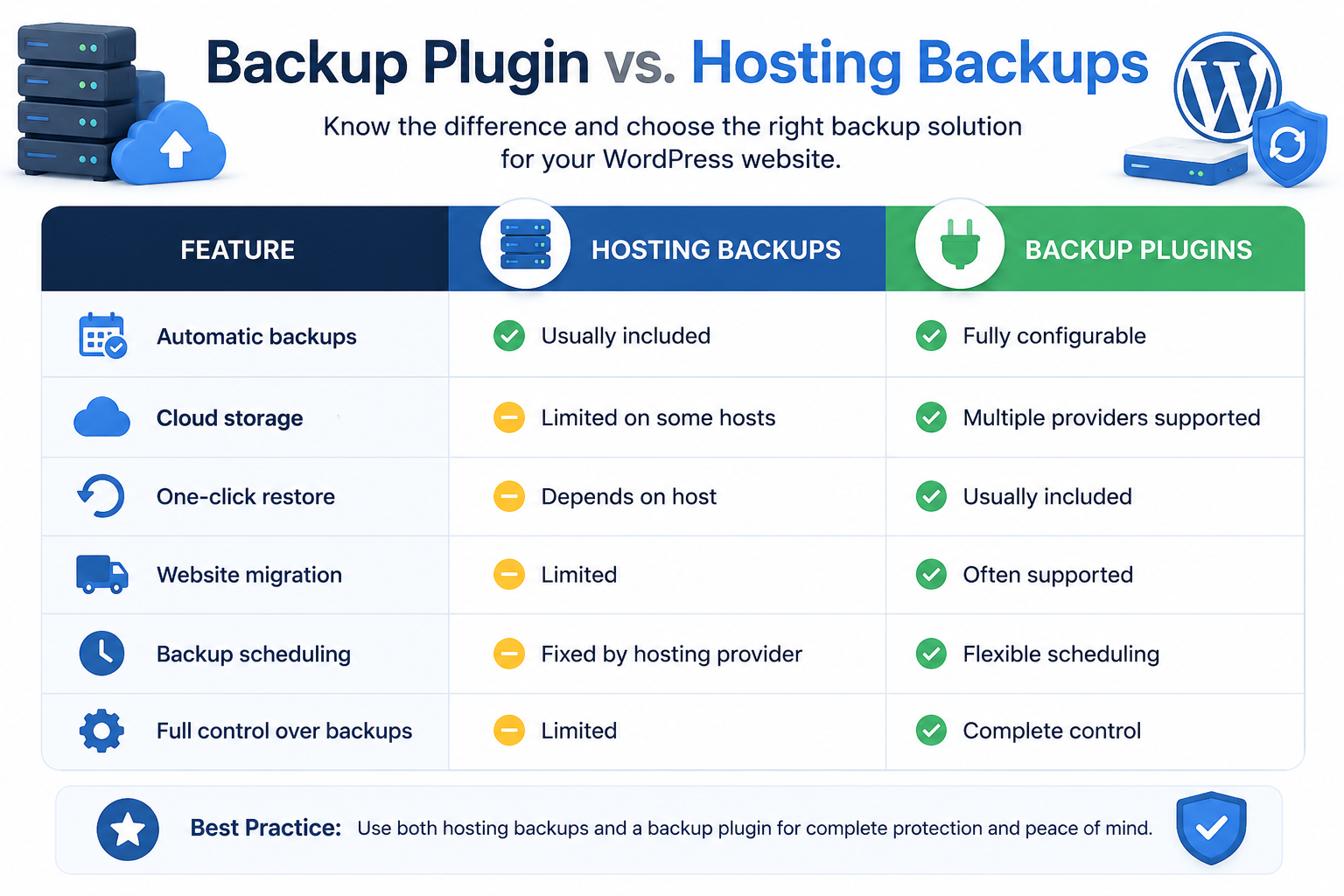
Backup Plugin vs Hosting Backups
One of the most common questions WordPress website owners ask is whether they need a backup plugin if their hosting provider already creates automatic backups.
The answer depends on your website, but for most businesses, the safest approach is to use both.
Hosting backups are managed by your web hosting provider and are designed primarily for server recovery. They’re convenient because they’re usually automated and require no setup. However, they may have limitations, such as shorter backup retention periods, fewer restore points, or restrictions on when and how backups can be restored.
A dedicated WordPress backup plugin focuses on your individual website rather than the server as a whole. It gives you more control over backup frequency, storage locations, and restoration options. Most plugins also support cloud storage, making it easy to keep backup copies separate from your hosting account.
Here’s a simple comparison:
| Feature | Hosting Backups | Backup Plugins |
| Automatic backups | ✅ Usually included | ✅ Fully configurable |
| Cloud storage | Limited on some hosts | ✅ Multiple providers supported |
| One-click restore | Depends on host | ✅ Usually included |
| Website migration | Limited | ✅ Often supported |
| Backup scheduling | Fixed by hosting provider | ✅ Flexible scheduling |
| Full control over backups | Limited | ✅ Complete control |
Rather than choosing one over the other, many WordPress professionals recommend a layered backup strategy:
- Let your hosting provider handle automated server backups.
- Use a dedicated WordPress backup plugin for additional website backups.
- Store backup copies in an off-site cloud location.
- Periodically verify that your backups can be restored successfully.
This approach provides better protection against accidental deletion, malware infections, hosting issues, and unexpected website failures while ensuring you always have multiple recovery options available.
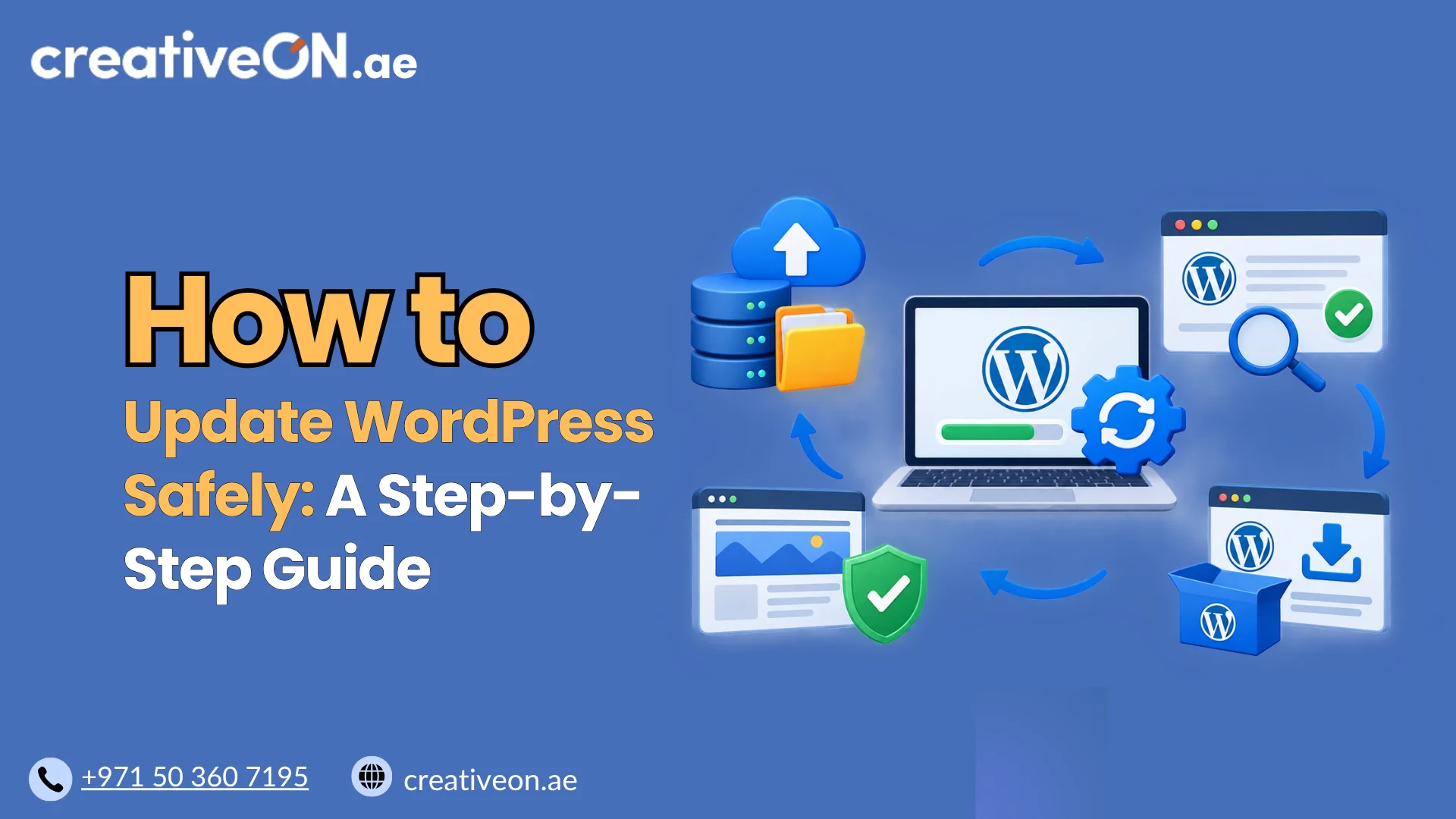
Best Backup Plugins for WordPress Websites
The ideal WordPress backup plugin depends on your website’s size, how frequently it changes, and the level of protection you need. While all of the plugins below can create reliable backups, each is designed with different users in mind—from personal blogs to business websites and WooCommerce stores.
1. UpdraftPlus
UpdraftPlus is one of the most trusted and widely used WordPress backup plugins. It offers an excellent balance between ease of use and powerful features, making it a popular choice for beginners and experienced website owners alike.
The plugin can create full-site backups, database-only backups, or file-only backups, allowing you to protect exactly what you need. It also supports automatic scheduling and integrates with multiple cloud storage providers, including Google Drive, Dropbox, Microsoft OneDrive, Amazon S3, Google Cloud Storage, and more.
The free version provides enough functionality for most personal and small business websites, while the premium edition adds features such as incremental backups, advanced scheduling, cloning, migration tools, and multisite support.
Key Features
- Complete website and database backups
- Automatic scheduled backups
- One-click website restoration
- Multiple cloud storage integrations
- Incremental backups (Premium)
- Website migration and cloning (Premium)
Best for: Bloggers, business websites, and users looking for an all-around backup solution.
2. Duplicator
Although Duplicator is best known as a WordPress migration plugin, it also serves as an excellent backup solution. It packages your entire WordPress installation—including files, themes, plugins, media uploads, and the database—into a single archive that can be restored on another server or domain.
This makes Duplicator especially useful when moving websites between hosting providers or creating development and staging environments. Recent versions also include scheduled backups, cloud storage options, and automated backup capabilities.
If your website migration strategy is just as important as your backup strategy, Duplicator is a strong option.
Key Features
- Full website backups
- Website migration and cloning
- Scheduled backups
- Cloud storage integration
- Easy site restoration
Best for: Website owners, agencies, and developers who regularly migrate WordPress websites.
3. BlogVault
BlogVault is a premium WordPress backup solution designed for businesses, agencies, and high-value websites that require maximum reliability.
Unlike many backup plugins that store files on your hosting account, BlogVault stores backups on its own secure infrastructure. This means your backups remain safe even if your hosting server experiences hardware failure, malware infections, or security issues.
BlogVault also performs incremental backups, reducing server load while backing up only the changes made since the previous backup. Additional features include staging environments, malware scanning, uptime monitoring, and one-click website restores.
For business-critical websites where downtime can be expensive, BlogVault provides a comprehensive disaster recovery solution.
Key Features
- Independent off-site backup storage
- Incremental backups
- One-click restore
- Built-in staging environment
- Malware monitoring
- Website migration
Best for: Agencies, enterprise websites, and businesses that require independent backup infrastructure.
4. Jetpack Backup
Jetpack Backup (formerly VaultPress) focuses on real-time protection rather than scheduled backups. Instead of waiting until the end of the day, every significant change made to your website is backed up automatically.
This feature is particularly valuable for WooCommerce stores where new customer orders, inventory changes, payments, and product updates occur throughout the day. Losing even a few hours of transactional data can be costly, making real-time backups an important investment for eCommerce businesses.
Jetpack Backup also offers an intuitive restore process and integrates seamlessly with other Jetpack security features.
Key Features
- Real-time automatic backups
- Activity log for website changes
- One-click restoration
- WooCommerce compatibility
- Secure cloud backup storage
Best for: WooCommerce stores, membership websites, and websites with frequent daily updates.
5. WPvivid Backup Plugin
WPvivid has quickly become one of the most popular free backup plugins thanks to its generous feature set and user-friendly interface.
It supports scheduled backups, cloud storage integration, website migration, and one-click restoration without requiring a premium subscription for many core features. Users can back up the entire website or specific components such as the database, uploads, themes, or plugins.
For website owners looking for a capable backup solution before investing in premium software, WPvivid offers excellent value.
Key Features
- Automatic scheduled backups
- Full website backup and restore
- Cloud storage support
- Website migration
- Database and file backups
Best for: Small businesses, freelancers, and users seeking a feature-rich free backup plugin.
Local vs Cloud Backup Storage
Creating regular backups is only part of a reliable backup strategy. Where you store those backups is equally important.
Many website owners make the mistake of storing backup files on the same hosting server as their WordPress website. While this is convenient, it creates a single point of failure. If the server experiences hardware problems, ransomware, accidental deletion, or a serious security incident, both your website and its backups could be affected.
Cloud storage significantly reduces this risk by keeping backup copies in a separate location. Most modern backup plugins support services such as Google Drive, Dropbox, Microsoft OneDrive, Amazon S3, Backblaze B2, or FTP/SFTP servers.
For businesses managing multiple client websites, off-site backups are especially valuable because they allow websites to be restored even if the original hosting environment becomes unavailable.
A practical backup strategy is to keep multiple backup copies in different locations. This approach aligns with the widely recommended 3-2-1 backup principle:
- Keep at least three copies of your data.
- Store backups on two different storage types.
- Keep one copy off-site in cloud storage or another secure remote location.
While not every small website needs an enterprise-level backup strategy, maintaining cloud backups alongside your hosting provider’s automated backups provides significantly stronger protection against unexpected data loss and simplifies disaster recovery.
How Often Should You Back Up Your WordPress Website?
The ideal backup frequency depends on how often your website changes. A personal blog that publishes one article each month has very different backup requirements than an active WooCommerce store processing dozens of customer orders every day.
As a general guideline:
| Website Type | Recommended Backup Frequency |
| Personal blog | Weekly |
| Business website | Daily |
| News or media website | Multiple times per day |
| WooCommerce store | Real-time or hourly |
| Membership website | Real-time or several times daily |
| Agency managing client websites | Daily, with additional backups before major updates |
In addition to scheduled backups, it’s always good practice to create a manual backup before:
- Updating WordPress core
- Installing or updating plugins
- Switching themes
- Making major design changes
- Migrating to a new hosting provider
- Editing important website files
A backup created just before maintenance gives you a reliable restore point if something unexpected goes wrong.
For websites with frequent updates, combining automatic daily backups, incremental backups, and real-time protection provides the highest level of security while minimizing server load and storage usage.
Common Backup Mistakes to Avoid
Even with a reliable backup plugin installed, poor backup practices can leave your website vulnerable. Avoid these common mistakes to ensure your backups are available when you need them most.
Relying on a Single Backup Copy
Keeping only one backup copy creates unnecessary risk. If that backup becomes corrupted or is accidentally deleted, you may have no way to recover your website. Always maintain multiple backup versions in separate locations.
Storing Backups on the Same Server
Saving backups only on your web hosting server defeats the purpose of having them. If the server experiences hardware failure, malware, or ransomware, both your website and its backups could be lost.
Using off-site cloud storage provides an extra layer of protection and improves your disaster recovery strategy.
Never Testing the Restore Process
Many website owners regularly create backups but never verify whether those backups can actually be restored.
A backup that hasn’t been tested is simply an assumption—not a guarantee.
Testing your restore process periodically helps confirm that your database, media files, themes, plugins, and website settings can all be recovered successfully.
Backing Up Only Files or Only the Database
A complete WordPress website requires both its files and database.
Backing up only your uploads or only your database may leave you with an incomplete website that cannot function properly after restoration.
Using an Infrequent Backup Schedule
Backup frequency should match how often your website changes.
A weekly backup may be sufficient for a personal blog, but it isn’t enough for an online store processing customer orders every day.
Ignoring Backup Retention
Overwriting your previous backup every time leaves you with only one recovery point.
Keeping several backup versions allows you to restore your website to an earlier state if malware or corruption goes unnoticed for days or weeks.
Test Your Backup Before You Need It
Creating backups is only half of an effective backup strategy. You should also verify that your backups can be restored successfully.
The safest way to do this is by restoring a recent backup to a staging environment rather than your live website. This allows you to confirm that:
- The WordPress database restores correctly.
- Themes and plugins function as expected.
- Media files are complete.
- Website settings remain intact.
- Visitors can browse your website without errors.
Many managed WordPress hosting providers offer staging environments, making restore testing much easier. If your hosting plan doesn’t include staging, many backup plugins can still help you create a temporary testing environment.
Testing your restore process once or twice a year—or after major website changes—helps ensure your backups are reliable when an actual emergency occurs.
Best Practices for WordPress Backups
Following a few simple best practices can significantly improve your website’s resilience and reduce recovery time after unexpected issues.
- Schedule automatic backups based on how frequently your website changes.
- Store backups in at least one off-site cloud location.
- Keep multiple backup versions instead of relying on a single copy.
- Test your restore process periodically to verify backup integrity.
- Create a manual backup before major WordPress updates or website changes.
- Enable incremental or real-time backups for busy WooCommerce and membership websites.
- Monitor available backup storage and remove outdated copies when appropriate.
- Combine a reliable backup plugin with secure, managed WordPress hosting for maximum protection.
Backups work best as part of a broader website security strategy. Strong passwords, regular software updates, malware protection, SSL certificates, and website monitoring all help reduce the likelihood of needing to restore a backup in the first place.
If you’d like to strengthen your website’s security even further, be sure to read our WordPress Security Guide, Why Daily Backups are Important for WordPress Hosting, and How CDN Improves WordPress Hosting Performance to build a faster, more secure, and more reliable WordPress website.
Conclusion
Choosing the best backup plugin for your WordPress website isn’t about finding the plugin with the longest feature list—it’s about selecting a solution that matches your website’s needs and allows you to recover quickly when problems occur.
For most personal and business websites, UpdraftPlus and WPvivid provide an excellent balance of features and ease of use. Duplicator is an outstanding choice for website migrations, BlogVault offers enterprise-grade off-site backups and disaster recovery, while Jetpack Backup is ideal for WooCommerce stores and websites that require real-time protection.
Remember that backups should never rely on a single solution. Combining your hosting provider’s automated server backups with a dedicated WordPress backup plugin, secure off-site cloud storage, and regular restore testing creates a layered backup strategy that significantly reduces the risk of permanent data loss.
A few minutes spent setting up reliable backups today can save hours—or even days—of downtime in the future. Whether you’re running a personal blog, a growing business website, or a high-traffic online store, a dependable backup strategy is one of the smartest investments you can make for your WordPress website.