How to Change a WordPress Post Date
Changing a WordPress post date allows you to correct publishing dates, backdate older content, or schedule a post for future publication. WordPress provides built-in options to change the publication date and time without installing additional plugins. Whether you want to update an incorrectly dated blog post, organize older content, or publish an article at a […]

Changing a WordPress post date allows you to correct publishing dates, backdate older content, or schedule a post for future publication. WordPress provides built-in options to change the publication date and time without installing additional plugins.
Whether you want to update an incorrectly dated blog post, organize older content, or publish an article at a specific time, you can make these changes directly from your WordPress dashboard.
In this guide, you’ll learn how to change a WordPress post date, update its publishing time, backdate an existing post, and schedule a post for future publication.
Why Change a WordPress Post Date?
There are several reasons to change the publication date of an existing WordPress post.
For example, you may need to:
- Correct an incorrect date: Fix a publication date that was entered incorrectly.
- Backdate an older post: Set an earlier publication date to reflect when the content was originally published.
- Schedule future publication: Choose a specific date and time for an article to go live.
- Organize older content: Adjust publication dates to maintain a consistent content archive.
- Manage editorial schedules: Align blog posts with a planned publishing calendar.
Changing the publication date does not automatically update the actual content or its last modified date.
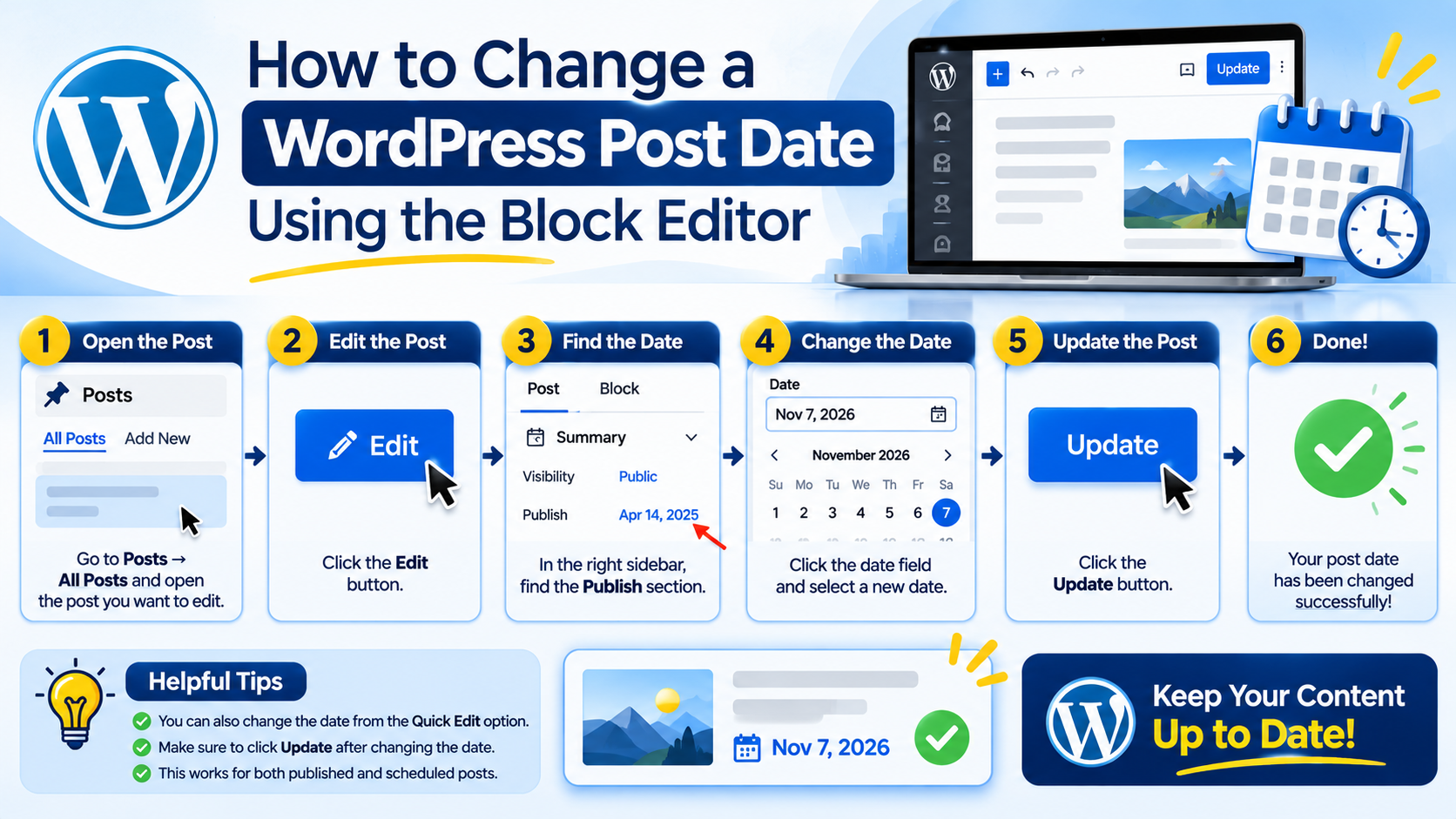
How to Change a WordPress Post Date Using the Block Editor
The WordPress Block Editor (Gutenberg) allows you to change an existing post’s publication date directly from the editor.
Follow these steps:
Step 1: Log in to your WordPress dashboard
Open your WordPress admin area by visiting:
yourdomain.com/wp-admin
Enter your login credentials to access the dashboard.
Step 2: Open the Posts section
From the left-hand menu:
- Navigate to Posts.
- Click All Posts.
- Find the post whose publication date you want to change.
- Click Edit.
Step 3: Locate the publication date settings
In the Block Editor:
- Open the post settings sidebar by clicking the Settings icon in the top-right corner if it is not already visible.
- Select the Post tab.
- Locate the Publish or Status section, depending on your WordPress version.
- Find the publication date and time.
Step 4: Change the date and time
Click the existing publication date to open the date and time selector.
You can now:
- Select a new publication date.
- Change the publication time.
- Adjust the month, day, and year.
- Set the time according to your publishing schedule.
Review your selected date and time before proceeding.
Step 5: Save your changes
Click Update to save the new publication date.
Your post will now display the updated publication date on the website, depending on your theme and post template.
How to Change a WordPress Post Date Using Quick Edit
If you only need to change the date of a post without opening the full editor, WordPress provides a faster option through Quick Edit.
Follow these steps:
- Open your WordPress dashboard.
- Navigate to Posts → All Posts.
- Find the post you want to modify.
- Hover over its title.
- Click Quick Edit.
- Locate the Date fields.
- Update the month, day, year, and time.
- Click Update to save the changes.
Quick Edit is particularly useful when you need to change publication dates for individual posts quickly.
How to Backdate a WordPress Post
Backdating means changing a post’s publication date to an earlier date.
For example, suppose you published an article on November 7, 2026, but the article was originally published on October 15, 2026. You can change its publication date to October 15.
To backdate a WordPress post:
- Open Posts → All Posts.
- Select the post and click Edit.
- Open the Post settings sidebar.
- Click the current publication date.
- Select an earlier date.
- Adjust the publishing time if necessary.
- Click Update.
The post will now display the earlier publication date.
Important: Backdating changes the displayed publication date, but it does not establish that the content was actually published on that earlier date. Use accurate dates, particularly for news, announcements, and time-sensitive information.
How to Schedule a WordPress Post for a Future Date
WordPress also allows you to change a post’s date to a future date and schedule it for automatic publication.
This is useful when preparing articles in advance or managing a regular publishing schedule.
Follow these steps:
- Open the post in the WordPress editor.
- Locate the publication date in the Post settings sidebar.
- Click the date and time.
- Select a future publication date.
- Set your preferred publishing time.
- Click Schedule to confirm.
WordPress will automatically publish the post at the scheduled date and time, provided the scheduled publishing process runs successfully.
Tip: Check your WordPress timezone under Settings → General → Timezone to ensure scheduled posts use the correct local time.
What Happens When You Change a WordPress Post Date?
Changing a post’s publication date can affect how the content appears across your website.
Here are some important considerations:
- Post display date: Your theme may show the newly selected publication date.
- Blog archives: The post may move to a different date-based archive position.
- RSS feeds: The updated publication date may be reflected in feed information.
- Post ordering: WordPress normally orders posts by publication date, so changing the date can change their position in blog listings.
- Scheduled publication: Setting a future date on a published post can change its status to scheduled, making it unavailable publicly until its scheduled publication.
Does Changing a Post Date Affect SEO?
Changing a WordPress post date does not automatically improve search rankings.
However, it can influence how publication dates appear to visitors and search engines, depending on your theme, structured data, and SEO configuration.
Keep these points in mind:
- Do not change publication dates simply to make old content appear fresh.
- Update the article when making substantial improvements.
- Keep publication dates and modified dates accurate.
- Avoid unnecessary date changes that could confuse readers.
- Do not assume changing the date will cause Google to recrawl or reindex a page immediately.
If you substantially update an older article, retain its original publication date where appropriate and display a separate, accurate last-updated date.
Common Mistakes When Changing WordPress Post Dates
Although changing a post date is straightforward, a few mistakes can create problems.
- Changing the date without checking the time
Changing the date but overlooking the time can result in unexpected publishing schedules.
- Ignoring the WordPress timezone
If your website uses an incorrect timezone, scheduled posts may not appear at the expected local time.
- Accidentally scheduling a published post
Setting a published post’s date in the future can change its status to scheduled. This may temporarily remove the post from public view.
- Changing dates to manipulate SEO freshness
Changing an article’s publication date without making meaningful updates does not guarantee better search visibility.
- Forgetting to update the post
After changing the date, make sure you click Update or Schedule to save your changes.