How to Duplicate a WordPress Page (With or Without a Plugin)
Duplicating a WordPress page allows you to reuse an existing page’s content and layout without building everything from scratch. It is useful when creating similar service pages, landing pages, product pages, or location-specific pages. WordPress does not provide a universal duplication button in every standard self-hosted installation. However, you can duplicate a page using a […]
Duplicating a WordPress page allows you to reuse an existing page’s content and layout without building everything from scratch. It is useful when creating similar service pages, landing pages, product pages, or location-specific pages.
WordPress does not provide a universal duplication button in every standard self-hosted installation. However, you can duplicate a page using a dedicated plugin, Jetpack, the Gutenberg editor, or Elementor’s template functionality.
The best method depends on whether you want to copy the entire page or only reuse its content and design.
In this guide, you will learn how to duplicate a WordPress page using these methods and what to check before publishing the copied version.
Why Duplicate a WordPress Page?
Duplicating an existing page can save time and help maintain a consistent website design.
For example, if you have already designed a service page with headings, images, buttons, and custom layouts, you can reuse that structure when creating another service page.
Common reasons to duplicate a WordPress page include:
Creating service pages: Reuse an existing layout for additional services.
Building landing pages: Create campaign pages using an established design.
Creating location pages: Reuse a page structure for different cities or regions.
Testing design changes: Experiment with a copied page without modifying the original.
Saving development time: Avoid rebuilding layouts and formatting manually.
Different Ways to Duplicate a WordPress Page
There are several ways to duplicate a WordPress page. The right option depends on your WordPress setup and what you need to copy.
| Method | Best suited for |
|---|---|
| Duplication plugin | Copying a complete page within the same website |
| Jetpack duplication | Using an available built-in duplication option |
| Gutenberg Copy all blocks | Copying page content without another plugin |
| Elementor templates | Reusing Elementor page layouts |
Which method should you choose?
Use a duplication plugin if you regularly copy complete pages.
Use Jetpack if its duplication feature is already available on your website.
Use Gutenberg if you only need to copy the page content.
Use Elementor templates if you want to reuse an Elementor design.
How to Duplicate a WordPress Page Using a Plugin
Using a WordPress duplication plugin is one of the easiest ways to copy an existing page.
A dedicated plugin can create a copy without requiring you to manually recreate the page content and layout.
One option available in the WordPress plugin directory is Duplicate Page.
Step 1: Install a Page Duplication Plugin
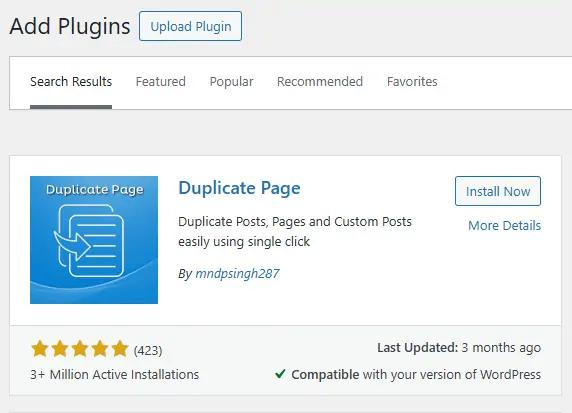
Follow these steps:
Log in to your WordPress dashboard.
Navigate to Plugins → Add New Plugin.
Search for “Duplicate Page”.
Review the plugin’s developer, compatibility, and update history.
Click Install Now.
Activate the plugin.
You can also consider other established duplication plugins, such as Yoast Duplicate Post. Choose a plugin that supports your WordPress version and the page builder you use.
Step 2: Open Your WordPress Pages
After activating the plugin:
Navigate to Pages → All Pages.
Find the page you want to duplicate.
Hover your mouse over the page title.
You should see additional actions, including a Duplicate option, depending on the plugin.
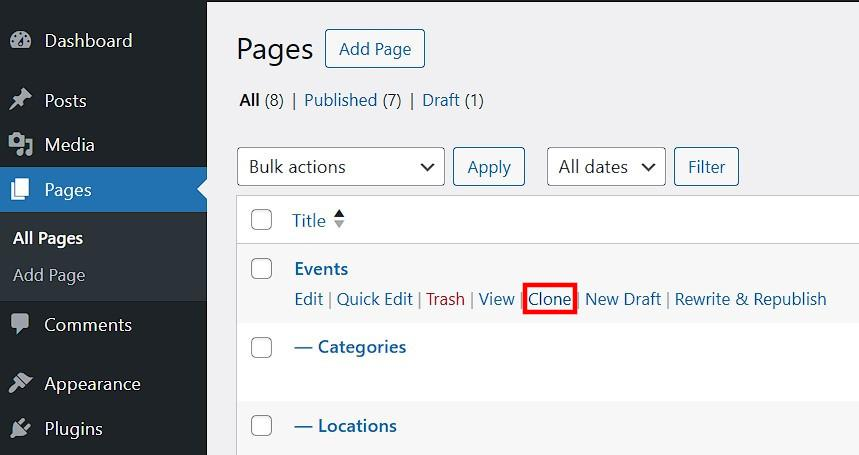
Step 3: Duplicate the Existing Page
Click the Duplicate option.
The plugin will create a copy of the selected page. Depending on its settings, the new page may be saved as a draft or another configured status.
Open the duplicated page to make the necessary changes.
Step 4: Edit the Duplicated Page
Before publishing, update:
Page title and URL slug
Main headings and page content
Images and featured image
Internal links
SEO title and meta description
Calls to action and contact information
Save your changes and preview the new page before publishing it.
How to Duplicate a WordPress Page Without Installing Another Plugin
If you only need to copy a page occasionally, you may not need an additional duplication plugin.
There are two useful options: Jetpack’s duplication functionality, where available, and the Gutenberg editor’s Copy all blocks feature.
Method 1: Use the WordPress.com or Jetpack Duplicate Option
WordPress.com provides a page duplication feature. A similar option is available on eligible self-hosted WordPress websites with Jetpack activated and the relevant setting enabled.
To use this feature:
Log in to your WordPress dashboard.
Navigate to Pages → All Pages.
Find the page you want to copy.
Hover over its title.
Click Duplicate, if the option is available.
You can also find the Duplicate option in the editor’s three-dot menu on supported installations.
The copied page is generally opened as a new draft, allowing you to edit it before publishing.
Important: This feature is not available by default on every self-hosted WordPress installation. If you cannot find the Duplicate option, check your Jetpack settings or use another duplication method.
Method 2: Copy All Blocks Using Gutenberg
The Gutenberg block editor includes a convenient option to copy all page blocks.
This method is useful when you want to reuse the content and block layout without installing another plugin.
Step 1: Open the Existing Page
Go to Pages → All Pages.
Find the page you want to copy.
Click Edit to open it in Gutenberg.
Step 2: Copy All Blocks
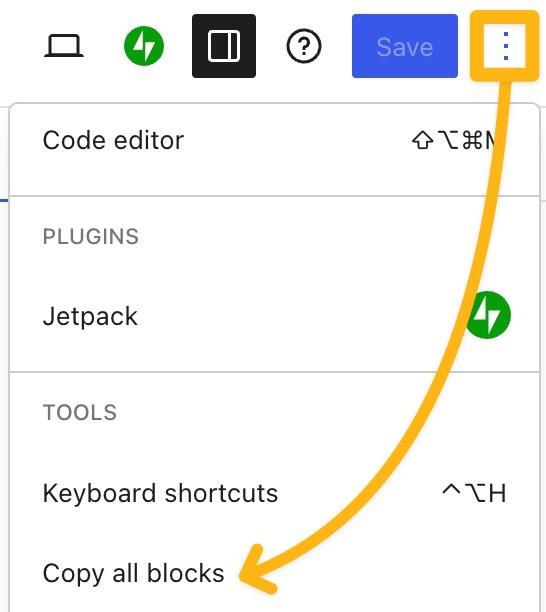
Click the three-dot menu in the top-right corner.
Find Copy all blocks.
Click the option to copy the page’s block content.
Step 3: Create a New Page
Navigate to Pages → Add New Page.
Enter a new page title.
Click inside the content editor.
Paste the copied blocks using
Ctrl + Von Windows orCommand + Von Mac.
The copied blocks should now appear in your new page.
Step 4: Review the New Page
Check the formatting, images, links, and block settings. You may also need to configure the featured image, page template, custom fields, and SEO metadata separately.
Remember that copying blocks does not create a complete copy of every WordPress page setting.
How to Duplicate an Elementor Page
If your website uses Elementor, you can reuse an existing page design through Elementor’s template library.
This method is particularly useful when creating multiple landing pages or service pages with a consistent layout.
Step 1: Save the Existing Page as a Template
Open the page you want to duplicate using Elementor.
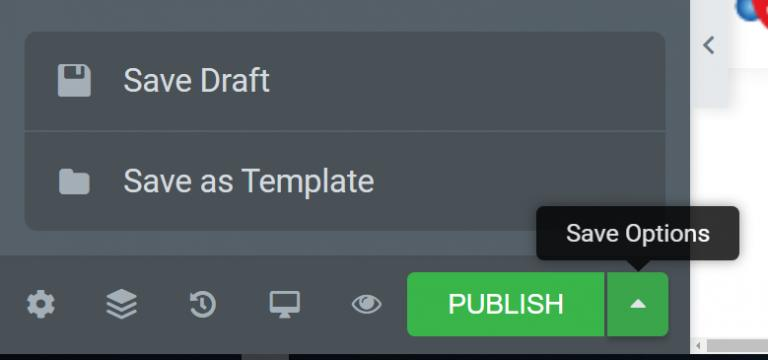
Click the arrow beside the Publish or Update button.
Select Save as Template.
Enter a suitable template name.
Click Save.
Your page design will now be available in the Elementor template library.
Step 2: Create a New WordPress Page
Navigate to Pages → Add New Page.
Enter a new page title.
Click Edit with Elementor.
Step 3: Insert the Saved Template
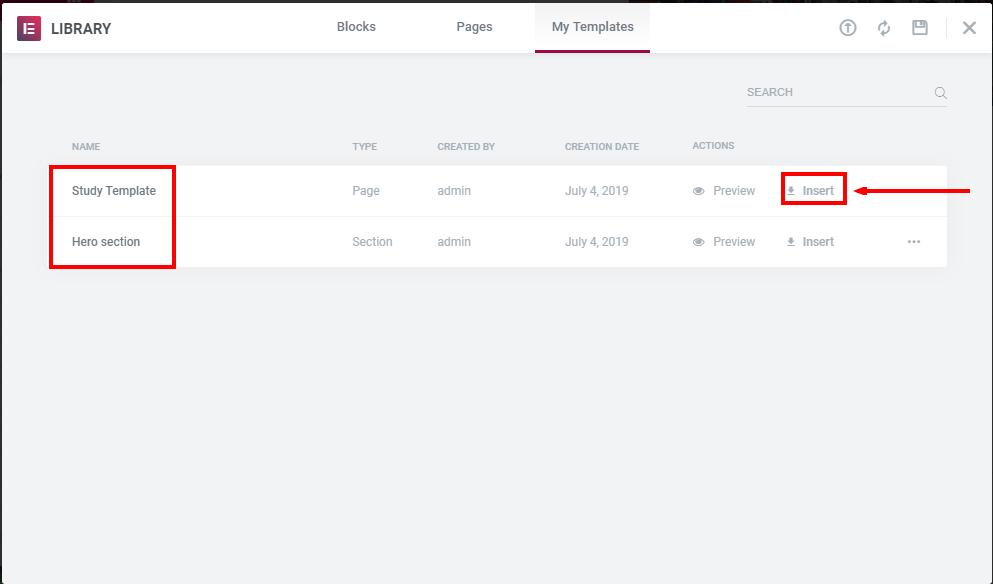
Click the folder icon inside the Elementor editor.
Open the My Templates tab.
Find the template you previously saved.
Click Insert.
The saved design will be added to your new page.
You can now change the text, images, headings, and other elements without rebuilding the layout.
Important: This method reuses the Elementor page design and content. It does not necessarily copy all WordPress page settings, SEO metadata, custom fields, or plugin-specific configurations. Also check whether any global widgets or dynamic elements are connected to shared content.
Elementor also offers a direct dashboard duplication feature for eligible Elementor-hosted websites, but it is not a universal feature for websites hosted elsewhere.
What Gets Copied When You Duplicate a WordPress Page?
Not every duplication method copies the same information. Some methods copy the complete page, while others only copy its content or design.
The following table explains the differences.
Page element | Plugin / Jetpack | Gutenberg blocks | Elementor template |
|---|---|---|---|
Text and headings | Usually | Yes | Yes |
Images in content | Usually | Yes | Yes |
Page layout | Usually | Block layout | Elementor layout |
Featured image | Depends on plugin | No | Not necessarily |
Page template | Depends on plugin | No | Not necessarily |
SEO metadata | Depends on plugin | No | Not necessarily |
Custom fields | Depends on plugin | No | Not necessarily |
Page URL | New URL required | New URL required | New URL required |
The exact results depend on the plugin, editor, and website configuration. Always inspect the duplicated page before publishing.
What to Check After Duplicating a WordPress Page
Duplicating a page is only the first step. Before publishing the copied version, review the following elements.
1. Update the Page Title and URL Slug
WordPress may automatically assign a different URL to the duplicated page.
For example:
Original:
example.com/web-hosting/Duplicate:
example.com/web-hosting-2/
Change the new URL slug to reflect the purpose of the duplicated page.
2. Update SEO Metadata
If you use an SEO plugin such as Rank Math or Yoast SEO, check the duplicated page’s SEO title and meta description.
Make sure they accurately describe the new page rather than repeating the original metadata.
3. Rewrite the Main Content
If you are creating a new service or location page, update the main headings, descriptions, images, and relevant information.
Simply changing the page title while keeping all the original content may not provide enough value to visitors.
4. Review Internal Links
Check the links copied from the original page.
Some may still point to the original page when they should direct visitors to the new one.
5. Check Images and Calls to Action
Replace outdated images, buttons, contact details, and calls to action where necessary.
This is particularly important when creating pages for different services or business locations.
6. Check Canonical and Indexing Settings
If the original page’s SEO settings were copied, verify the canonical URL and indexing configuration.
Make sure the new page does not accidentally point its canonical tag to the original page unless that is intentional.
Keep the new page as a draft until its content and settings are ready.
Common Mistakes When Duplicating WordPress Pages
Avoid these common mistakes when copying existing pages:
Publishing without editing: Leaving the original title, content, or business information can confuse visitors.
Ignoring the URL slug: Keeping an incorrect or automatically generated URL can create unnecessary confusion.
Reusing SEO metadata: Identical titles and descriptions may not accurately represent the new page.
Ignoring page-builder settings: Some widgets, templates, or dynamic elements may not transfer as expected.
Installing unnecessary plugins: If you only need to copy page content, Gutenberg may be sufficient.
Deleting the original page: Duplicating a page does not require removing the original.