How to Remove a WordPress User Safely
Removing a WordPress user is a straightforward task, but you should take care when the account owns published posts, pages, or other website content. Whether you are removing a former employee, a developer, or an unused account, WordPress allows you to delete users through its administration dashboard. In this guide, you will learn how to […]
Removing a WordPress user is a straightforward task, but you should take care when the account owns published posts, pages, or other website content. Whether you are removing a former employee, a developer, or an unused account, WordPress allows you to delete users through its administration dashboard.
In this guide, you will learn how to remove a WordPress user, what happens to their content, how to handle administrator accounts, and what to check before confirming deletion.
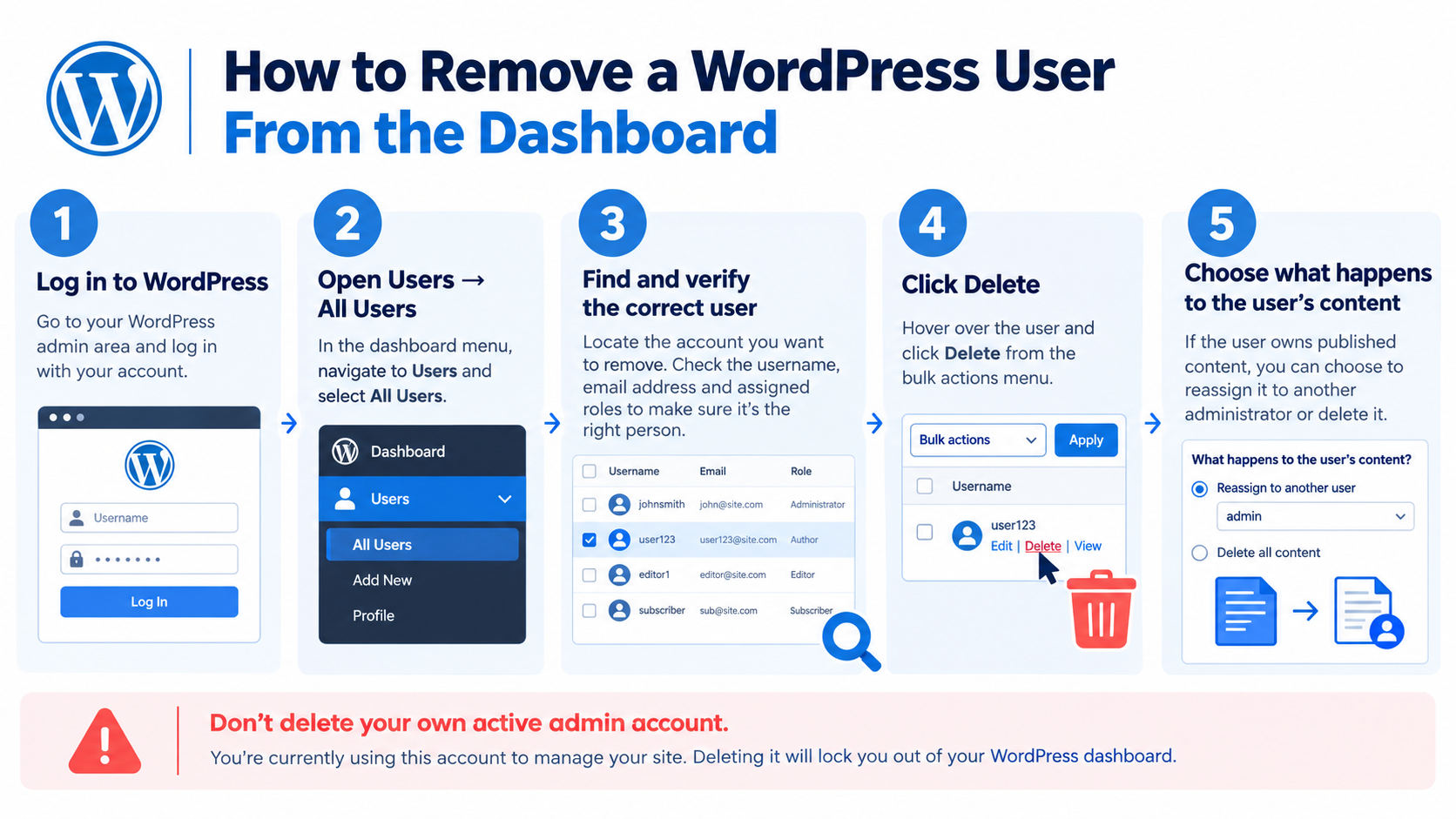
How to Remove a WordPress User From the Dashboard
You can delete a WordPress user from the administration dashboard if your account has the required permissions.
Follow these steps to remove the account safely.
Step 1: Log In to WordPress
Open your WordPress administration area, usually available at:
https://yourdomain.com/wp-admin/
Sign in using an account that has permission to manage users. On a standard WordPress installation, administrators can generally manage user accounts.
Step 2: Open the Users Section
Navigate to Users → All Users from the dashboard menu.
You will see a list of registered accounts, including usernames, email addresses, and assigned roles.
Step 3: Find the User You Want to Delete
Locate the account you want to remove. If your website has many users, use the search field to find the correct account.
Before proceeding, verify the username and email address to avoid deleting the wrong person.
Step 4: Select Delete
Hover over the relevant username and click Delete.
You may also be able to select multiple accounts and choose Delete from the bulk actions menu.
WordPress will display a confirmation screen before completing the deletion.
Important: WordPress does not allow you to delete the account you are currently using through the standard Users screen. If you need to remove your own administrator account, first create or verify another administrator account, sign in with that account, and then delete the old one.
Step 5: Decide What Happens to the User’s Content
If the user owns published content, WordPress may offer two choices:
- Delete all content: Removes eligible content associated with the account.
- Attribute all content to another user: Reassigns eligible content to an existing account.
If the user has published articles, pages, or other important content, choose the reassignment option unless you specifically intend to remove that content.
After reviewing your selection, confirm the deletion to finish removing the WordPress user.
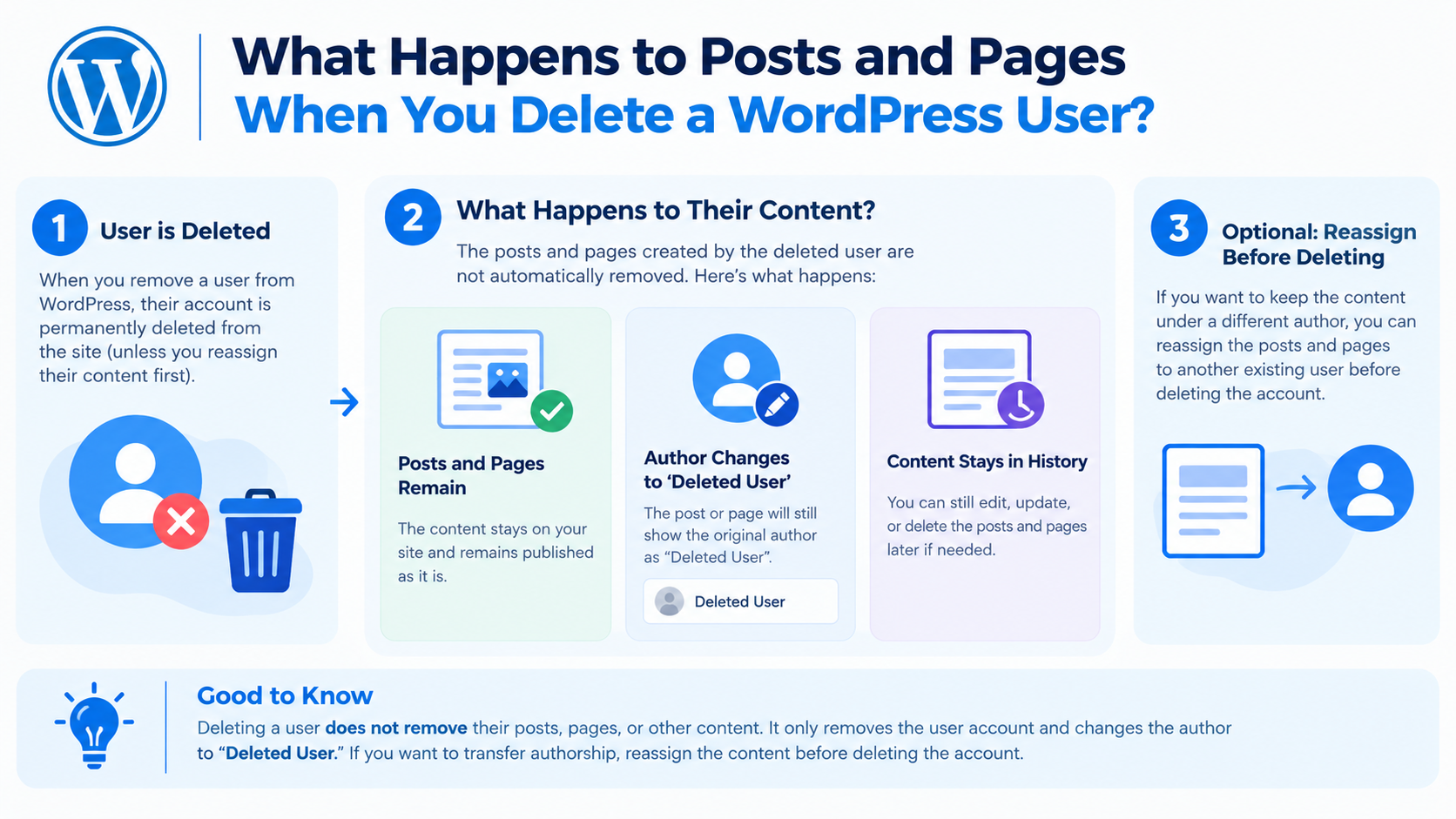
What Happens to Posts and Pages When You Delete a WordPress User?
Deleting a user and deleting their content are related but separate decisions.
If you choose to reassign content, eligible posts and other supported content remain on the website under the selected user’s authorship. This is useful when a writer, editor, or employee leaves an organization but their published work must remain available.
If you choose to delete the user’s content, WordPress removes content covered by that deletion process. Depending on the content involved, this can include posts, pages, and comments.
Keep these points in mind:
- Review the user’s published content before deleting the account.
- Reassign important articles and pages to an appropriate existing user.
- Check custom post types and plugin-managed content separately when necessary.
- Remember that plugin-specific user records and external account information may require separate handling.
For business websites and content-heavy blogs, reassigning content is usually the safer choice when the material needs to remain published.
How to Remove a WordPress Administrator Safely
Administrator accounts can manage users, change website settings, install plugins, and perform other important tasks. Removing an administrator therefore requires additional care.
Before deleting an administrator account:
- Verify another administrator account exists. Make sure the replacement account has the permissions needed to manage the website.
- Test the replacement account. Sign in and confirm that you can access the WordPress dashboard.
- Review content ownership. Check whether the departing administrator owns posts, pages, or other important content.
- Reassign content if necessary. Select an appropriate existing user during the deletion process.
- Delete the old account. Proceed only after confirming that the replacement account works.
Do not remove your only working administrator account without arranging a replacement first.
Also, remember that deleting a WordPress account does not automatically revoke access to every external service. If the person also had access to your hosting control panel, business email, application passwords, or connected services, review those permissions separately.
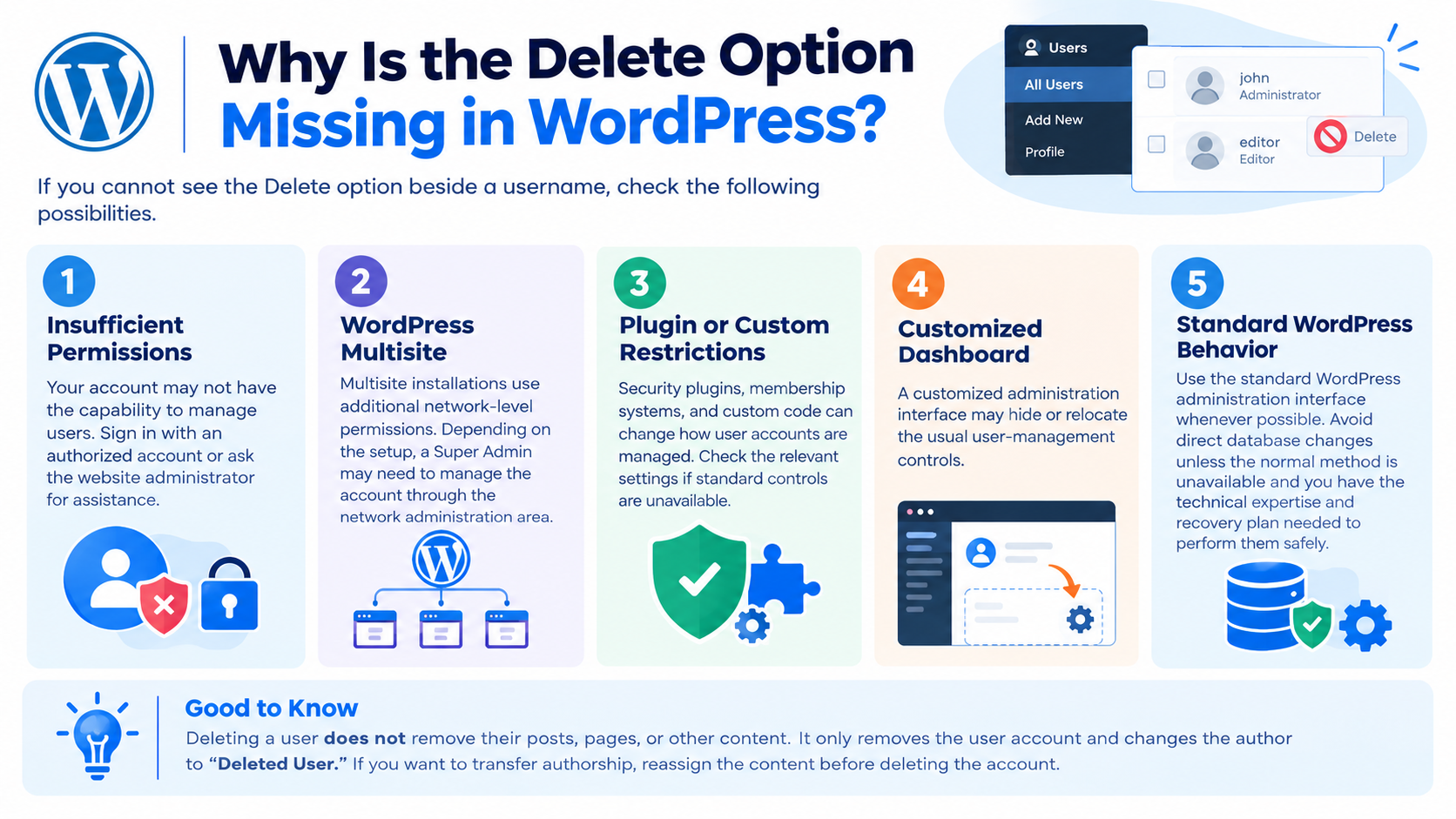
Why Is the Delete Option Missing in WordPress?
If you cannot see the Delete option beside a username, check the following possibilities.
Insufficient permissions: Your account may not have the capability to manage users. Sign in with an authorized account or ask the website administrator for assistance.
WordPress Multisite: Multisite installations use additional network-level permissions. Depending on the setup, a Super Admin may need to manage the account through the network administration area.
Plugin or custom restrictions: Security plugins, membership systems, and custom code can change how user accounts are managed. Check the relevant settings if standard controls are unavailable.
Customized dashboard: A customized administration interface may hide or relocate the usual user-management controls.
Use the standard WordPress administration interface whenever possible. Avoid direct database changes unless the normal method is unavailable and you have the technical expertise and recovery plan needed to perform them safely.
Can You Disable a WordPress User Without Deleting the Account?
Yes, but the appropriate method depends on your objective.
If you want to change what a user can do, you can adjust their role through Users → All Users → Edit. This changes their permissions but does not necessarily prevent them from logging in.
If you need to suspend access temporarily, consider an appropriate account-management or access-restriction solution. For a former employee or a compromised account, also review active sessions, application passwords, and connected services as needed.
Choose deletion when the account is no longer required and you have reviewed its content ownership and access implications.
Common Mistakes to Avoid
When removing a WordPress user, avoid these mistakes:
- Deleting content accidentally: Review the content ownership options before confirming the action.
- Removing the only administrator: Verify that another authorized account is available.
- Deleting the wrong account: Check the username and email address carefully.
- Assuming role changes block login: Changing a role does not automatically disable authentication.
- Ignoring connected services: Remove access to relevant external accounts separately.
- Making unnecessary database changes: Use WordPress’s built-in user-management tools whenever possible.
For important business websites, consider creating a backup before making significant account or content changes. See our related guide on WordPress backup best practices for more information.