WordPress Database Explained: What Is a WordPress Database?
If you run a WordPress site, a lot of what makes it work isn’t stored as a file you can browse in your hosting panel. The WordPress database stores structured website data such as posts, pages, users, comments, settings, and metadata. WordPress files — including themes, plugins, core files, and uploaded media — are stored […]
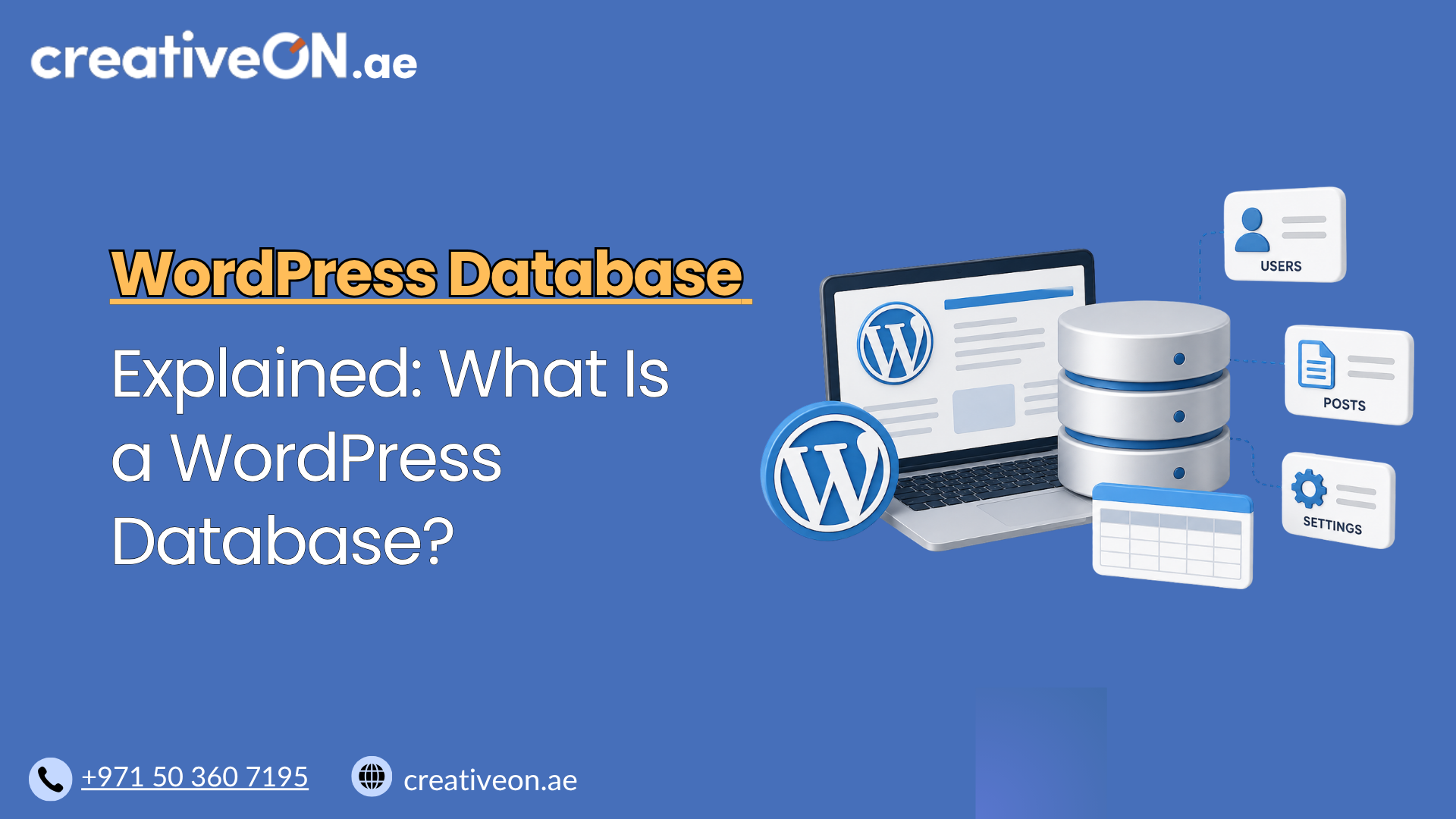
If you run a WordPress site, a lot of what makes it work isn’t stored as a file you can browse in your hosting panel. The WordPress database stores structured website data such as posts, pages, users, comments, settings, and metadata. WordPress files — including themes, plugins, core files, and uploaded media — are stored separately on the server.
Understanding this distinction helps you troubleshoot problems faster, keep your site healthy, and make sense of things like backups, migrations, and performance. This guide walks through what the WordPress database is, how it works, and what to know to keep it running smoothly.
What Is the WordPress Database?
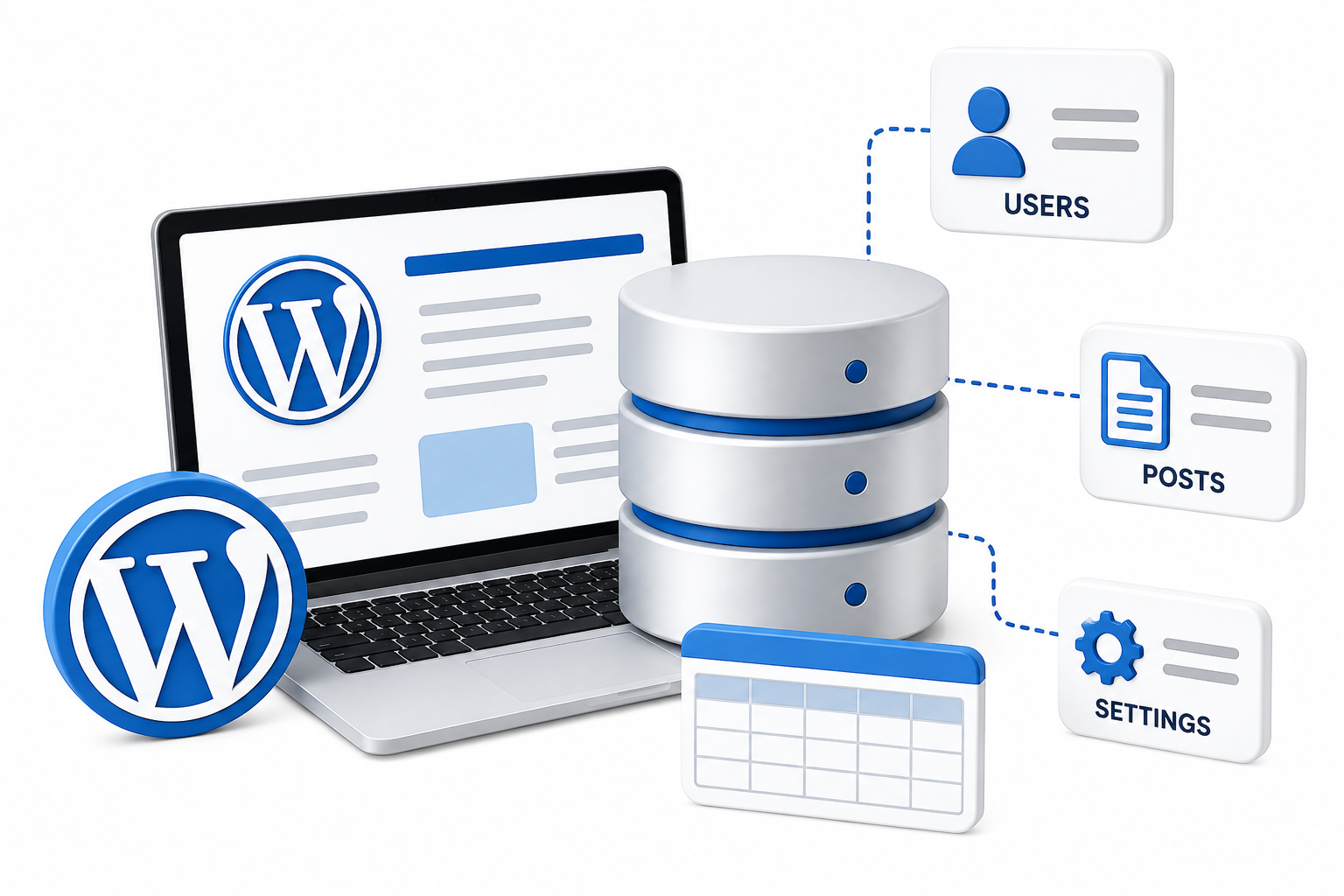
The WordPress database is built on MySQL (or its open-source alternative, MariaDB), a relational database system that organizes information into tables, rows, and columns. Each table contains rows representing individual records, while columns define the types of information stored for those records. For example, in the wp_users table, one row typically represents one WordPress user.
When someone visits your site, WordPress doesn’t simply display static files. It retrieves information from the database in real time — post content, page titles, comments, user accounts, widget settings, and plugin configurations — and assembles it into the page your visitor sees.
Why the WordPress Database Matters
A lot of WordPress site owners never think about their database until something breaks. But it plays a role in several parts of your site’s performance and reliability:
- Speed — WordPress pages can require multiple database queries to retrieve content and settings. An unnecessarily large or inefficient database can increase database workload, particularly when caching is limited.
- Security — The database stores sensitive information like user credentials (hashed) and site settings, making it a common target for attacks.
- Site Stability — Database errors are one of the most common reasons WordPress sites go down or display the “Error Establishing a Database Connection” message.
- Backups and Migrations — Since your content and settings live in the database, it needs to be included any time you back up or move your site.
Your hosting environment can also affect database performance through available server resources, database configuration, caching, and overall server workload. For this reason, database performance is one factor to consider when choosing WordPress Hosting.
How WordPress Uses Its Database
Every time a page loads on your site, WordPress connects to the database using credentials stored in your wp-config.php file. This file tells WordPress:
- The database name
- The database username and password
- The database host (usually localhost or a specific server address)
- A table prefix, which helps separate WordPress data if multiple installations share one database
Once connected, WordPress uses database queries to retrieve and update the information it needs — content, user permissions, plugin settings, and more.
Poorly coded or database-heavy plugins can increase database workload by running additional or inefficient queries when their functionality is needed. This is one reason an accumulation of unnecessary plugins can slow a site down over time.
WordPress Database Tables Explained
A standard WordPress installation creates a set of core database tables. The exact number can vary depending on the WordPress version and installation environment, and plugins may also create additional tables of their own.
A few of the most important ones to know are:
- wp_posts — Stores posts, pages, and custom post types
- wp_postmeta — Stores additional metadata tied to posts (like custom fields)
- wp_users — Stores registered user accounts
- wp_usermeta — Stores extra information about each user
- wp_options — Stores site-wide settings, including many plugin configurations
- wp_comments — Stores comments left on posts
WordPress also uses additional core tables for taxonomies, comment metadata, and relationships between content and categories or tags.
How WordPress Database Tables Work Together
WordPress separates different types of information into different tables and connects related records using IDs and relationships. For example, a single post can have:
- Its main content stored in wp_posts
- Additional information stored in wp_postmeta
- Categories and tags connected through taxonomy tables
- Comments stored separately in wp_comments
This structure lets WordPress organize different types of information without putting everything into one large table.
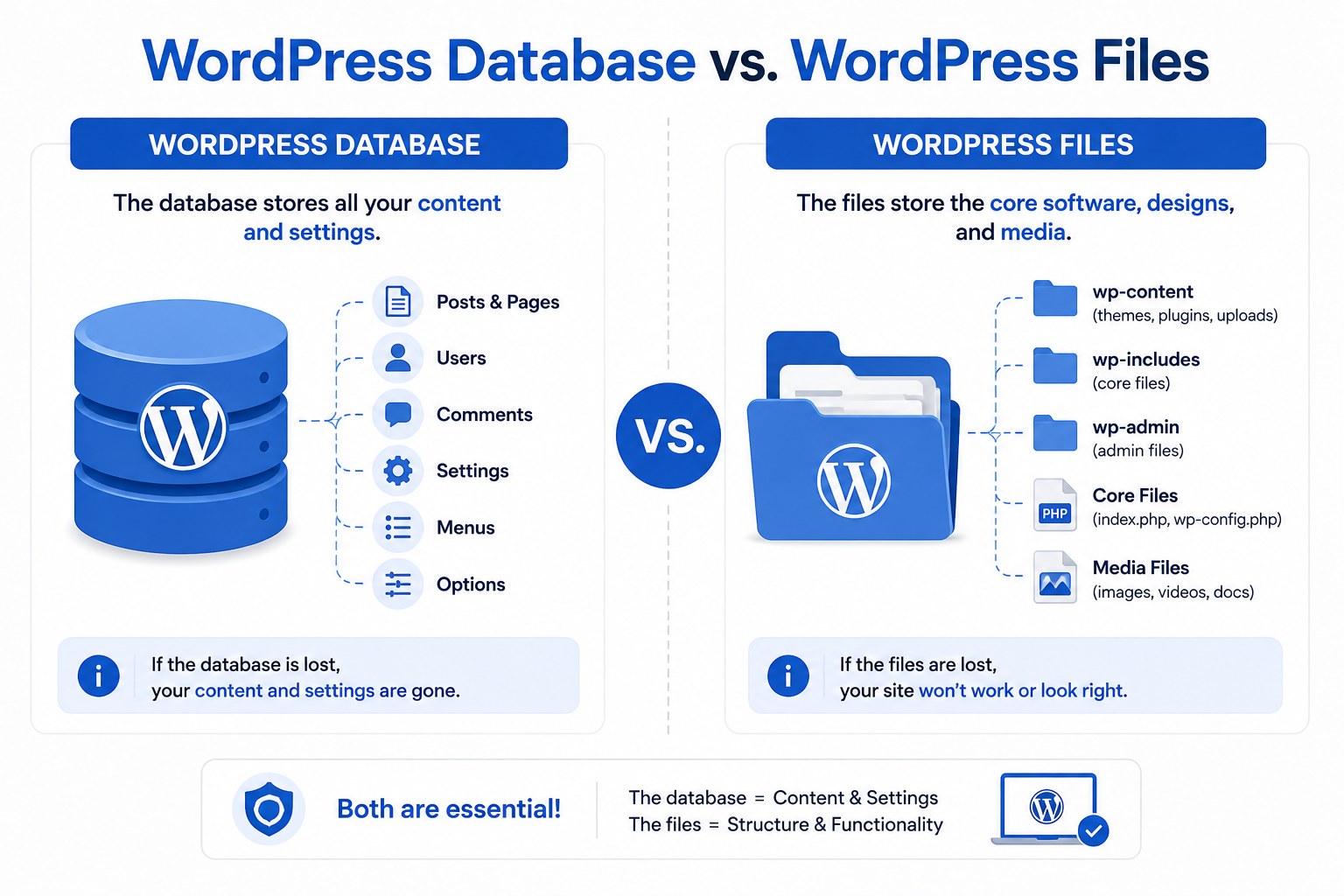
WordPress Database vs. WordPress Files
It’s worth separating these clearly, since the distinction matters for backups and migrations:
- The database holds your content, settings, and structured data — posts, pages, comments, users, and configuration values.
- Files include your theme, plugins, WordPress core files, and uploaded media (images, documents, videos).
Both are required for your site to function, and both need to be handled correctly during a backup or migration. Moving one without the other results in a broken or incomplete site — see our WordPress Migration Guide for the full process.
Best Practices for WordPress Database Management
Keeping your WordPress database in good shape doesn’t require deep technical expertise — just a few consistent habits:
- Manage post revisions. Revisions are useful for restoring earlier versions of content, but sites with a large amount of frequently edited content can accumulate many of them. Set a reasonable revision limit if database growth becomes a concern.
- Review unnecessary database data. Spam comments, excessive revisions, expired transient data, and leftover plugin data can accumulate over time. Remove database data only when you know what it does and have a current backup.
- Avoid database-heavy plugins you don’t need. Uninstalled plugins don’t always clean up their own data, so check whether leftover tables or settings remain after removal.
- Monitor database size. A sudden, unexplained increase can signal a misbehaving plugin or an issue worth investigating.
- Keep backups current. See our WordPress Backup Guide for a full walkthrough of what a proper backup should include.
If your site feels slow despite a healthy database, the cause may be elsewhere — our WordPress Caching Guide covers how caching reduces the number of database queries needed per page load.
Common WordPress Database Mistakes
- Editing the database directly without a backup. Manual changes through tools like phpMyAdmin can break your site instantly if something goes wrong.
- Letting revisions and transients pile up indefinitely. Left unmanaged, these can add up over months or years and affect database performance.
- Migrating sites without properly exporting the database. A WordPress migration involves both files and the database — moving only one results in a broken site.
- Ignoring recurring database errors. Repeated connection errors or slow queries are usually a sign of an underlying issue with hosting resources, a plugin, or configuration — not something to dismiss.
Database prefixes and access permissions are part of a broader WordPress security setup; our WordPress Security Guide covers those measures in more detail.