What Is WordPress Maintenance Mode?
WordPress maintenance mode is a temporary state that displays a maintenance message instead of the normal website while certain updates or maintenance work are taking place. WordPress can enter a short maintenance state automatically during updates. Website owners can also intentionally create a maintenance page when making larger changes to a live website. The important […]
WordPress maintenance mode is a temporary state that displays a maintenance message instead of the normal website while certain updates or maintenance work are taking place.
WordPress can enter a short maintenance state automatically during updates. Website owners can also intentionally create a maintenance page when making larger changes to a live website.
The important distinction is that WordPress’s built-in maintenance mode and a manually created maintenance page are related but not exactly the same thing. Understanding how each works can help you avoid unnecessary downtime and common WordPress maintenance problems.
What Is WordPress Maintenance Mode?
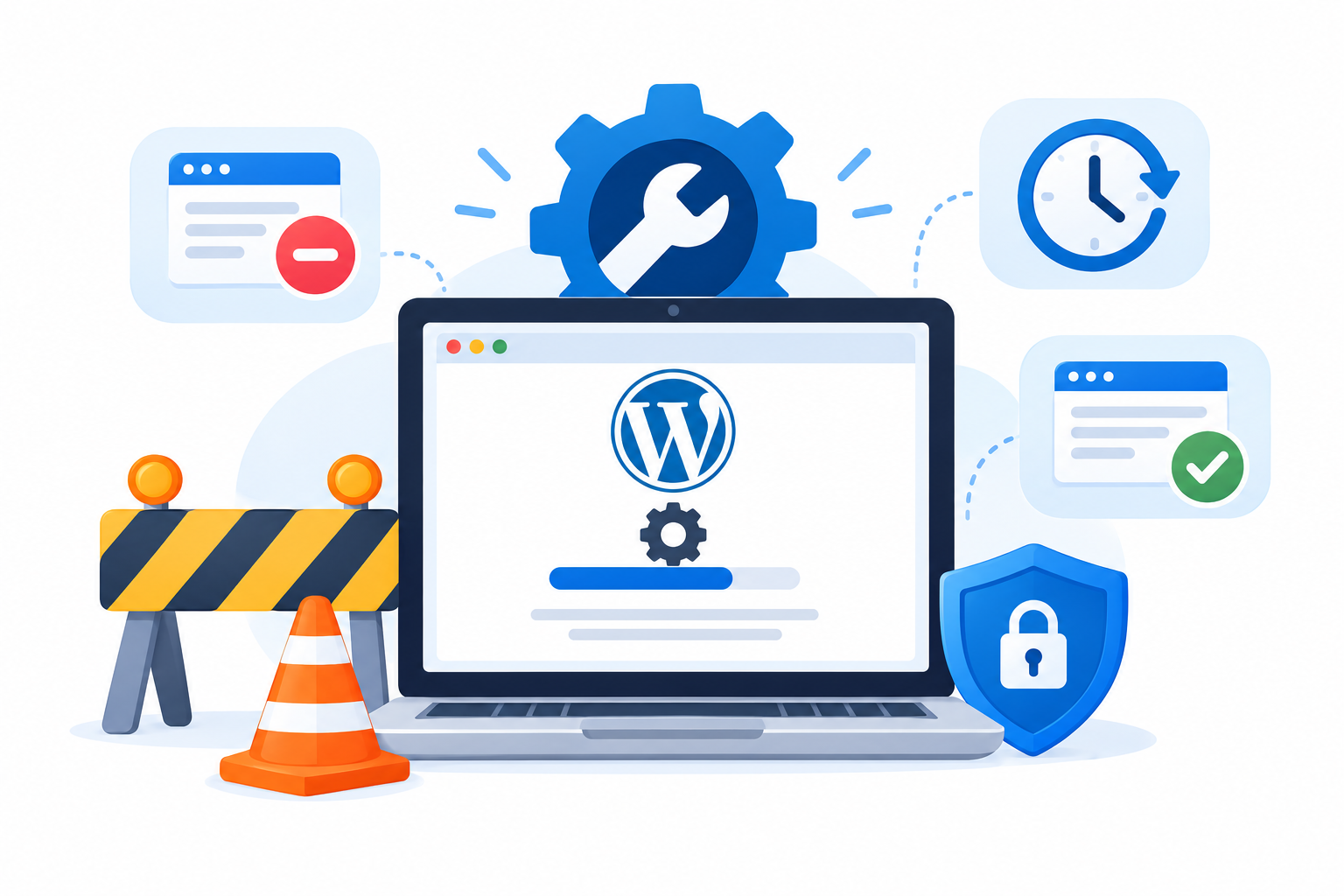
WordPress maintenance mode temporarily prevents visitors from seeing the normal website while an update or other maintenance operation is taking place.
During this period, visitors may see a simple message such as:
Briefly unavailable for scheduled maintenance. Check back in a minute.
WordPress uses a temporary maintenance mechanism during certain updates. Website owners can also use plugins, themes, hosting features, or custom implementations to display a maintenance page when they need to temporarily restrict normal visitor access.
Maintenance mode is primarily about temporarily controlling the visitor experience. It is not a security feature and should not be treated as a way to protect a website from attacks.
How Does WordPress Maintenance Mode Work?
There are two common ways WordPress maintenance mode can be used.
Automatic maintenance mode during WordPress updates
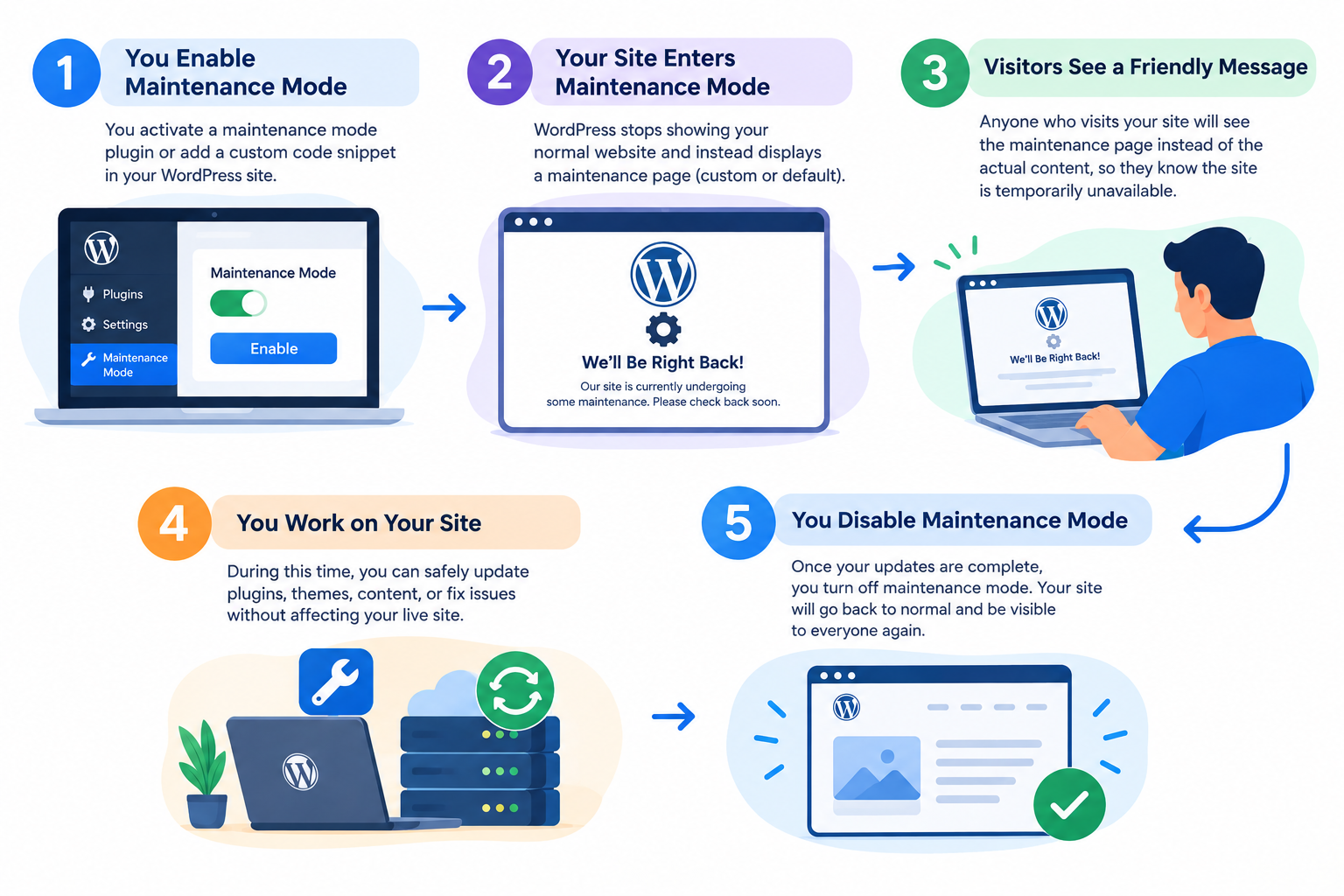
When WordPress performs certain updates, it temporarily places the site into maintenance mode.
WordPress creates a hidden file called .maintenance in the WordPress installation’s root directory. WordPress checks for this file to determine whether the site is in maintenance mode.
The general process is:
- WordPress starts the update.
- A .maintenance file is created.
- Visitors temporarily receive the maintenance message.
- WordPress performs the update.
- The maintenance file is removed when the update process finishes successfully.
- The website returns to its normal state.
This automatic maintenance period is normally brief and does not mean that you need to manually activate a separate maintenance page for every routine update.
Manually enabled maintenance mode
Website owners can also deliberately display a maintenance page when making larger changes to a website.
This can be done through:
- WordPress maintenance plugins
- Theme functionality
- Hosting features
- Custom WordPress code
- Other website management tools
The exact behavior depends on the implementation. Some solutions may allow administrators or logged-in users to continue viewing the website while regular visitors see the maintenance page.
WordPress Maintenance Mode vs. a Maintenance Page
The terms maintenance mode and maintenance page are often used interchangeably, but there is a useful distinction.
Maintenance mode describes the state in which normal visitors are temporarily prevented from accessing the regular website.
A maintenance page is the page visitors see during that period.
For example, WordPress may automatically enter a short maintenance state during an update. A website owner, on the other hand, may deliberately configure a branded maintenance page for a website redesign.
This distinction becomes particularly important when troubleshooting a website that remains stuck in maintenance mode.
When Should You Use WordPress Maintenance Mode?
Maintenance mode is most useful when visitors could otherwise encounter an incomplete or temporarily broken website.
Major website redesigns
If you are changing the site’s structure, design, navigation, or important functionality, a temporary maintenance page can prevent visitors from seeing unfinished work.
For significant redesigns, however, a WordPress staging environment is usually a better place to develop and test changes before publishing them.
Significant website updates
Routine updates generally do not require manually activating maintenance mode. Larger changes that could temporarily affect important website functionality may justify a short maintenance period.
Troubleshooting serious problems
If a website is experiencing a problem that could affect visitors, temporarily displaying a maintenance page can provide a cleaner experience while the issue is being investigated.
Major website migrations
During some website migrations or major changes to the live environment, visitors may need to be temporarily prevented from interacting with the site.
For a complete migration process, see CreativeON’s WordPress Migration Guide.
When Don’t You Need Maintenance Mode?
You do not need to place a WordPress website into maintenance mode simply because you are making a small change.
For example, maintenance mode is usually unnecessary for:
- Editing a blog post
- Publishing new content
- Replacing an image
- Making a small text change
- Performing routine administrative work
- Making changes that can safely be tested through staging
WordPress already uses a short automatic maintenance state for certain updates. Manually activating a maintenance page for every small task can create unnecessary interruption for visitors.
The better approach is to use maintenance mode when the live visitor experience could actually be affected.
What Should a WordPress Maintenance Page Include?
A maintenance page does not need to be complicated.
A useful page should clearly tell visitors what is happening and, where appropriate, give them another way to contact the business.
Consider including:
- A clear maintenance message explaining that the website is temporarily unavailable
- Expected return time if you can provide a reliable estimate
- Company branding such as your logo and normal visual identity
- Contact information for customers who need assistance
- Important links if certain information needs to remain accessible
For example:
We’re updating our website
We’re making a few improvements and expect to be back shortly. If you need assistance, please contact our support team.
Keep the message simple. Visitors generally do not need technical details about what is happening behind the scenes.
Does WordPress Maintenance Mode Affect SEO?
Temporary maintenance does not automatically mean that a website will have an SEO problem. The duration and technical implementation of the maintenance period matter.
A website that is unavailable for an extended period can create problems because search engines need to crawl and access its pages.
For planned temporary downtime, the server response should communicate that the website is temporarily unavailable, rather than permanently removed. A properly configured 503 Service Unavailable response can be used for temporary maintenance, often together with a Retry-After response to indicate when the site may become available again.
The exact implementation depends on how your maintenance system is configured.
For a short WordPress update, this is normally not something the average website owner needs to configure manually. It becomes more important when a website is intentionally kept in maintenance mode for a longer period.
The key principle is simple:
Keep maintenance periods as short as possible and configure planned downtime correctly.
Why Is My WordPress Site Stuck in Maintenance Mode?
One common WordPress maintenance problem occurs when the website continues showing the maintenance message after an update appears to have finished.
During an update, WordPress creates the .maintenance file mentioned earlier. Normally, WordPress removes it when the update process completes.
If an update is interrupted or does not finish correctly, the file can sometimes remain in the WordPress root directory.
As a result, visitors may continue seeing a maintenance message even though the update is no longer running.
How to fix a stuck WordPress maintenance mode
If you have confirmed that the update has finished and the website remains in maintenance mode:
- Make sure no WordPress update is still running.
- Access the WordPress installation’s root directory through your hosting file manager, FTP, or another appropriate method.
- Look for the .maintenance file.
- Remove the file if it has remained after the update has completed.
- Clear relevant caches if the maintenance page continues to appear.
- Test the website from a normal visitor session.
If you are unsure whether an update completed successfully, investigate that first rather than immediately removing the file.
For websites where updates frequently fail, the underlying hosting, plugin, theme, PHP, permissions, or resource issue should also be investigated.
Maintenance Mode vs. WordPress Staging
Maintenance mode and staging solve different problems.
Maintenance mode temporarily changes what visitors see on the live website.
Staging provides a separate environment where you can test changes before applying them to the live website.
For example, if you are redesigning a business website, you can develop and test the changes on staging first. Once everything works correctly, the changes can be published to the live website.
This means maintenance mode should not be considered a replacement for staging.
For substantial changes, use a WordPress staging environment whenever your hosting setup provides one.
Best Practices for WordPress Maintenance Mode
A few simple practices can make maintenance safer and reduce unnecessary downtime.
1. Use staging for major changes
Test significant design, plugin, theme, or functionality changes before applying them to the live website.
2. Create a backup before major maintenance
A recent backup gives you a recovery option if an update or configuration change causes an unexpected problem.
See CreativeON’s WordPress Backup Guide for more information.
3. Keep maintenance mode temporary
Return the website to normal operation as soon as the work has been completed and tested.
4. Use a clear maintenance message
Tell visitors that the website is temporarily unavailable instead of displaying a vague error.
5. Test the website after maintenance
Check important functions such as:
- Homepage and key pages
- Navigation
- Contact forms
- Login
- Search
- WooCommerce checkout, if applicable
- Mobile display
6. Investigate repeated maintenance problems
If WordPress repeatedly becomes stuck in maintenance mode, don’t simply remove the .maintenance file each time. Look for the underlying reason an update is failing or being interrupted.
7. Consider caching
If visitors continue seeing an old maintenance page after the site is restored, check browser, WordPress, CDN, or server caching before assuming that maintenance mode is still active.
Can Advanced Users Control WordPress Maintenance Mode?
Yes. WordPress administrators who work with the command line can use WP-CLI to check and control maintenance mode.
For example, WP-CLI provides commands for:
- Checking maintenance mode status
- Activating maintenance mode
- Deactivating maintenance mode
This is primarily useful for developers, system administrators, and advanced WordPress users. Most website owners can manage maintenance through their normal WordPress or hosting interface.