WordPress Drafts and Published Posts: Differences, Management, and Best Practices
When creating content in WordPress, you do not have to publish a post immediately. WordPress allows you to save unfinished articles as drafts and publish them when they are ready. Understanding the difference between WordPress drafts and published posts helps you manage your content, control publication, and maintain an organized website. Whether you manage a […]
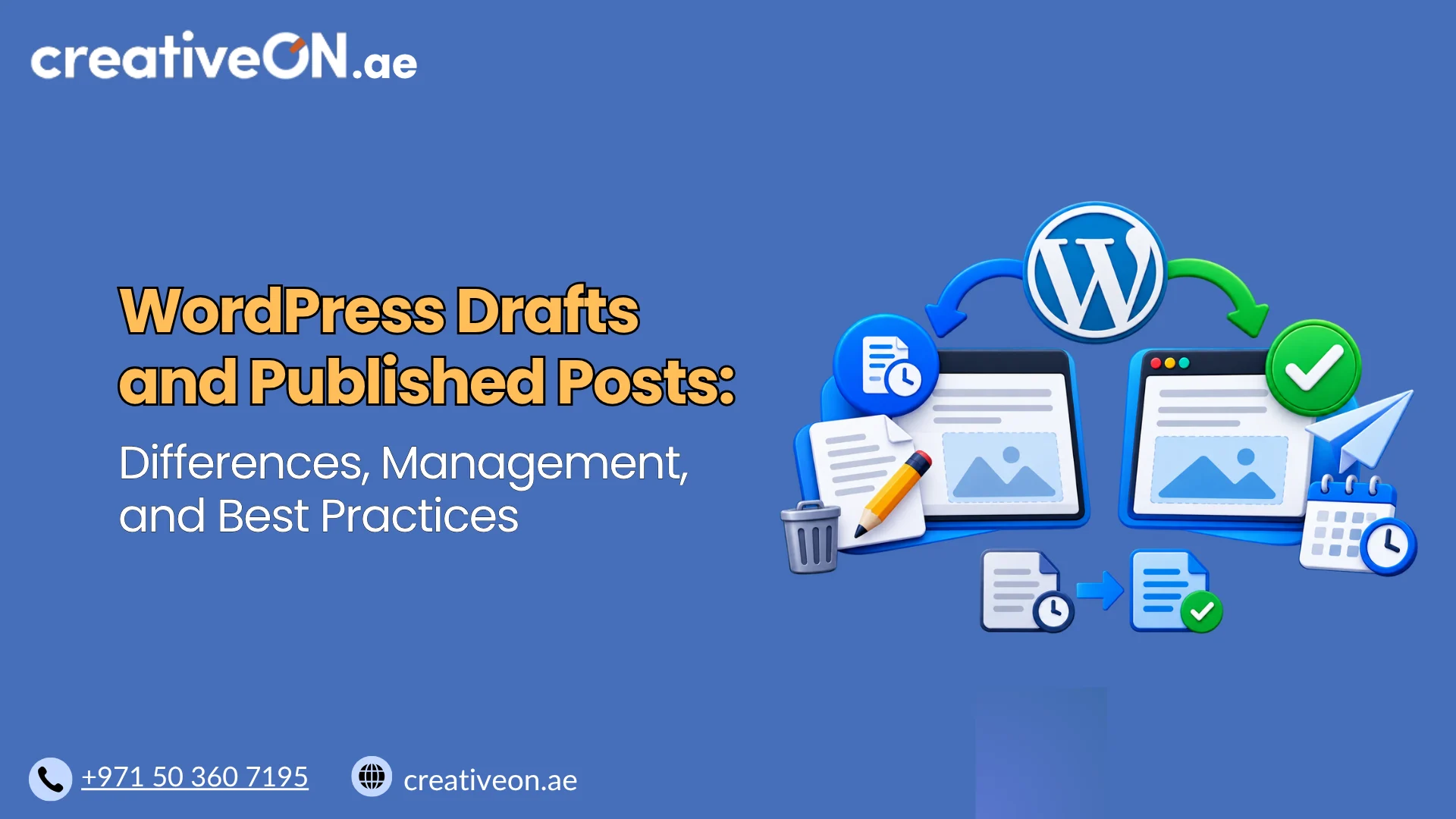
When creating content in WordPress, you do not have to publish a post immediately. WordPress allows you to save unfinished articles as drafts and publish them when they are ready. Understanding the difference between WordPress drafts and published posts helps you manage your content, control publication, and maintain an organized website.
Whether you manage a business website, blog, or content-rich website, knowing how WordPress post statuses work makes it easier to prepare articles, review content, and avoid accidental publication.
In this guide, you will learn how WordPress drafts and published posts work, how to switch between these statuses, and how to manage your content effectively.
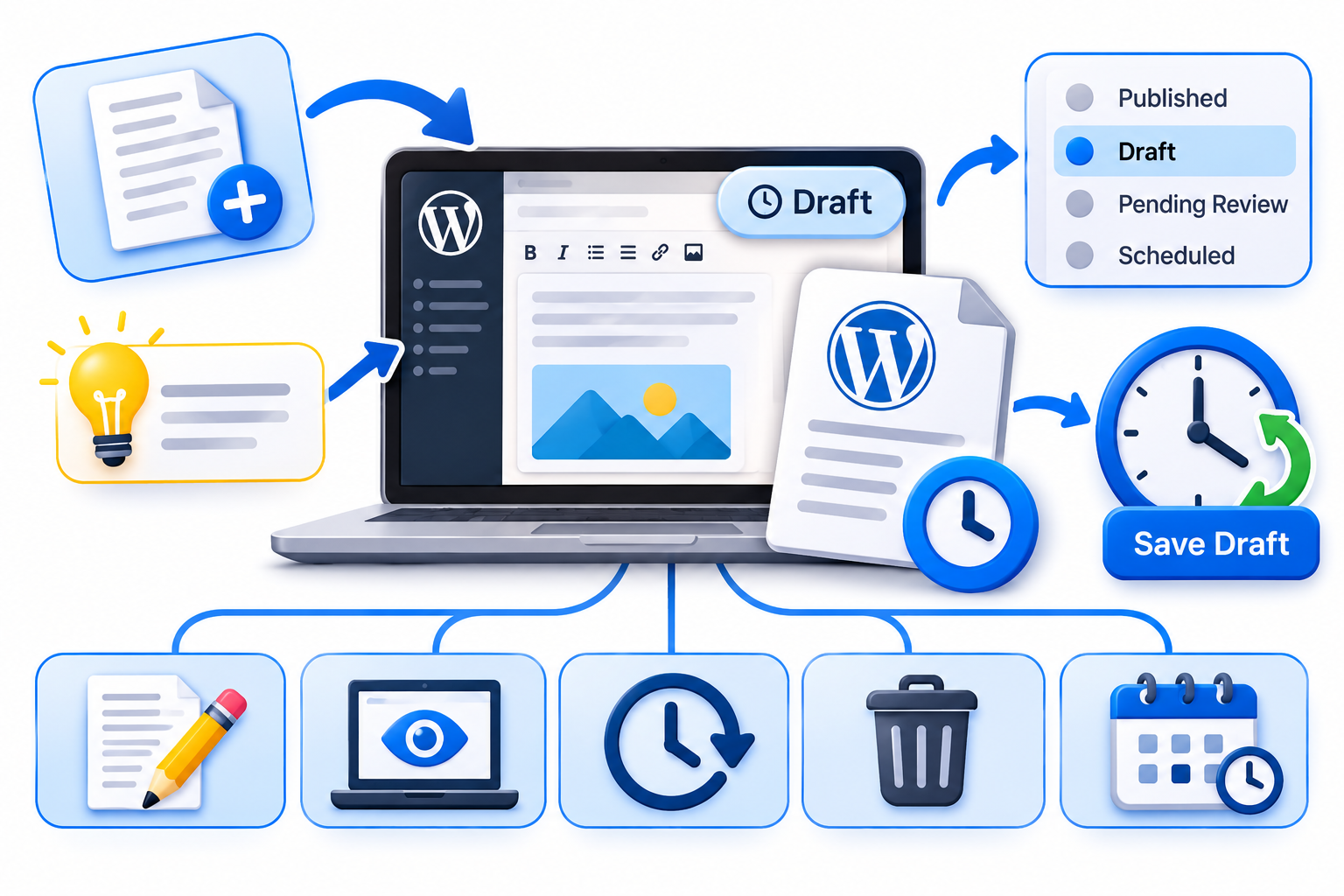
What Is a WordPress Draft?
A WordPress draft is an unpublished post saved in your website’s dashboard. It allows you to write, edit, and prepare content without making it publicly available.
Drafts are particularly useful when an article is incomplete, requires proofreading, or needs approval before publication.
For example, if you are preparing an article about WordPress security, you can save it as a draft while completing the content, adding images, and checking technical information.
Key characteristics of WordPress draft posts include:
- They are not publicly available as normal published posts.
- You can edit and update them whenever necessary.
- They remain accessible through the WordPress dashboard to users with appropriate permissions.
- They can be published whenever the content is ready.
- You can keep multiple drafts for future articles.
WordPress also uses autosaving to preserve editing progress. However, autosaving and manually saving a draft are different processes. Using the Save Draft option provides an explicit way to save your work without publishing it.
What Is a Published WordPress Post?
A published WordPress post is an article that has been made available on your website. Once published with Public visibility, visitors can access it through its URL and other website sections where posts are displayed.
For example, after completing a blog article, reviewing its content, and checking its formatting, you can click Publish to make it available to your visitors.
Published posts can appear in:
- Your website’s blog listing.
- Relevant category and tag archives.
- Related posts sections.
- Internal search results, depending on your website configuration.
- Search engine results, if discovered and indexed by search engines.
Important characteristics of published WordPress posts include:
- They can be accessed by visitors when their visibility is set to Public.
- They can be edited and updated after publication.
- Their content can be discovered by search engines.
- You can change their status or visibility when necessary.
- You can schedule future publication or update existing content.
Publishing an article does not mean it becomes permanent or cannot be changed. WordPress allows you to edit published posts and apply updates whenever required.
WordPress Drafts vs Published Posts: Key Differences
The main difference between WordPress drafts and published posts is their publication status. A draft is unfinished or unpublished content, while a published post has been released according to its visibility settings.
The following comparison highlights their differences.
| Feature | WordPress Draft | Published Post |
| Status | Draft | Published |
| Public availability | Not publicly available | Public if visibility is set to Public |
| Editing | Can be edited | Can be edited |
| Website visitors | Cannot access it as a normal public post | Can access it when public |
| Blog listing | Normally excluded | Can appear |
| Search engine discovery | Not normally publicly discoverable | Can be discovered and indexed |
| Content updates | Saved as a draft | Applied using Update |
| Publication | Requires publishing | Already published |
Understanding these differences helps you select the correct status when creating and managing website content.
Post Status vs Post Visibility
WordPress post status and post visibility are related, but they are not the same thing.
Post status determines the publication stage of your content. Examples include Draft, Pending Review, Scheduled, and Published.
Post visibility determines who can access a published post. WordPress provides options such as:
- Public: Visitors can access the post.
- Private: Access is restricted to authorized WordPress users.
- Password Protected: Visitors need the correct password to view the protected content.
For example, a post can have a Published status but use Password Protected visibility. Therefore, publishing an article does not always mean that everyone can read it.
This distinction is important when managing content that should be available only to selected visitors.
How to Save a WordPress Post as a Draft
If your article is not ready for publication, you can save it as a draft directly from the WordPress block editor.
Follow these steps:
- Log in to your WordPress admin dashboard.
- Navigate to Posts → Add New Post.
- Enter your post title and start writing.
- Add headings, paragraphs, images, and other relevant content.
- Click Save draft in the editor.
- WordPress saves the post without making it publicly available.
You can return to the saved article later and continue editing it.
How to Find Existing WordPress Drafts
To access your saved draft posts:
- Open your WordPress dashboard.
- Navigate to Posts → All Posts.
- Select the Drafts filter.
- Find the article you want to edit.
- Click its title to open it in the editor.
You can now continue writing, make corrections, or prepare the article for publication.
How to Publish a WordPress Draft
Once your draft is complete, you can publish it to make the article available on your website.
Follow these steps:
- Log in to your WordPress dashboard.
- Navigate to Posts → All Posts → Drafts.
- Open the draft you want to publish.
- Review the article title, content, and formatting.
- Check the featured image, categories, and other post settings.
- Review the post visibility and publication settings.
- Click Publish.
- Confirm publication when WordPress displays the confirmation screen.
Your article will now have a Published status.
If its visibility is set to Public, website visitors can access it through its published URL.
Before publishing, check the following:
- The article is complete and properly formatted.
- Headings and paragraphs are organized.
- Images display correctly.
- Internal and external links work.
- The featured image is assigned.
- The correct category is selected.
- The URL slug is appropriate.
- The visibility setting is correct.
These checks help prevent common publishing mistakes.
Can You Edit a Published WordPress Post?
Yes. WordPress allows you to edit published posts whenever you need to correct information, improve content, or update an article.
To edit an existing published post:
- Log in to your WordPress dashboard.
- Navigate to Posts → All Posts.
- Find the published article you want to change.
- Click Edit.
- Make the required changes.
- Click Update to save your changes.
WordPress applies the updated content while keeping the post published.
For example, if an article contains outdated information, you can revise the relevant sections and click Update without creating a new post.
If you want to understand how WordPress stores previous versions of your content, read our guide to WordPress Revisions Explained.
How to Change a Published WordPress Post Back to Draft
Sometimes you may need to temporarily remove an article from public view without deleting it. WordPress allows you to change a published post’s status back to Draft.
This can be useful when:
- An article contains outdated or incorrect information.
- You need to make significant changes before republishing.
- A post was published accidentally.
- You want to review an article before making it public again.
To change a published post back to draft:
- Navigate to Posts → All Posts.
- Find the published post.
- Click Edit to open it.
- Open the Post settings sidebar if it is not already visible.
- Locate the Status setting.
- Change the status from Published to Draft.
- Save the changes using the available Save or Update control.
The article will no longer be available as a normal public post. It will appear in the Drafts section of your dashboard.
When you are ready to make it public again, open the draft and publish it.
SEO consideration: If an established article has backlinks or receives organic traffic, changing it to Draft removes its normal public availability. Consider whether updating the article or using another appropriate visibility option would be better before unpublishing it.
Other WordPress Post Statuses You Should Know
Besides Draft and Published, WordPress supports additional post statuses that help manage content creation and publication workflows.
Understanding these statuses is useful, particularly when multiple authors and editors work on the same website.
1. Pending Review
Pending Review indicates that an article is waiting for approval before publication.
It is commonly used on websites where contributors prepare articles but editors or administrators are responsible for publishing them.
For example, a contributor can submit an article for review, allowing an editor to check the content before making it public.
2. Scheduled
A scheduled post is prepared for publication at a future date and time.
Instead of publishing an article immediately, you can select a future publication date. WordPress will then attempt to publish it automatically according to that schedule.
This is useful for businesses, bloggers, and publishers that prepare articles in advance.
3. Private
A private post is published with restricted access. It is not available to ordinary public visitors and is intended for authorized WordPress users.
This option is useful for internal information or content that should not be publicly accessible.
4. Trash
When you move a post to Trash, WordPress removes it from the normal posts list and places it in the Trash area.
You can generally restore a trashed post before permanently deleting it.
Moving a post to Trash is different from changing its status to Draft because Trash is intended for content you plan to remove.
Best Practices for Managing WordPress Drafts and Published Posts
A consistent content management workflow helps prevent publishing mistakes and keeps your WordPress website organized.
Follow these practical recommendations:
- Save unfinished articles as drafts: Keep incomplete content unpublished until it is ready.
- Review content before publishing: Check spelling, formatting, links, and images.
- Use Pending Review for team workflows: Allow editors to approve articles before publication.
- Schedule posts when necessary: Prepare articles in advance and select suitable publication dates.
- Update outdated articles: Review published content periodically and correct inaccurate information.
- Avoid unnecessary draft duplication: Maintain one working version of each article to reduce confusion.
- Check post visibility: Confirm whether an article should be public, private, or password protected.
- Keep your content organized: Use meaningful titles and appropriate categories to manage articles efficiently.
For websites publishing content regularly, a simple workflow can make a significant difference:
Create Draft → Edit and Review → Approve → Publish → Update When Necessary
This approach helps maintain better control over your website’s content.