How to Change Your WordPress Profile
Your WordPress profile contains the personal information and preferences associated with your user account. You can use it to update your display name, email address, biography, profile picture preferences, and dashboard settings. If you manage a business website, blog, or online store, keeping your WordPress profile accurate helps maintain a professional author identity and makes […]
Your WordPress profile contains the personal information and preferences associated with your user account. You can use it to update your display name, email address, biography, profile picture preferences, and dashboard settings.
If you manage a business website, blog, or online store, keeping your WordPress profile accurate helps maintain a professional author identity and makes account management easier.
In this guide, you will learn how to change your WordPress profile, update your name and email, manage your profile settings, and fix common problems.
How to Change Your WordPress Profile
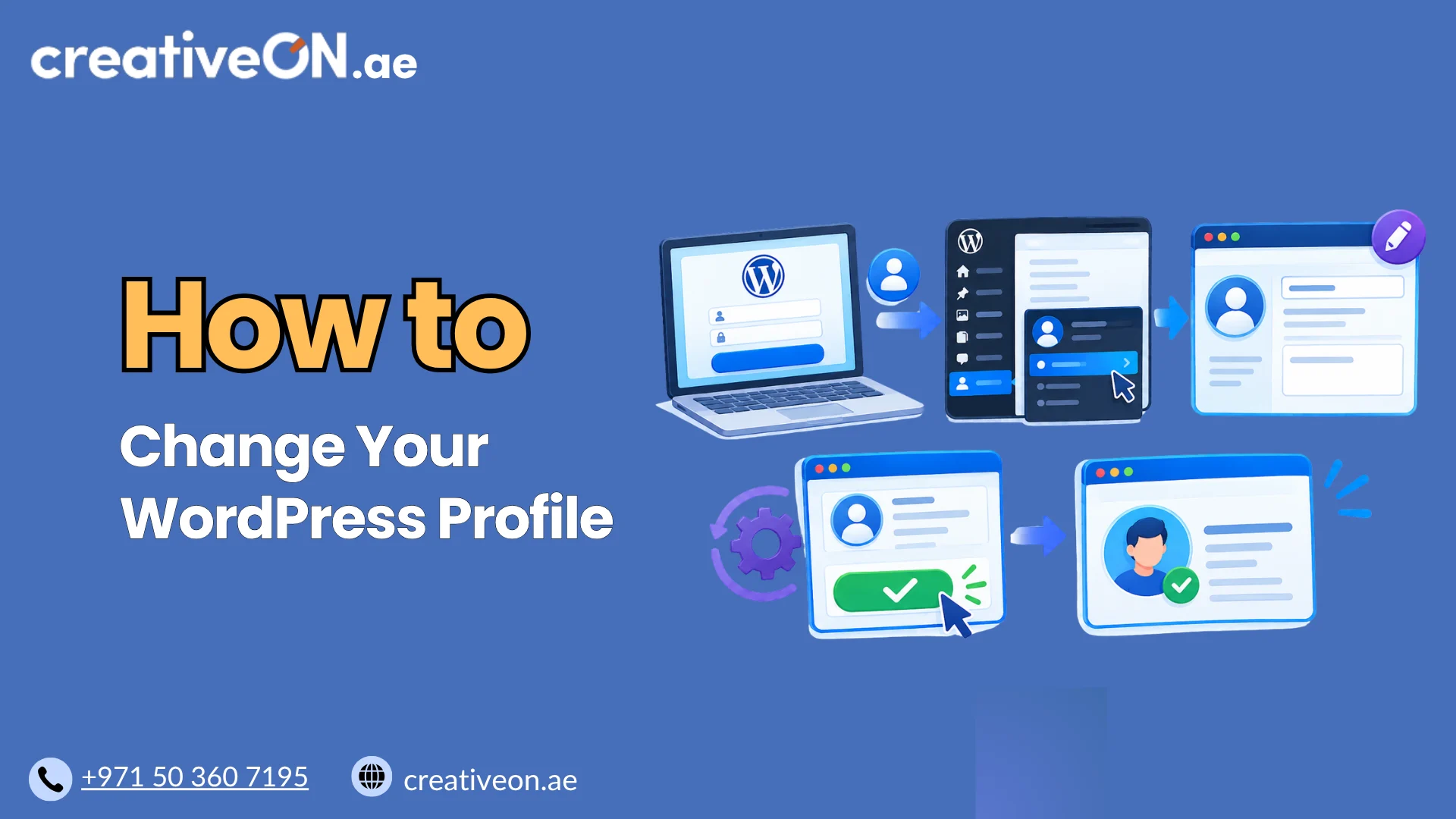
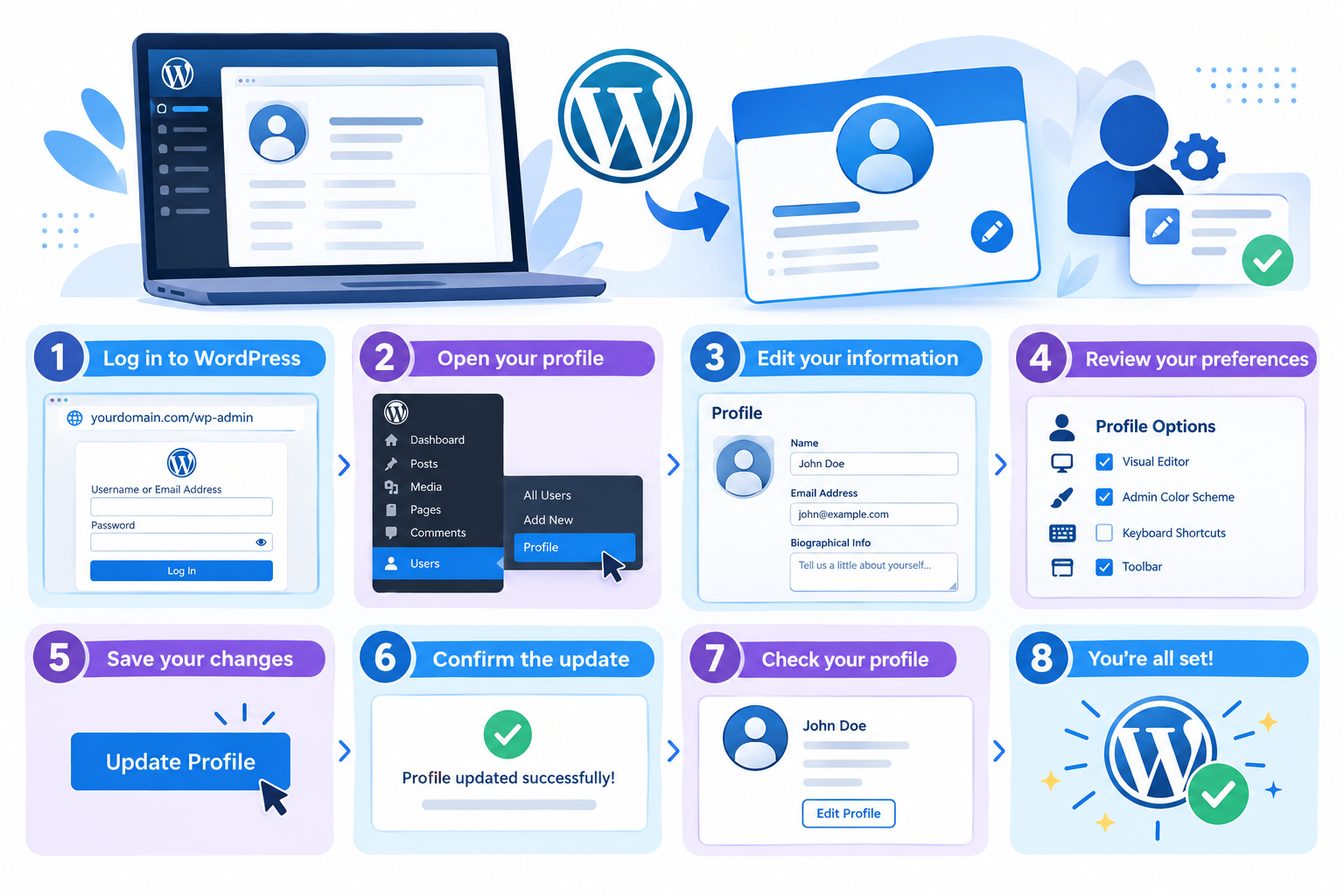
You can edit your profile directly from the WordPress dashboard. You must be logged in to your account to make changes.
Follow these steps:
- Log in to WordPress: Open your website’s login page, usually yourdomain.com/wp-admin, and sign in.
- Open your profile: Navigate to Users → Profile or Users → Your Profile. You may also find a profile link in the WordPress toolbar.
- Edit your information: Update the fields you need, such as your name, display name, email address, or biography.
- Review your preferences: Check your dashboard settings and other available profile options.
- Save your changes: Scroll to the bottom and click Update Profile.
- Confirm the changes: Look for the success notice. If you changed your email address, follow any confirmation instructions provided by WordPress.
Some profile changes affect only your account, while others, such as your display name and biography, may appear publicly depending on your theme and plugins.
How to Change Your WordPress Display Name
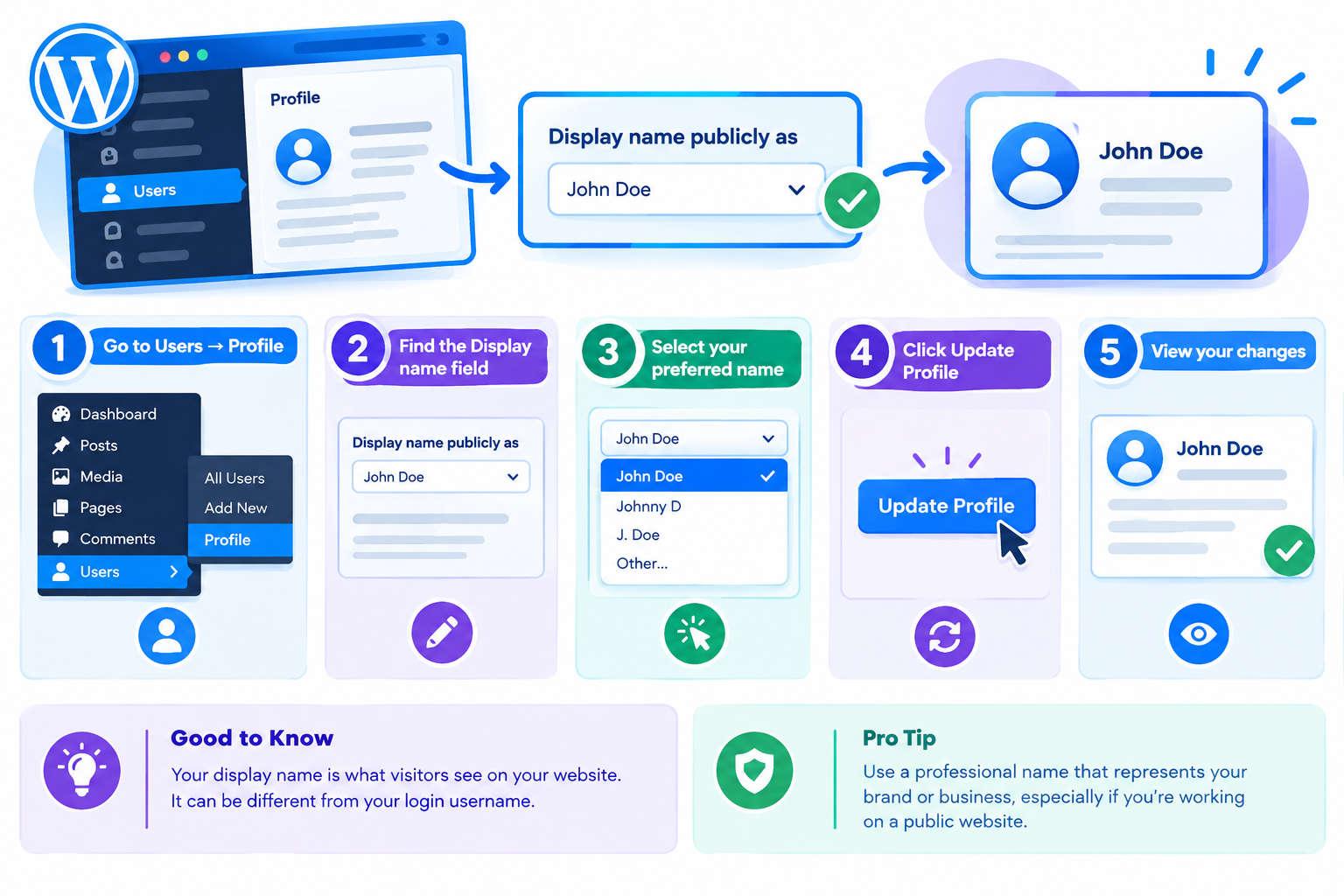
Your WordPress display name determines how your name appears in places where your website displays author information.
For example, you might want to display your full name on blog posts instead of your login username or use a consistent professional name for your business content.
To change your display name:
- Go to Users → Profile.
- Find the Name section.
- Enter your preferred first name, last name, or nickname.
- Find the Display name publicly as dropdown.
- Select the name you want to display.
- Click Update Profile.
Your selected display name may appear on blog posts, author pages, or comments, depending on your website’s configuration.
Can You Change Your WordPress Username?
WordPress does not normally provide a username-editing field in the standard profile editor.
Your username identifies your account for login purposes, whereas your display name controls the name shown publicly in supported areas of your website.
If you need to change your login username, use a well-established method and verify that you have a working backup before making account-level changes. Avoid direct database edits unless you understand the risks and have a reliable recovery plan.
How to Change Your WordPress Profile Email Address
Your profile email address belongs to your individual WordPress user account. It may be used for account notifications and password recovery.
To update it:
- Open Users → Profile.
- Locate the Email field.
- Enter your new email address.
- Click Update Profile.
- If WordPress requests confirmation, open the confirmation email and follow the instructions.
In the standard WordPress workflow, the existing address remains active until the new address is confirmed. Use an email address that you can access reliably.
Profile Email vs. WordPress Administration Email
These two settings serve different purposes:
- Profile email: Associated with an individual user account and managed under Users → Profile.
- Administration email: Associated with the website’s general administrative configuration and managed under Settings → General.
Changing your profile email does not automatically change the website’s administration email, or vice versa. The administration email has its own confirmation process.
If you want to change the site’s main administrative contact address, follow a dedicated guide on how to change the WordPress admin email.
How to Update Your WordPress Biography
The Biographical Info field allows you to add a short description about yourself.
This can be useful for business websites, blogs, and websites with multiple authors.
To update your biography:
- Navigate to Users → Profile.
- Find the Biographical Info field.
- Enter a concise description of your role, expertise, or professional background.
- Click Update Profile.
Keep your biography relevant to the content you publish. For example, a technical writer might briefly describe their experience with WordPress, website management, or hosting technologies.
Your biography will not necessarily appear automatically. Whether it is displayed depends on your theme, author template, and installed plugins.
Avoid including private information that you do not want publicly accessible.
How to Change Your WordPress Profile Picture
WordPress commonly uses Gravatar to display profile pictures associated with user email addresses. Some themes and plugins provide their own profile-image settings.
If your website uses Gravatar:
- Check the email address associated with your WordPress account.
- Visit Gravatar and sign in or create an account.
- Associate the appropriate email address with your Gravatar account.
- Upload or select the image you want to use.
- Return to your WordPress website and check whether the picture appears.
If your theme or a profile-image plugin provides a separate upload option, use that feature instead.
If your new picture does not appear immediately, clear relevant browser or website caches and check again. Some themes do not display profile pictures by default.
How to Change WordPress Profile Preferences
The WordPress profile editor includes settings that control your individual dashboard experience. Available options may vary depending on your WordPress version and installed plugins.
Common options include:
- Visual editor: Controls whether the visual editor is disabled when writing content.
- Admin color scheme: Changes the appearance of the WordPress dashboard.
- Keyboard shortcuts: Enables or disables supported keyboard shortcuts for comment moderation.
- Toolbar: Controls whether the WordPress toolbar appears when viewing the website while logged in.
- Language: Changes the dashboard language when the relevant option is available.
To update these settings, open Users → Profile, adjust the options you need, and click Update Profile.
These preferences generally affect your individual account rather than the website’s global configuration.
For example, changing your dashboard language does not necessarily change the language visitors see on your website. For that purpose, consult a separate guide on how to change the WordPress site language.
How to Change Your WordPress Password
You can also update your password from the profile editor while logged in.
Follow these steps:
- Navigate to Users → Profile.
- Find the Account Management section.
- Select the option to set a new password.
- Use the generated password or enter a strong password if the interface permits it.
- Save your changes using the available profile-update option.
Choose a unique password that you do not use on other websites. A password manager can help you generate and store secure credentials.
Depending on your WordPress version, you may also see an option such as Log Out Everywhere Else. Use it when appropriate to end other active sessions associated with your account.
If you cannot log in, use the password reset option on the login page instead. If you suspect unauthorized access, review your account activity and follow your website’s security procedures.
For broader protection, consult a dedicated WordPress security guide.
Common WordPress Profile Problems and Solutions
Sometimes profile changes do not appear immediately, or certain fields cannot be edited. These checks can help you identify common issues.
WordPress Profile Changes Are Not Saving
If your changes do not appear after saving:
- Make sure you clicked Update Profile.
- Check for validation messages or other errors.
- Confirm that your account is permitted to edit the relevant information.
- Reload the profile page and verify that the new information has been saved.
If the problem continues, investigate possible plugin conflicts or server-side errors with appropriate technical support.
WordPress Email Confirmation Is Not Arriving
If WordPress asks you to confirm a new email address but no message arrives:
- Check your spam or junk folder.
- Verify that the new address was entered correctly.
- Check whether the confirmation notice is still displayed in the dashboard.
- Review your website’s email-delivery configuration if the message does not arrive.
Do not assume the change is complete until WordPress confirms it.
Your Display Name or Biography Is Not Showing
First, verify that the correct information appears in your profile settings.
Next, check whether your theme displays author information on the relevant page. Some themes hide biographies or use custom author templates.
If the changes are saved but the public page remains unchanged, clear relevant caches and check the page again.
Your Profile Picture Is Not Updating
Confirm that the correct email address is linked to your Gravatar account or that your profile-image plugin is configured correctly.
Clear relevant caches if necessary. If the website does not support profile pictures in the relevant area, changing your Gravatar image alone may not make it visible.
WordPress Profile Management Best Practices
Follow these practices to keep your profile accurate and your account secure:
- Use your own account: Avoid sharing login credentials with employees, writers, or contractors.
- Choose a professional display name: Keep your public author identity consistent with your role or publishing name.
- Maintain an accessible email address: This helps you receive important account messages and recover access when needed.
- Use a strong password: Choose a unique password and consider enabling two-factor authentication through a suitable security solution.
- Review account access: Remove unnecessary access when employees or contractors no longer manage your website.
- Avoid exposing private information: Only include information in your biography that you are comfortable making public.
- Keep WordPress updated: Apply appropriate core, theme, and plugin updates to reduce avoidable security risks.
These practices help keep individual user accounts organized without requiring unnecessary changes to your website’s overall configuration.