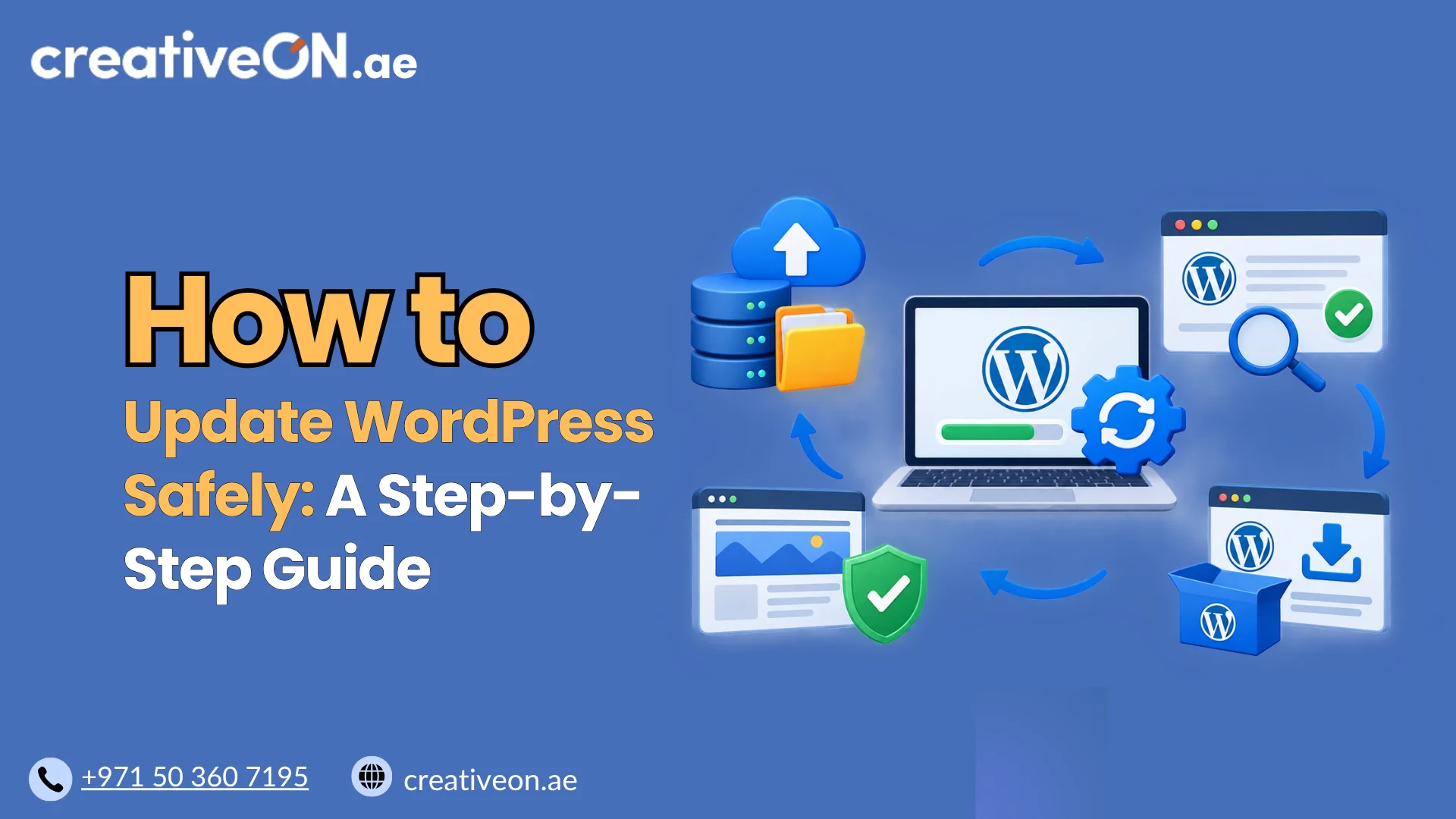
How to Update WordPress Safely: A Step-by-Step Guide
Keeping WordPress updated helps your website stay compatible, secure, and reliable. WordPress updates can include security fixes, bug fixes, performance improvements, and new features. If you are wondering how to update WordPress, the process is usually simple from the WordPress dashboard. However, taking a few precautions before updating can reduce the risk of plugin conflicts, […]
Keeping WordPress updated helps your website stay compatible, secure, and reliable. WordPress updates can include security fixes, bug fixes, performance improvements, and new features.
If you are wondering how to update WordPress, the process is usually simple from the WordPress dashboard. However, taking a few precautions before updating can reduce the risk of plugin conflicts, theme problems, or unexpected downtime.
This guide explains how to update WordPress core, plugins, and themes safely, how automatic updates work, and what to do if an update causes a problem.
Why Should You Update WordPress?
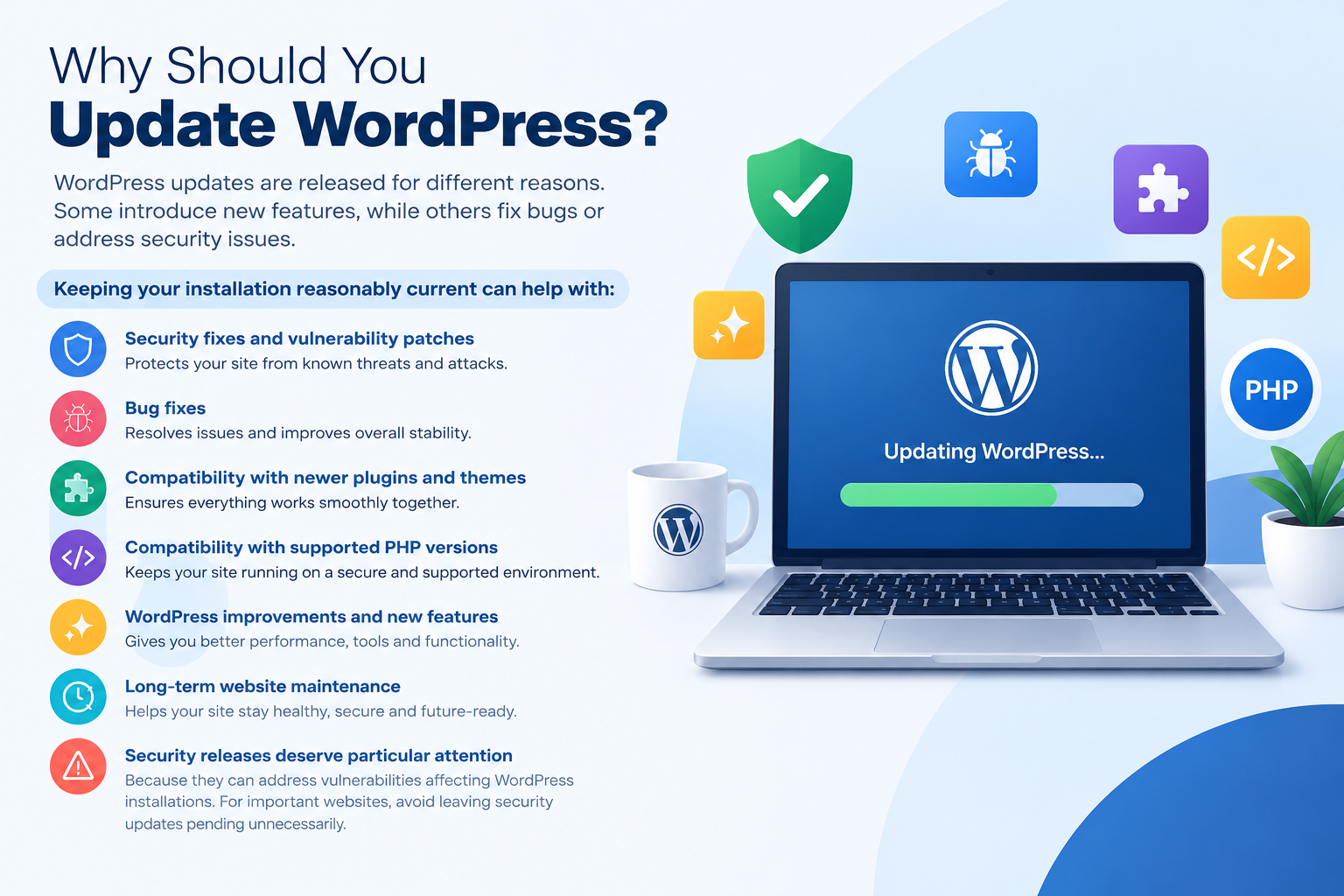
WordPress updates are released for different reasons. Some introduce new features, while others fix bugs or address security issues.
Keeping your installation reasonably current can help with:
- Security fixes and vulnerability patches
- Bug fixes
- Compatibility with newer plugins and themes
- Compatibility with supported PHP versions
- WordPress improvements and new features
- Long-term website maintenance
Security releases deserve particular attention because they can address vulnerabilities affecting WordPress installations. For important websites, avoid leaving security updates pending unnecessarily.
Are All WordPress Updates the Same?
Not every WordPress release requires the same approach.
Security and maintenance releases generally contain fixes and should be applied promptly, particularly when a security issue is addressed.
Major feature releases can introduce larger changes. If your website depends on several plugins, a page builder, WooCommerce, or custom functionality, testing a major update on a staging website first can reduce the risk of compatibility problems.
You don’t need to treat every update as a major project. The appropriate approach depends on the type of update and the complexity of your website.
Before Updating WordPress
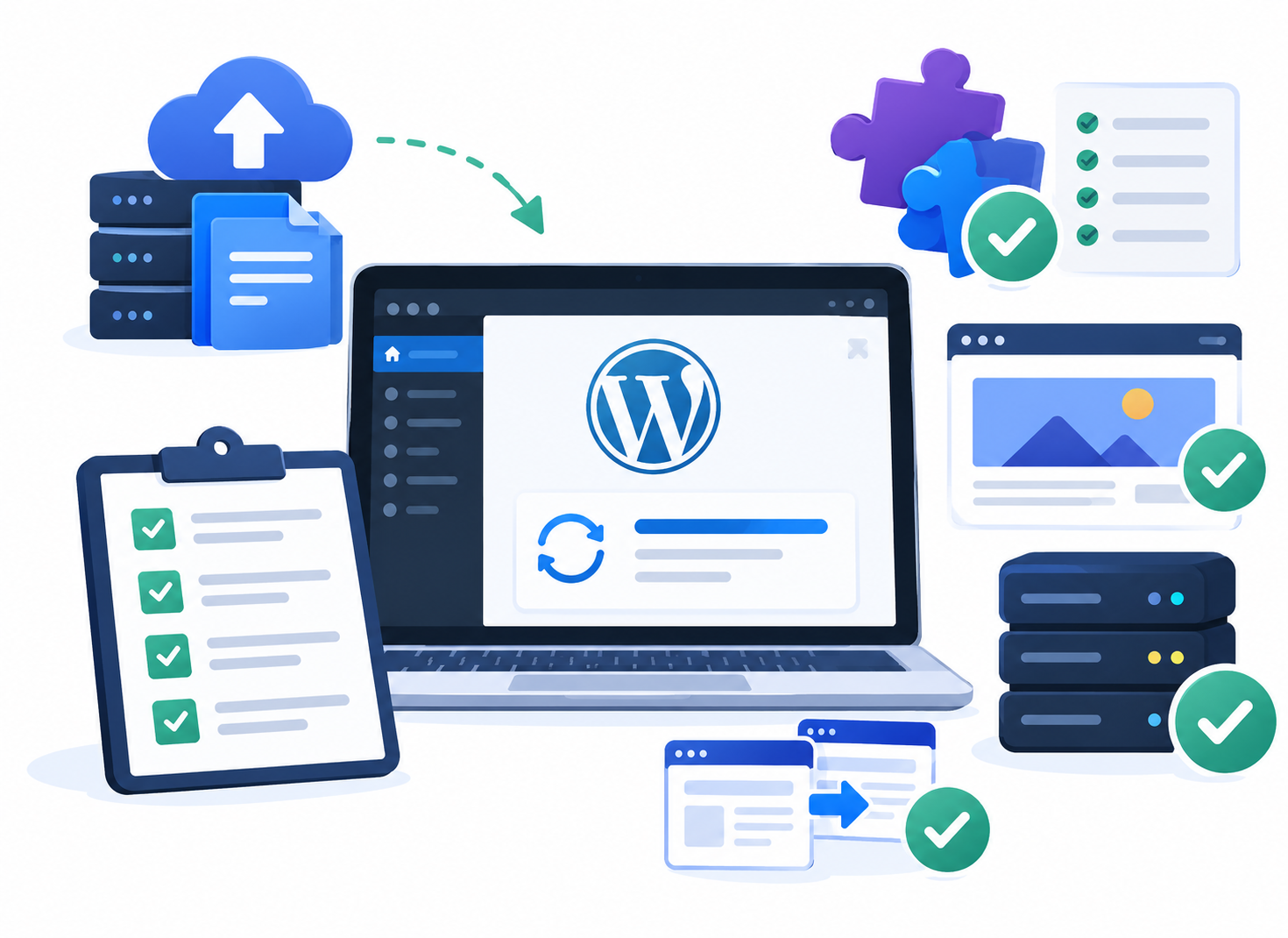
A few simple checks can make the update process safer.
1. Check Your Current WordPress Version
Log in to your WordPress dashboard and go to:
Dashboard → Updates
The Updates screen shows your installed WordPress version and whether an update is available.
You can also see available updates for plugins and themes from the same area.
2. Create a Recent Backup
Before updating an important website, create a current backup.
A complete WordPress backup should include both:
- Website files
- WordPress database
Your files include items such as plugins, themes, uploads, and other WordPress files. The database contains important website content and configuration information.
You don’t need to manage the backup process from this article. For detailed backup procedures, see our WordPress Backup Guide.
3. Check Plugin and Theme Compatibility
Older plugins and themes can sometimes cause compatibility problems after a WordPress update.
Before a major update, check whether your important plugins and theme are actively maintained and compatible with the newer WordPress version.
Pay particular attention to websites using:
- WooCommerce
- Page builders
- Membership systems
- Custom themes
- Business-critical plugins
- Third-party integrations
4. Consider Using a Staging Website
For a business-critical website, testing an update on staging before applying it to the live website can be a safer approach.
A staging environment allows you to check whether WordPress, your theme, and important plugins continue to work together before changing the production website.
For detailed staging practices, see our WordPress Staging Environment Guide.
How to Update WordPress Core
The simplest way to update WordPress is through the administration dashboard.
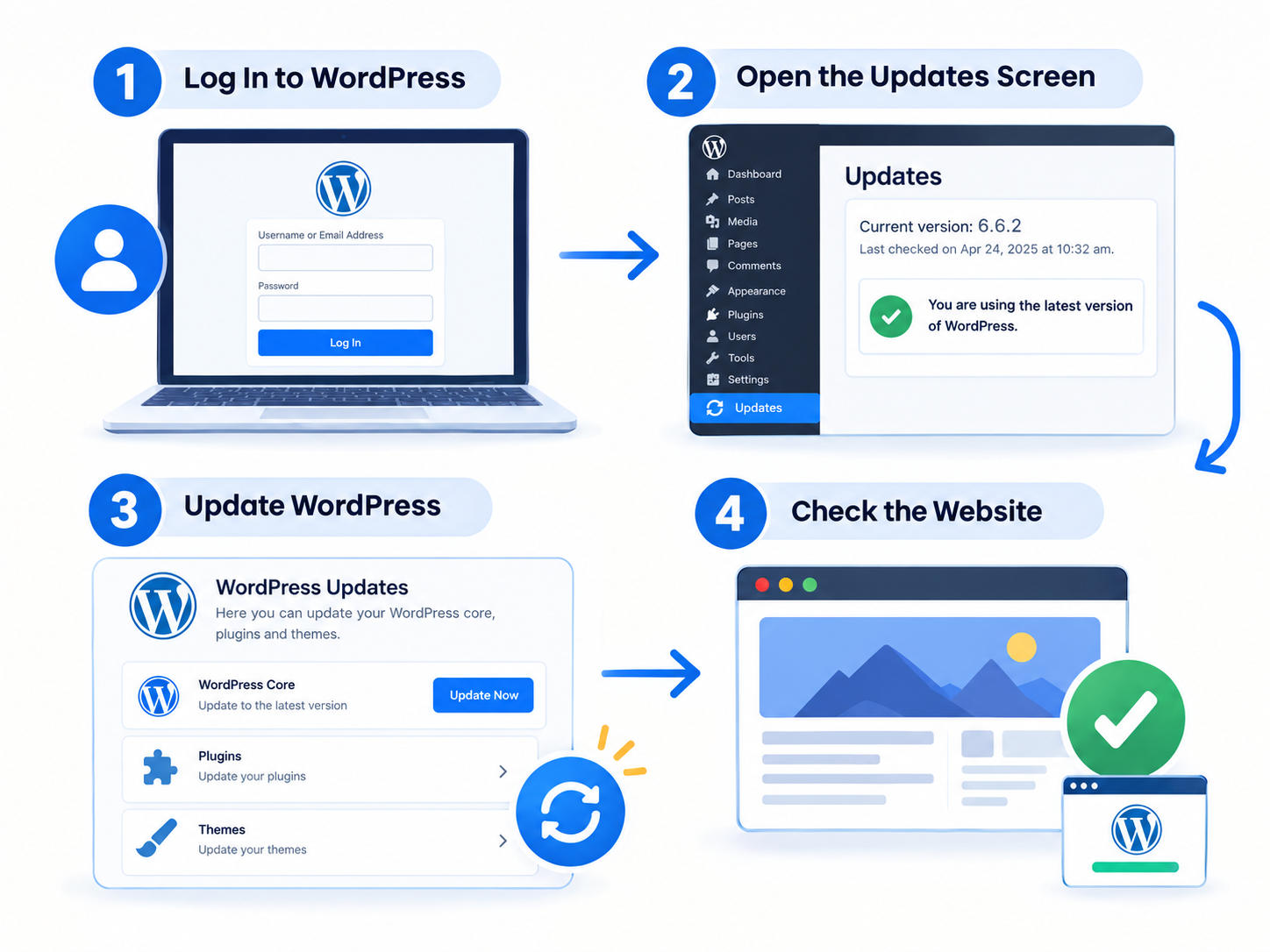
Step 1: Log In to WordPress
Sign in to your WordPress admin dashboard.
If a new WordPress version is available, WordPress will normally display an update notification.
Step 2: Open the Updates Screen
Go to:
Dashboard → Updates
This screen shows available WordPress core, plugin, and theme updates.
Step 3: Update WordPress
If a new WordPress version is available, select the option to update WordPress.
During the process, WordPress may temporarily place the website into maintenance mode. Avoid interrupting the update while it is running.
Step 4: Check the Website
Once the update finishes, open your website and check important functionality.
At minimum, test:
- Homepage
- Main navigation
- Contact forms
- Login
- Important landing pages
- Business forms
- WooCommerce checkout, if applicable
If everything works normally, the WordPress core update is complete.
How to Update WordPress Plugins
You can update plugins from:
Dashboard → Updates
or:
Plugins → Installed Plugins
When a plugin update is available, WordPress displays an option to update it.
For a simple website, updating several compatible plugins may be straightforward. For an important business website, however, updating components in a controlled manner can make troubleshooting easier.
A practical approach is:
- Make sure you have a recent backup.
- Check compatibility for important plugins.
- Test major changes on staging when appropriate.
- Update the plugin.
- Check the website afterward.
If something breaks immediately after a plugin update, you have a much better chance of identifying the cause when you know exactly what changed.
How to Update a WordPress Theme
You can update themes from:
Dashboard → Updates
or:
Appearance → Themes
Before updating a theme, check whether your website contains custom modifications.
Be Careful With Customized Themes
If you have directly modified files in a parent theme, an update can overwrite those changes.
For custom functionality, using a child theme or an appropriate WordPress customization method is generally safer than modifying the parent theme directly.
If a theme was specifically customized for your business, check with the developer before applying a major update.
How WordPress Automatic Updates Work
WordPress supports automatic updates for certain components.
Plugin and Theme Automatic Updates
You can enable automatic updates for supported plugins and themes from their management screens.
For plugins, go to:
Plugins → Installed Plugins
For themes, go to:
Appearance → Themes
The exact controls can vary depending on your WordPress installation, hosting configuration, or other software installed on the website.
Automatic updates can be convenient, particularly for simple websites, but they do not remove the need for backups and regular website checks.
WordPress Core Automatic Updates
WordPress can automatically apply certain maintenance and security releases.
Larger feature releases can follow different update behavior depending on the site’s configuration.
For business-critical websites, it is still useful to understand which updates are being applied and to maintain a reliable backup.
Should You Update WordPress Immediately?
The answer depends on the type of update.
Security Updates
Apply security updates promptly. Delaying a security fix can leave a known vulnerability unaddressed.
Maintenance Updates
Routine maintenance releases generally contain bug fixes and improvements. Keeping WordPress current helps avoid running an unnecessarily old version.
Major Releases
For a complex or business-critical website, consider testing a major WordPress release on staging before applying it to the live site.
The objective isn’t to update blindly as quickly as possible. It is to keep the website current while managing compatibility risks sensibly.
What Happens If a WordPress Update Breaks Your Website?
Most updates complete without problems, but compatibility issues can occasionally occur.
You might notice:
- A broken page layout
- A plugin no longer working
- PHP errors
- A blank or partially loaded page
- Problems with forms
- WooCommerce functionality failing
- WordPress remaining in maintenance mode
If the problem appears immediately after an update, first identify what changed.
If a Plugin Caused the Problem
If you can access the WordPress dashboard, temporarily deactivate the suspected plugin and check whether the website returns to normal.
Then check the plugin developer’s compatibility information or look for a newer version.
If the WordPress Update Failed
Don’t repeatedly retry the update without identifying the problem.
Check for:
- Available disk space
- File permission problems
- Server or PHP errors
- Plugin and theme compatibility
- Hosting-related errors
If the update cannot be completed safely, restore your website from a known-good backup or contact your hosting provider or WordPress developer.
If the Website Is Stuck in Maintenance Mode
WordPress normally removes its temporary maintenance state when an update completes.
If an interrupted update leaves the website stuck in maintenance mode, the problem may require server-level file access to remove the temporary maintenance file.
If you’re not comfortable working with WordPress files, ask your hosting provider for assistance rather than making changes blindly.
Will Updating WordPress Delete My Content?
A normal WordPress core update is designed to update WordPress software without deleting your posts, pages, media, or other database content.
However, you should still create a current backup before updating.
There is an important distinction when custom files have been modified directly. Updates can overwrite changes made to WordPress core files or parent theme files.
This is another reason to avoid making custom modifications directly to files that WordPress or a theme update may replace.
Common WordPress Update Mistakes
Avoid these common mistakes when updating WordPress.
Updating Without a Recent Backup
If an update causes a serious problem, a backup provides a recovery option.
Ignoring Plugin Compatibility
A plugin that has not been maintained may not work correctly with a newer WordPress version.
Updating a Customized Theme Without Checking It
Theme updates can overwrite direct modifications to theme files.
Updating a Critical Website Without Testing
Complex websites often depend on multiple plugins and integrations. Testing major changes on staging can reduce the risk of unexpected problems.
Updating Everything and Making Other Changes at the Same Time
If you update WordPress, change your theme, install plugins, and modify settings simultaneously, troubleshooting becomes much harder.
Make significant changes in a controlled manner whenever possible.
Best Practices for Updating WordPress
Use this simple checklist when updating a WordPress website:
- Check the available WordPress update.
- Create a recent backup.
- Check important plugin and theme compatibility.
- Use staging for major changes on critical websites.
- Apply security updates promptly.
- Avoid interrupting an update while it is running.
- Check the website after updating.
- Test forms, login, checkout, and other business-critical functions.
- Keep plugins and themes maintained.
- Have a recovery option if something goes wrong.
Updating WordPress is only one part of keeping a website healthy. For broader security recommendations, use our dedicated WordPress Security Guide rather than combining security practices with this update guide.